

What this is
The source report shows the ingestion health and status of a single source. It is available on the source details page under the SOURCE REPORT tab, and it is broadly divided into two panels:- Data Ingestion Details — lifetime record counts for the source, the split between records received, in progress, ingested and failed, and the ingestion efficiency.
- File Ingestion Details — one row per file shared with Zeotap CDP, with its ingestion status for real-time and batch activation, its record counts, its size and its ingestion logs. This panel is only visible for batch data sources where data is being shared in files.
Prerequisites
- The source is created and its mapping is saved. Ingestion begins only after the source is mapped.
- The source has completed at least one ingestion attempt, so the report has data to display.
- You have permission to view source reports for the source you are investigating.
Open the source report
Open Sources
Open the source
Select the SOURCE REPORT tab
Panel 1: Data Ingestion Details

Figure 1 — The Data Ingestion Details panel on the SOURCE REPORT tab.
- Total Records Received — the total records received, minus the total in-progress records.
- Total Records In Progress — the count of records that are being ingested.
- Total Records Ingested — the count of records that are ingested and available for activation.
- Total Records Failed — the count of records that failed to ingest during ingestion.
- Pie chart — a visual representation of the records received versus in progress, versus failed, versus ingested.
- Ingestion Efficiency — the percentage of total records ingested versus total records received (for the ingested records). If the status is Failed, the ingestion efficiency is shown as NA.
- Download Report — clicking Download Report downloads an image snapshot of the source report in
.pngformat.
View Graph
View Graph is only visible for streaming sources where Zeotap fetches or collects data. It displays the trend graph of the data received and processed for the source, by status. You can view the graph for periods ranging from the last 7 to 90 days, or set a custom date range, and you can filter by status.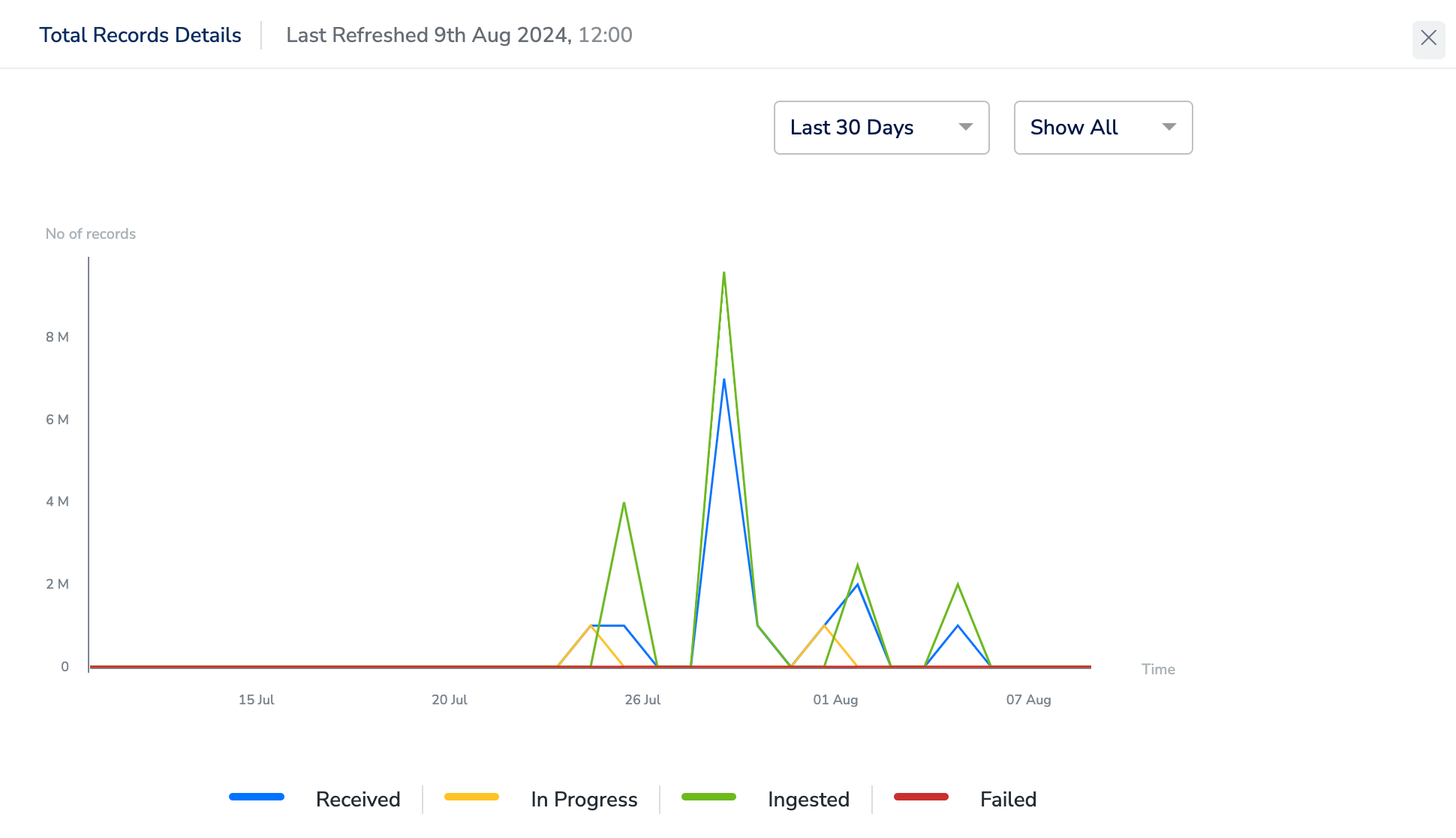
Figure 2 — The trend graph of data received and processed for a streaming source, with the date-range and status filters.
Panel 2: File Ingestion Details
The File Ingestion Details panel provides information about the file name, the status of ingestion for both real-time and batch activations, the count of records ingested versus the total record count, the file size (for flat files), and logs related to the ingestion process. This panel is only visible for batch data sources where data is being shared in files.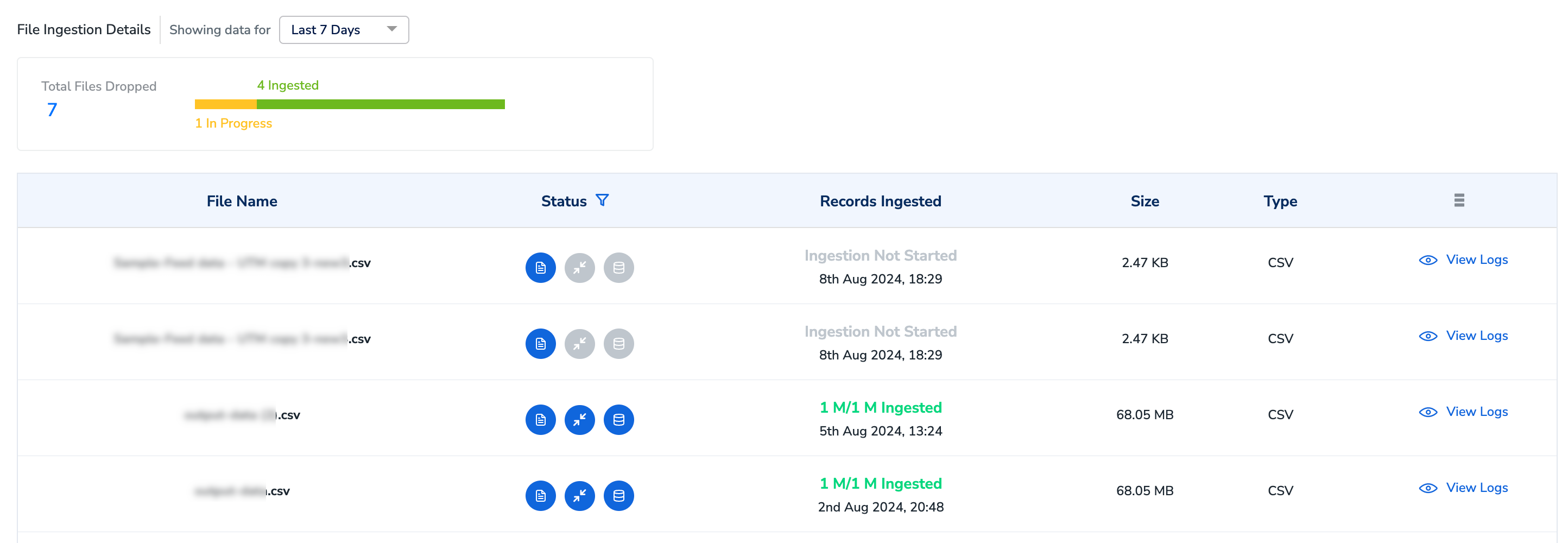
Figure 3 — The File Ingestion Details panel, one row per file shared with Zeotap CDP.
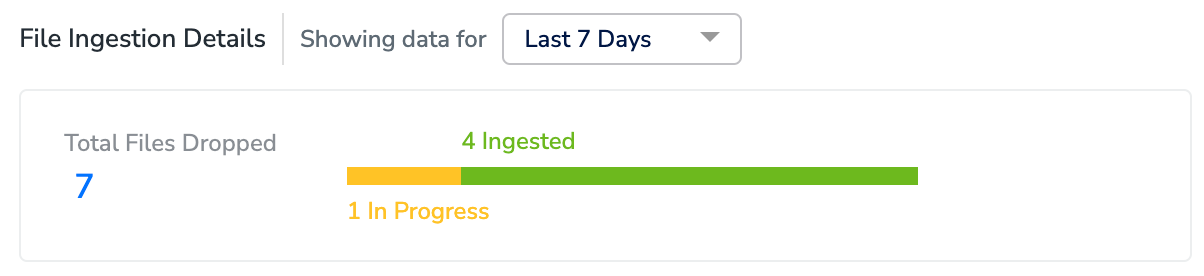
Figure 4 — The date filter, and the count of files dropped with their status.
Columns in the File Ingestion Details panel
Status indicators
The Status column carries three indicators: one for the file drop itself, one for real-time activation and one for batch activation. A file becomes ready for real-time activation first — that is an intermediate state before the file moves on to batch activation.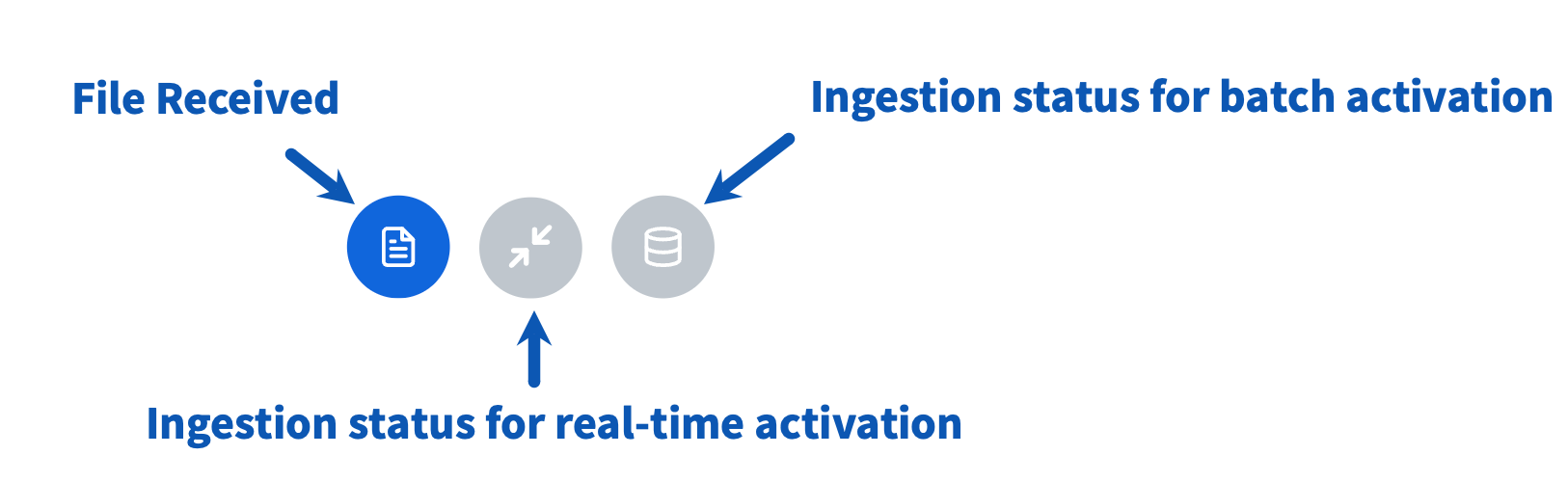
Figure 5 — The status of file drop and ingestion, shown for both real-time and batch activation types.
| Indicator | What it means |
|---|---|
 | File received. |
 | Ingestion not started for real-time activation. |
 | Ingestion for real-time activation, for example through Journeys, is in progress. |
 | Ingestion complete for real-time activation. |
 | Ingestion not started for batch activation. |
 | Ingestion for batch activation, through Audiences, is in progress. |
 | Ingestion is complete for batch activation. |
Ingestion logs
View Logs provides a detailed view of the file ingestion and its status. It also displays a list of errors identified in case of failure. To match an error title to the change required in your source data, see Understanding the Ingestion Log Error.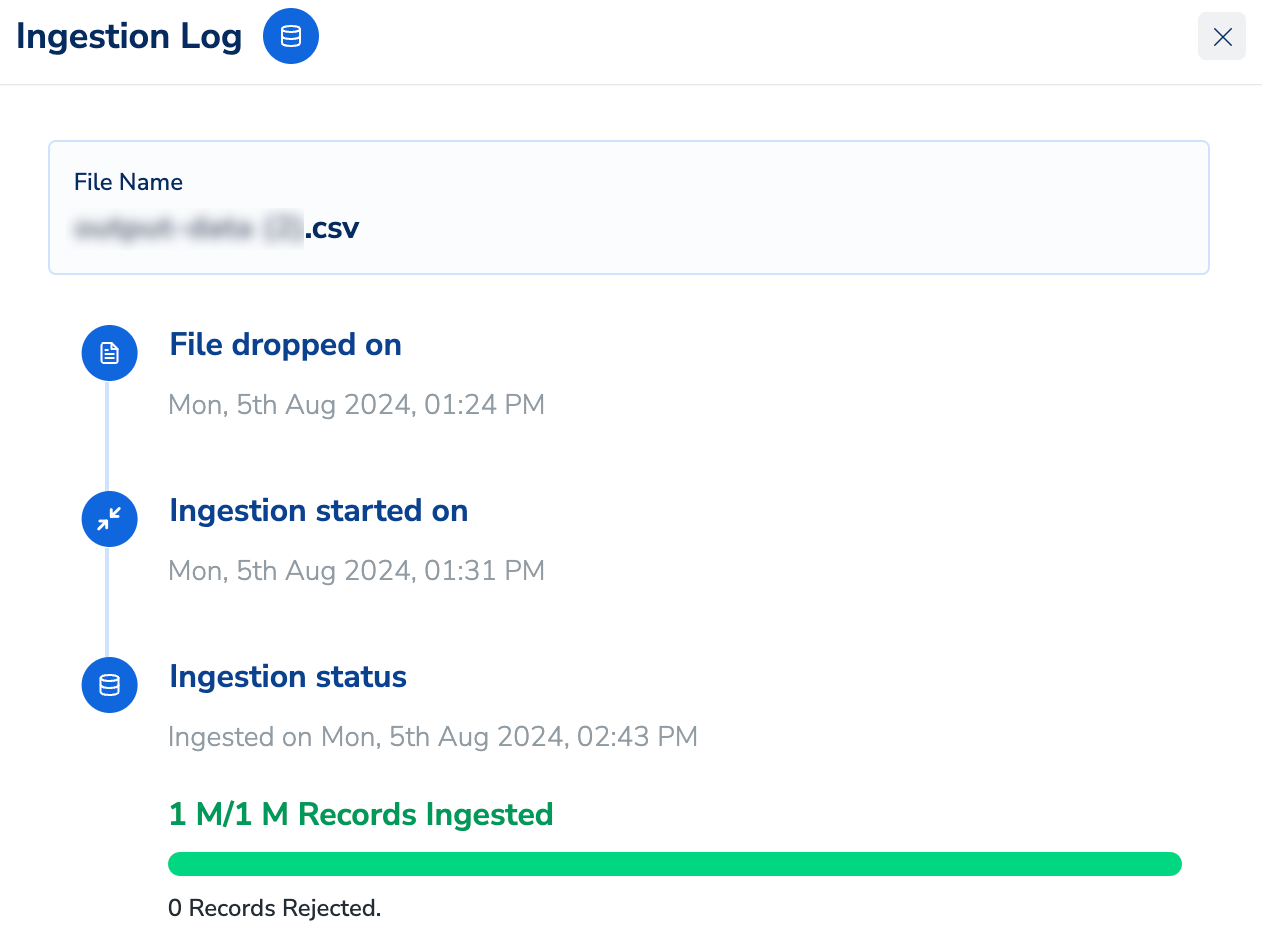
Figure 6 — The Ingestion Log opened from View Logs, showing when the file was dropped, when ingestion started, and the records ingested versus rejected.
Verify that a file was ingested
Open the SOURCE REPORT tab
Set the date filter to cover the file drop
Find the file and read its status
Compare the record counts
Troubleshooting
- The File Ingestion Details panel is not visible. The panel is only visible for batch data sources where data is being shared in files. A streaming source shows only the Data Ingestion Details panel.
- View Graph is not available. The graph is only visible for streaming sources where Zeotap fetches or collects data.
- Records are counted as failed. Open View Logs for the file to read the errors identified, then correct the source data using Understanding the Ingestion Log Error and re-ingest.
FAQ
How soon after mapping does data appear in the source report?
How soon after mapping does data appear in the source report?
Why does Ingestion Efficiency show NA?
Why does Ingestion Efficiency show NA?
Why does one file show two different ingestion statuses?
Why does one file show two different ingestion statuses?
Can I export the source report?
Can I export the source report?
.png format.