Search using one or more identifiers
You can search for customer profiles using one or more identifiers. In the case of your default ID strategy, you can search based on any ID. However, for the high-fidelity strategy, you can search using the primary or secondary IDs that are part of your ID strategy. Disabled IDs are not available for lookup. Last five profiles viewed by you will be listed down in the Recently Viewed Profiles section, below the Pinned Profiles section. You can pin maximum 2 profiles in this section. You can use the profile listing CTA to either pin or delete a user profile.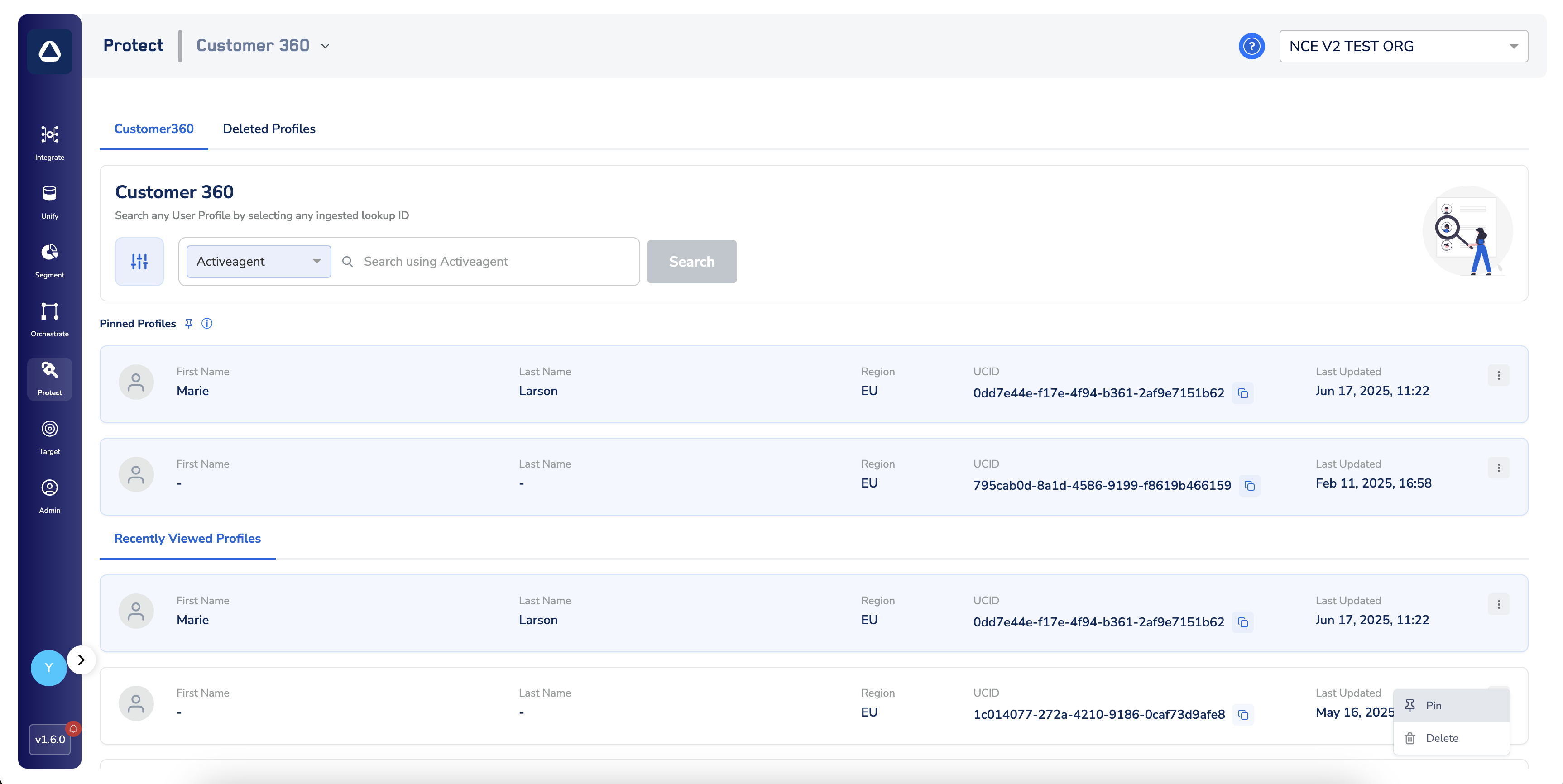
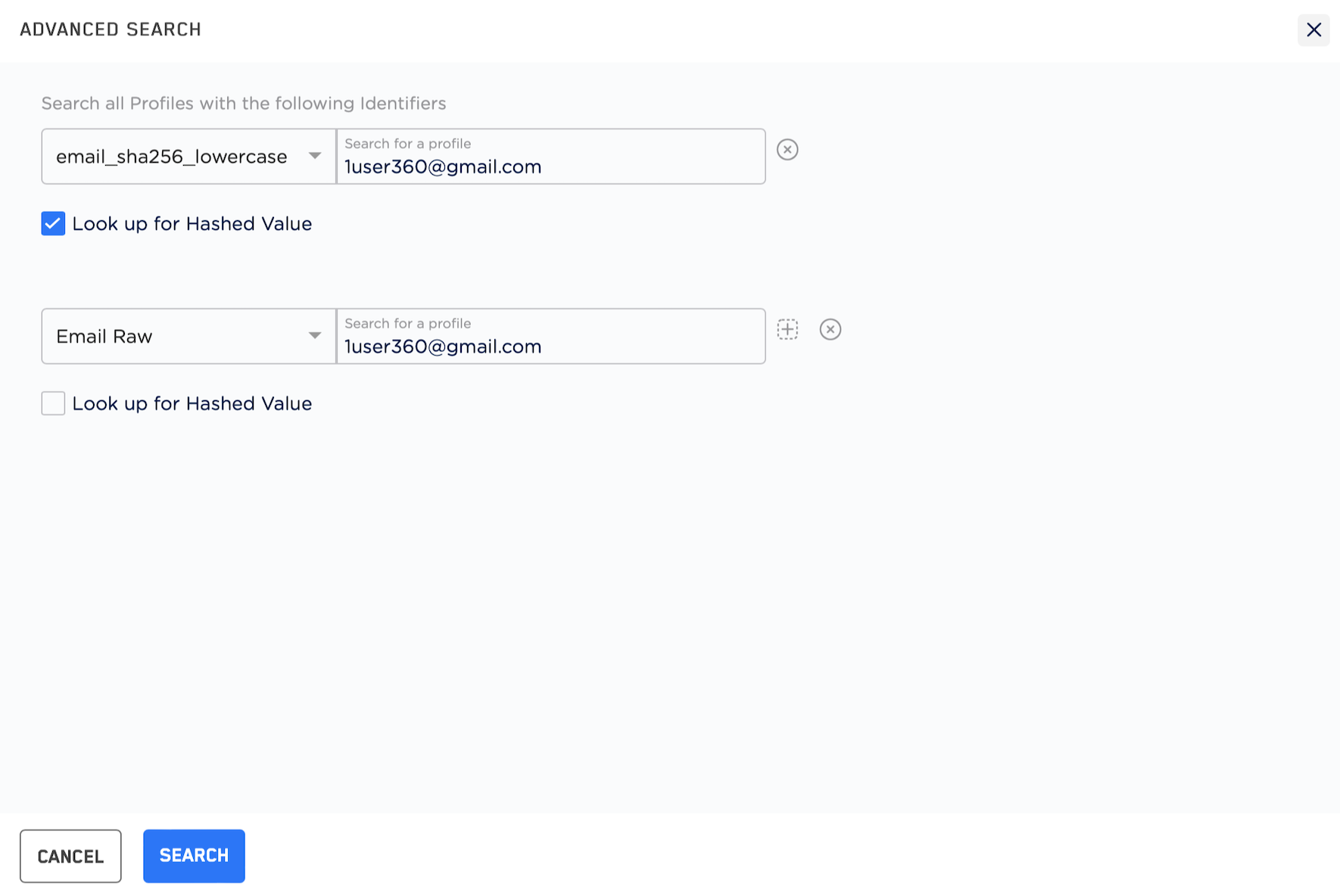
Understanding the Advance Search
You can search for user profiles using a combination of more than one identifier. Currently, we support a combination of five IDs in advance search.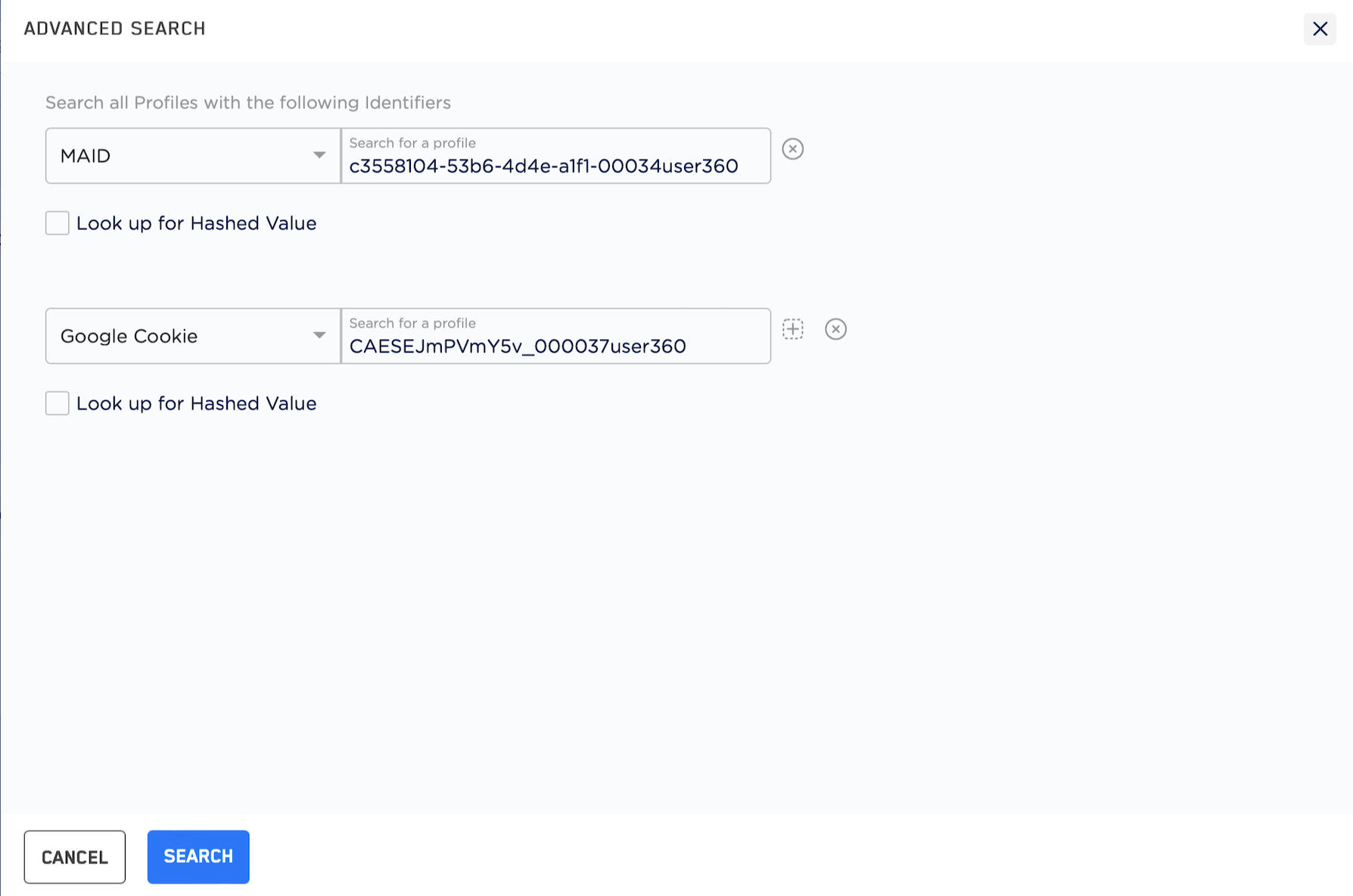
Viewing a User Profile
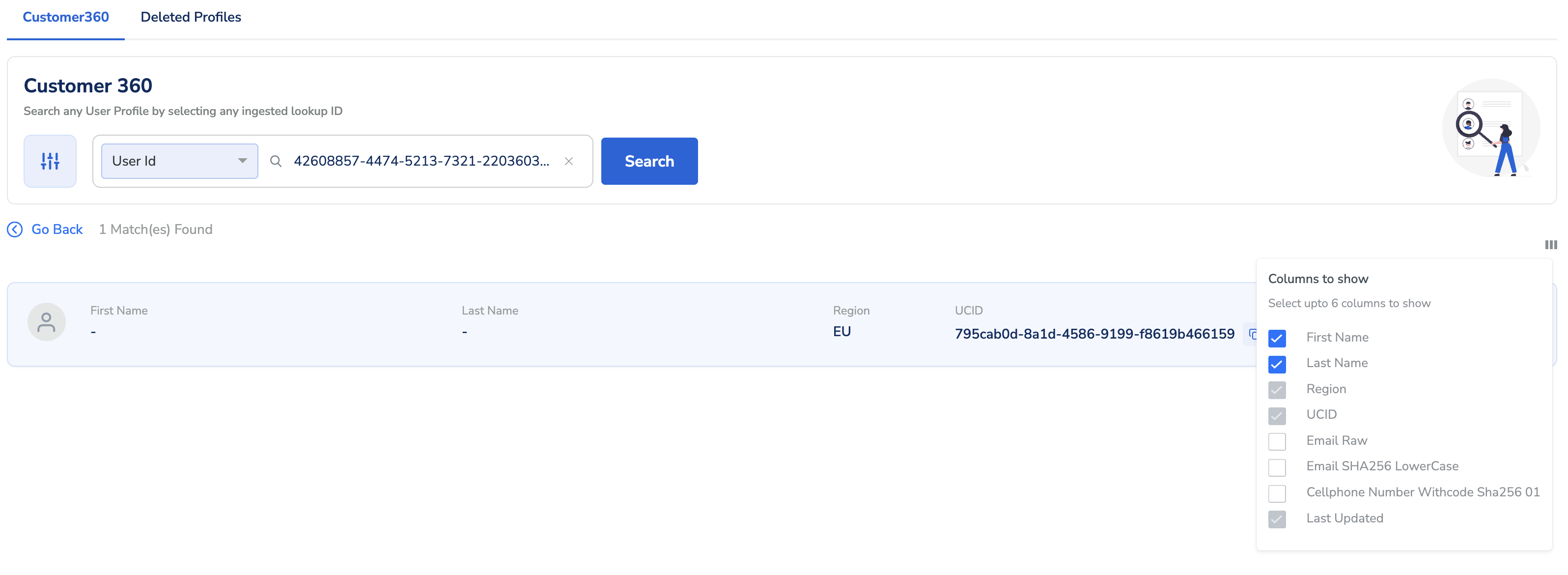
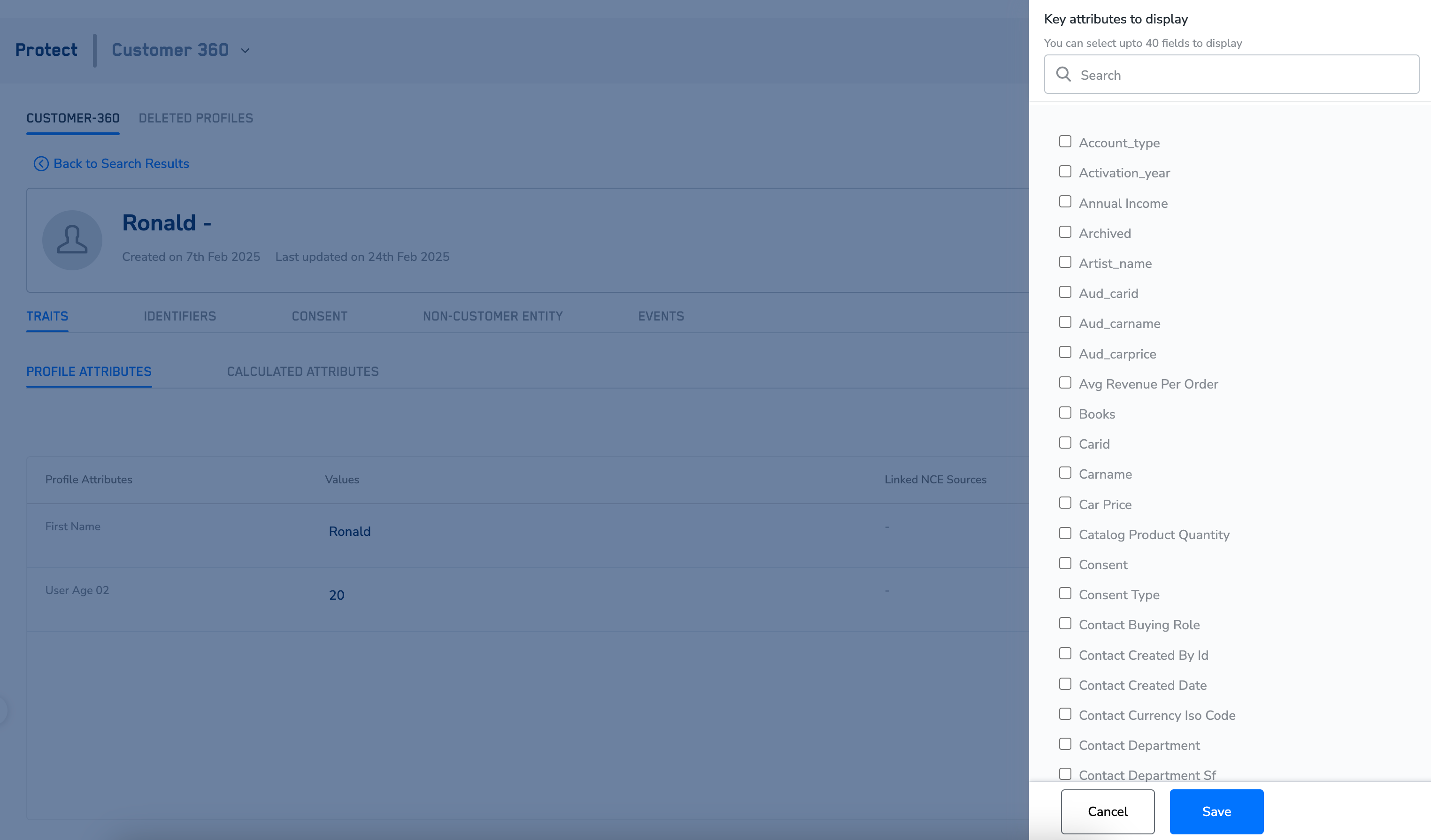
One or more user profiles are displayed based on the identifiers that you search for. You can view the user profiles in a Quick view or a Detailed view. The image below represents the Quick view of the user profiles. Click on each card to get the detailed view.NoteYou can also customise your view by choosing the required identifiers from the standard set of attributes that are available for your organisation’s catalogue.
Detailed View
To understand what appears in the detailed view, click one of the user profile cards.Traits
Here you can view all the profile attributes unified for the user.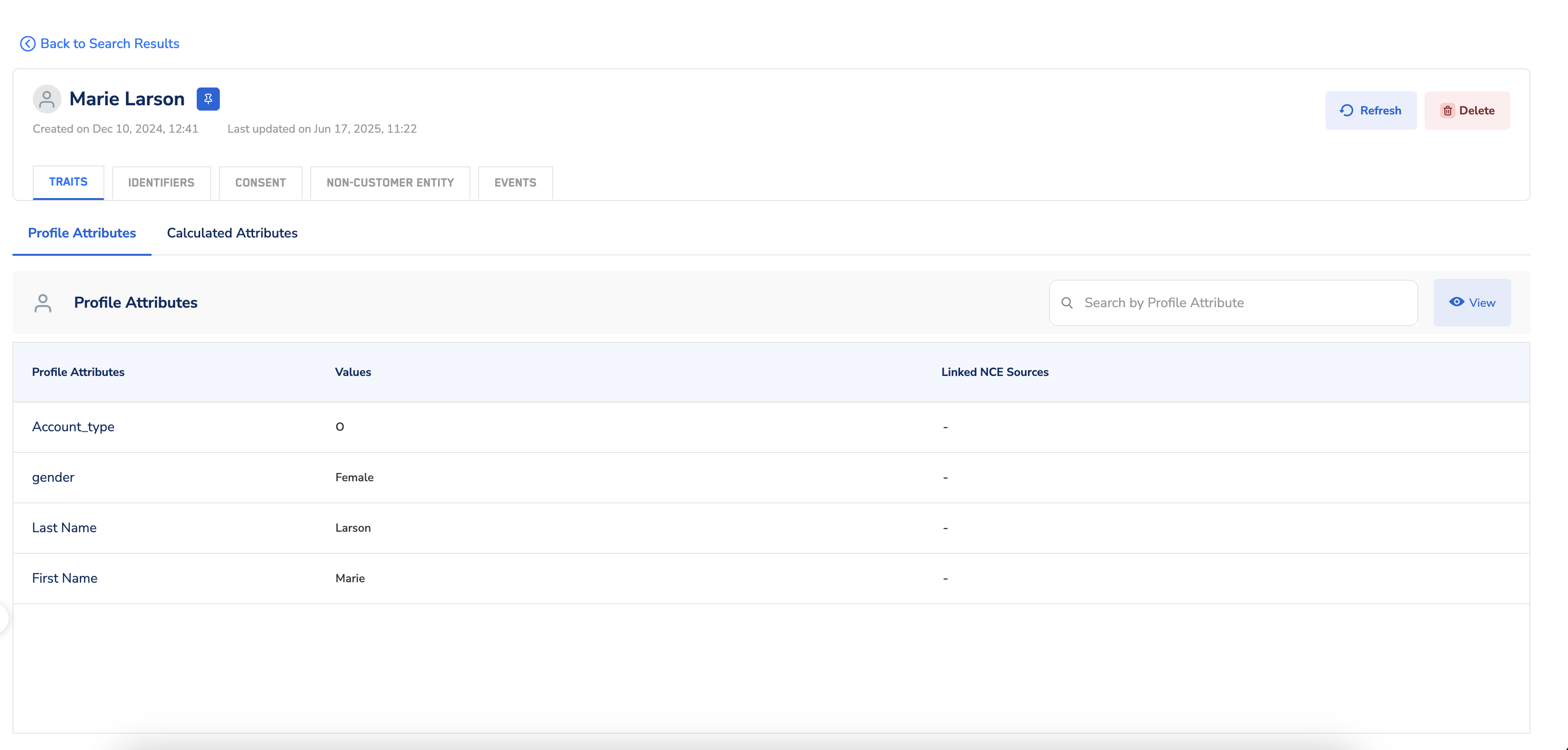
Identifiers
Here you can view all the identifiers unified for the user. If you are seeing more than one identifier against your ID attribute it is because of the number of ID configuration set up for that attribute. You can review the configuration under the Catalogue section of this ID attribute. For identifiers with metadata information present, you can view the ID meta and ID consent data by clicking on the view metadata information, in front of each associated ID. Users with CDP Admin or Integrations Admin roles will be able to unmask the RAW PII and other masked attribute values for traits and identifiers, with the unhide eye button.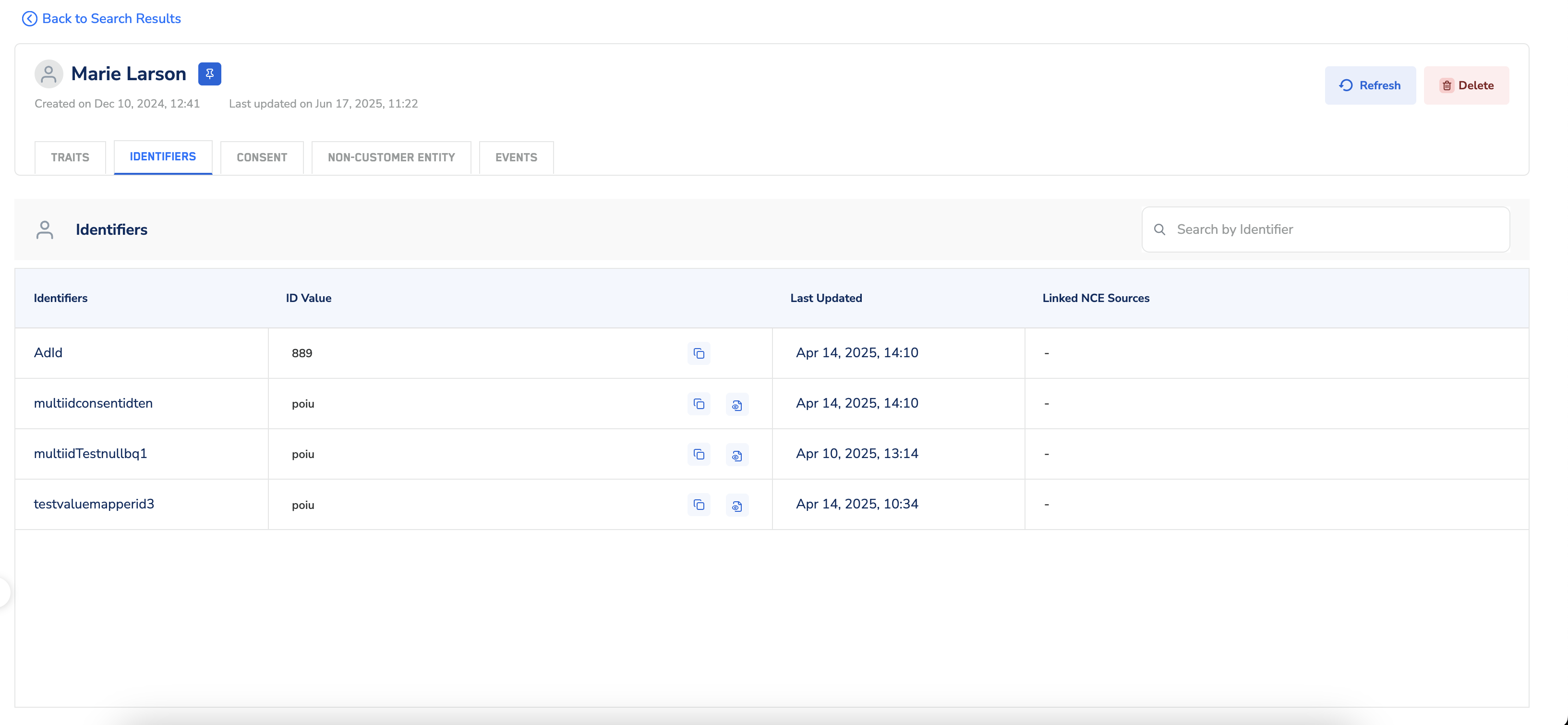
Consent
Here you can view the consent purposes and marketing preferences of the user.- Consent Purposes
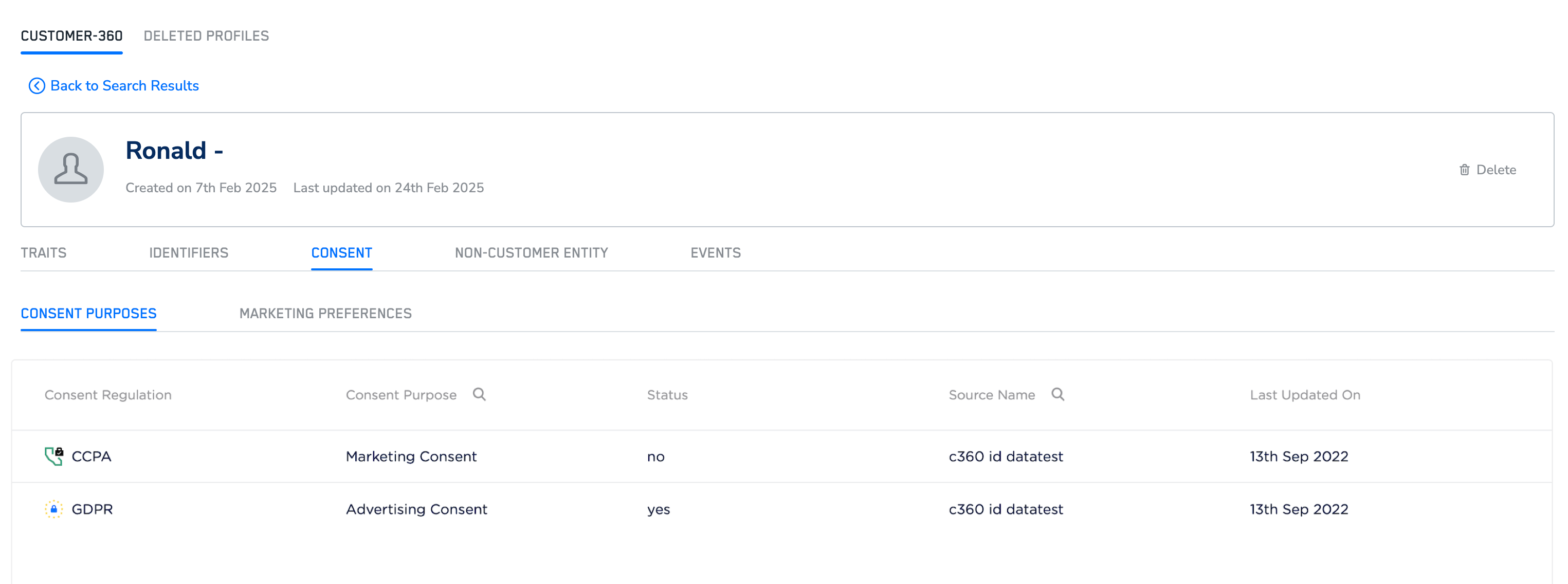
- Marketing Preferences
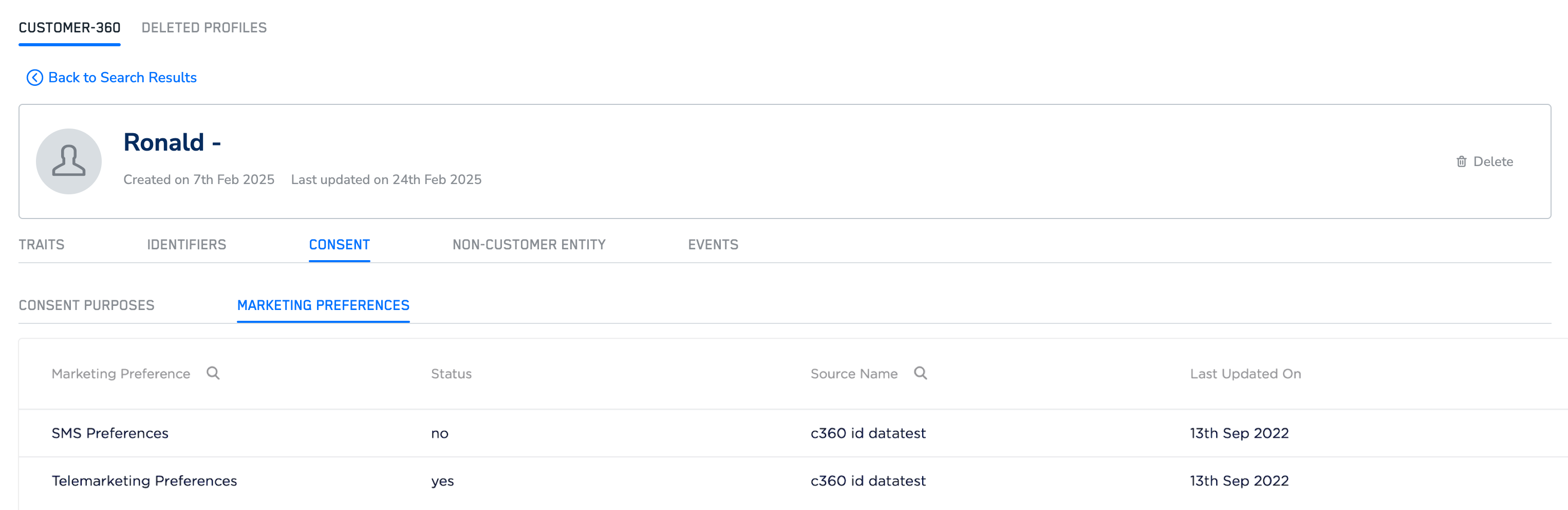
Non-Customer Entity
Here, you can view details of the user’s Non-Customer Entity (NCE) data, including the NCE source name, Join Key, and other related NCE data as shown in the image below.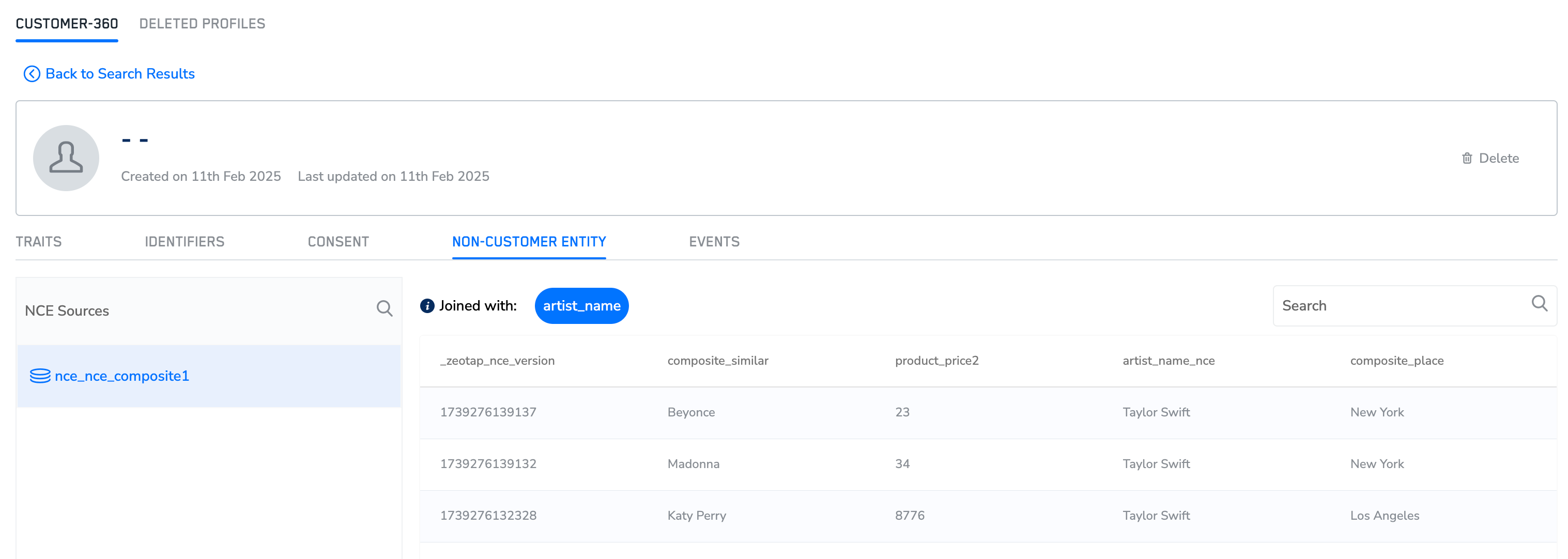
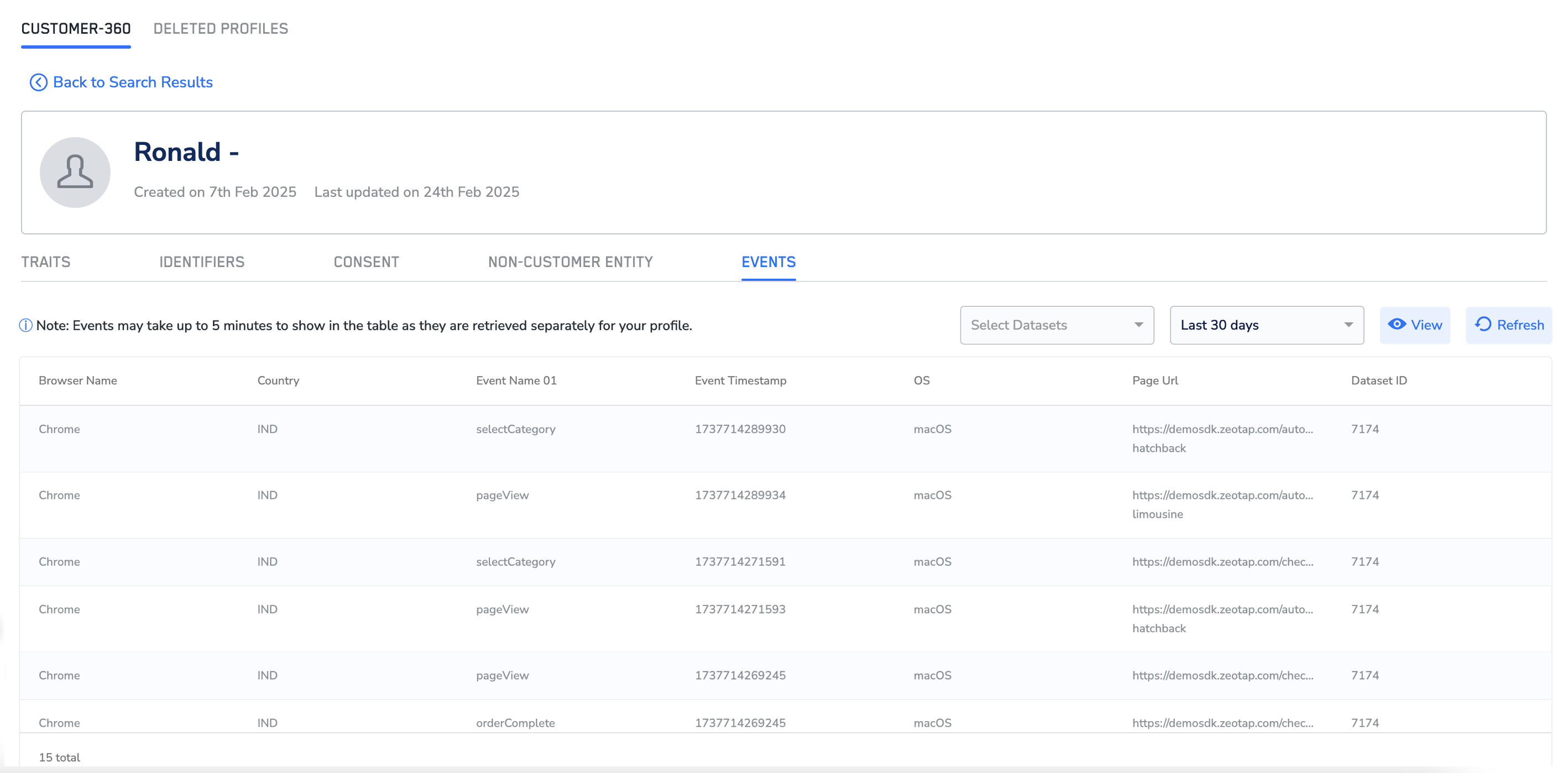
Events
Here, you can view the user’s event data, including the browser used, country, event name, timestamp, page visited, and more, as shown in the image below. Event data can take up to 5 minutes to appear on the user interface, unlike other attributes that appear instantly. You can view data from the past 15 minutes to the last 30 days.