

From the Detailed View
To delete a user profile from the detailed view, navigate to the particular profile and click Delete as shown below.Note:It can take 7 to 10 days for deleted profiles to be erased from the database.
From the Quick View
Perform the following steps to delete a user profile from the quick view:1
On the Quick View, click the More option (denoted by three dots) appearing towards the extreme right and then click Delete.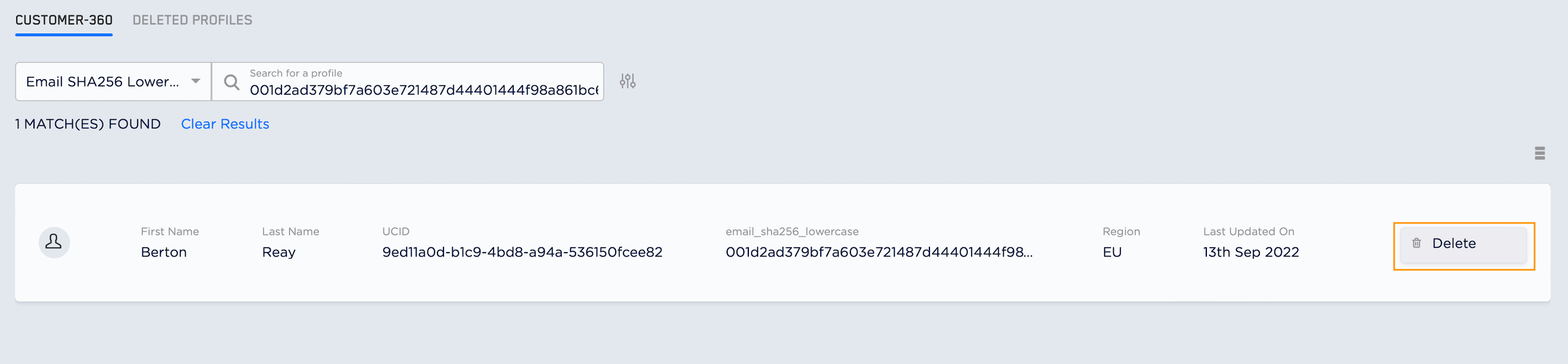
2
Confirm the deletion in the pop-up window that appears.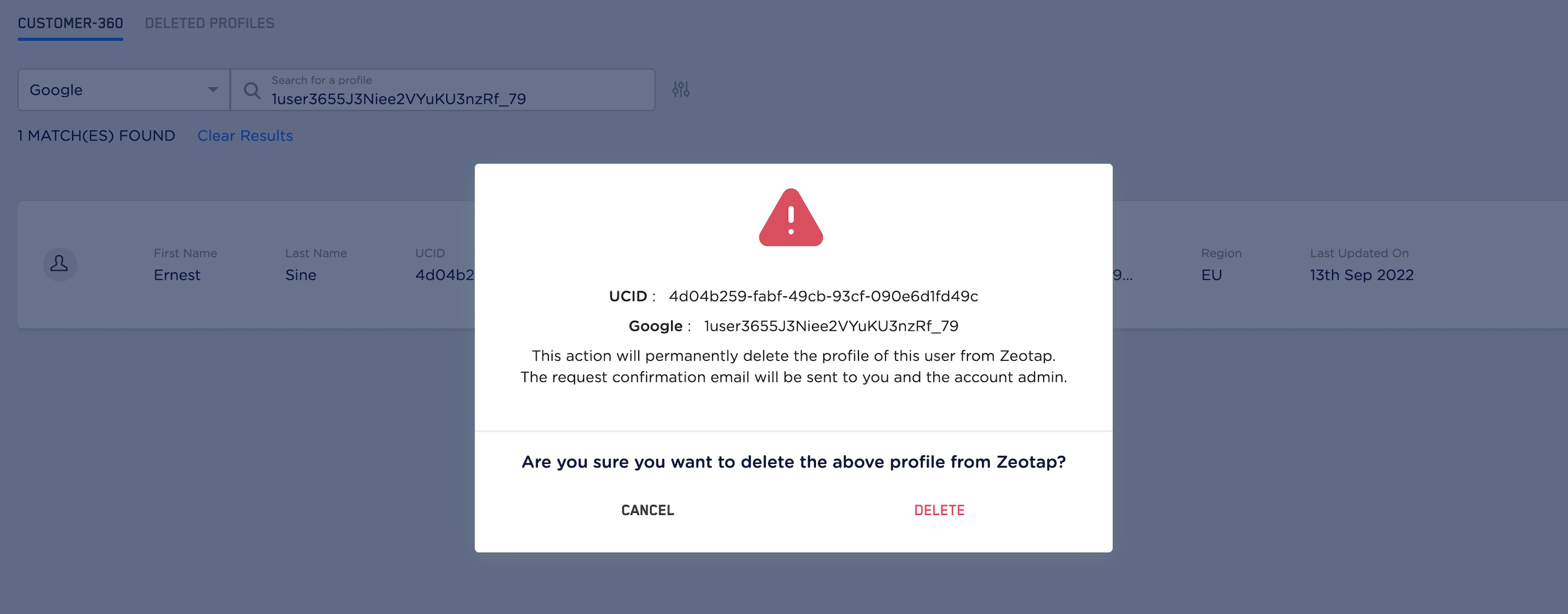
3
Upon confirmation, the system initiates a process to delete this profile across the Zeotap system, wherever this data is stored or referred. Subsequently, an email is sent to the user who initiated the deletion and to the account admin confirming the receipt of the deletion request. It takes a couple of hours for the profile to be completely deleted. To check the status you can refer to the Deleted log profile section below.
Note:It can take 7 to 10 days for deleted profiles to be erased from the database.
Components of Deleted Profiles Tab
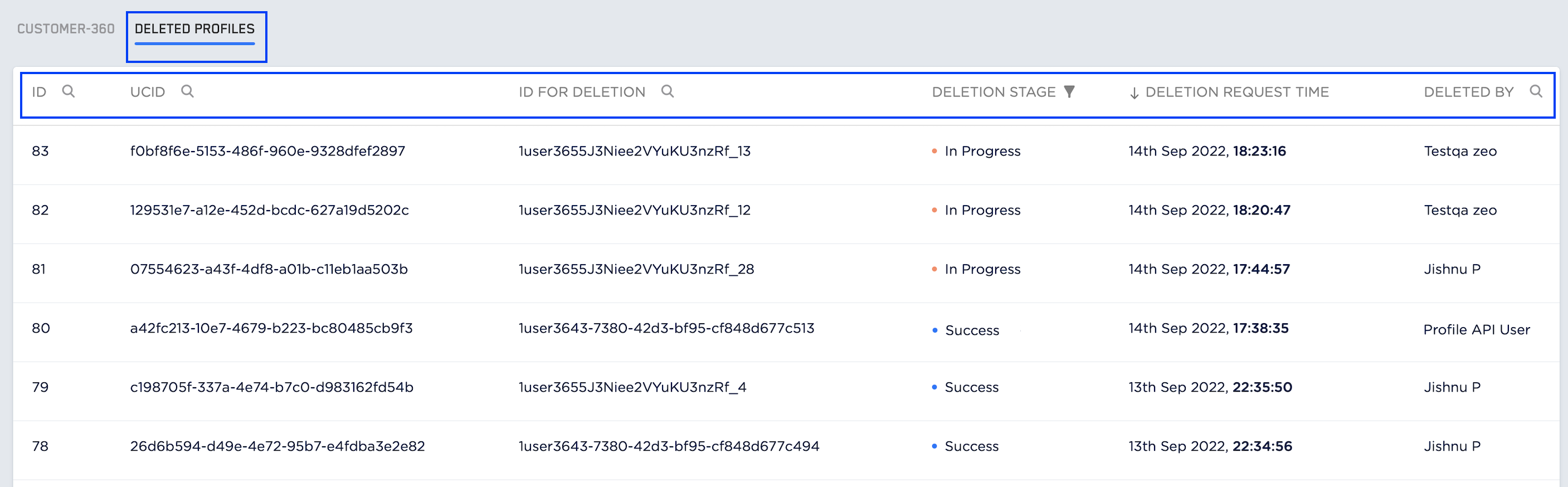
- ID - This is the ID associated with the deletion request. By default, the IDs are listed in descending order with the most recent deletion request appearing on top. However, you can search for a particular ID if you already know it.
- UCID - This is the UCID associated with the deleted user profile. You can also search for a particular UCID.
- ID for Deletion - This is the identifier that was used to look up the user profile.
-
Deletion Stage - This indicates the stages of the deletion request.
- In Progress - This stage indicates that the deletion is in progress. This stage appears as soon as you have submitted the deletion request. It takes a couple of hours to delete a profile from the Zeotap system.
- Failed - This stage is displayed if there is a failure in performing the deletion or the request was not submitted properly. In such a case, retry the deletion by submitting the request again.
- Success - This stage indicates that the profile has been ****** deleted from your organisation’s unified data stores and any of the Connect segments (based on the next refresh from the ‘Deleted On Time’).
Note:This deleted profile cannot be restored. However, if a new consented data is shared for this user, then Zeotap treats it as a new user and starts ingesting data from that time onwards.
- Deletion Request Time - This is the time when the Deletion request was raised.
- Deleted on Time - This is the time when the profile data is completely removed from Zeotap.
- Deleted By - This column displays the user name of the user who initiated the deletion request. In case of a request raised using our Deletion API, this column displays Profile API User.
- A list of IDs, attributes (profile, event, calculated or predictive) and users from existing segments that are being deleted.
- When the Deletion Stage is In Progress, the items on the above list are greyed out.
- Upon successful deletion, the Deletion Stage changes from In Progress to Success. A green-colored tick appears beside all the items in the list indicating that these are no longer available in the Zeotap system.
