Introduction to Google Tag Manager
Google Tag Manager (GTM) is a useful tool that allows you to manage and deploy marketing tags, snippets of code or tracking pixels on your website or mobile app without having to modify the code. With the GTM integrated, you have multiple tags stored in one place and therefore it becomes handy for the Marketeer to manage all the codes on their own. There are three main parts to GTM:- Tags – Snippets of JavaScript or tracking pixels
- Triggers – This tells GTM when or how to fire a tag
- Variables – Additional information GTM may need for the tag and trigger to work
Prerequisites
Ensure that you have created your GTM account and installed the GTM container to use the Zeotap IDP Tag Template. To know more about how to set up and install the GTM, refer to Setting up and Installing Tag Manager.Overview of Zeotap IDP Tag Template
The Zeotap IDP Tag is available as a custom template on GTM for easy integration. This is a JavaScript (JS) tag that is used to identify the user’s IDP cookie value based on a given email address or phone number. This is an asynchronous process and does not affect the loading of the site or the end-user experience. The Zeotap IDP tag requires a data layer to be set up on your websites. This data layer is used for capturing all the information required for IDP Cookie identification. Note that all these details about the IDP cookie are sent to Prebid.GTM’s custom templates allow you to write your own tag and variable definitions so that others within your organization can use them alongside the built-in tag and variable templates. These custom templates allow you to build a user interface around the custom code you might want to run on your website using GTM. This user interface comprises text input fields, settings, tables, labels, drop-down menus and so forth.
Adding the Zeotap IDP Tag Template
You can add the Zeotap IDP Tag Template using one of the following methods:Method 1

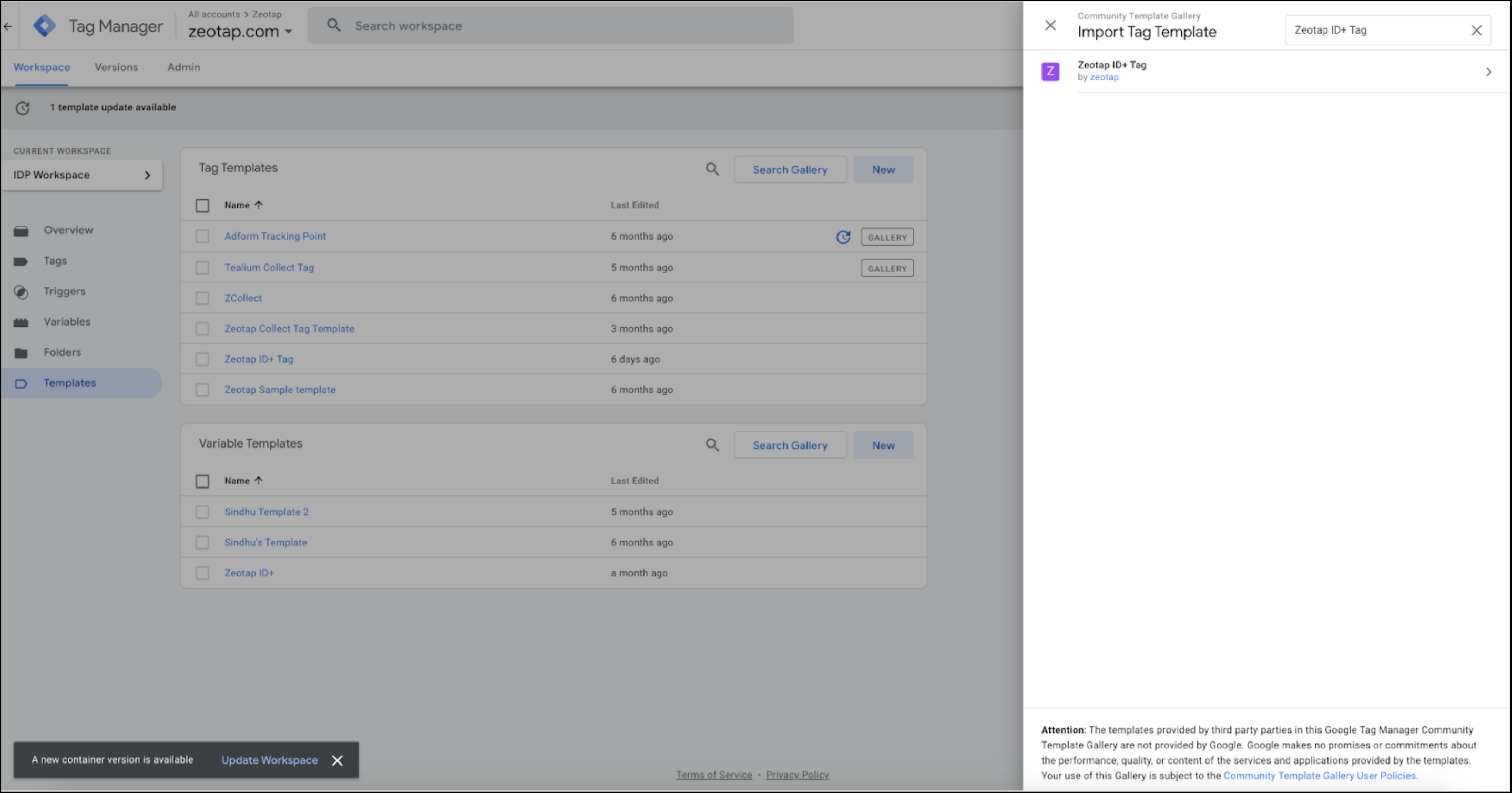
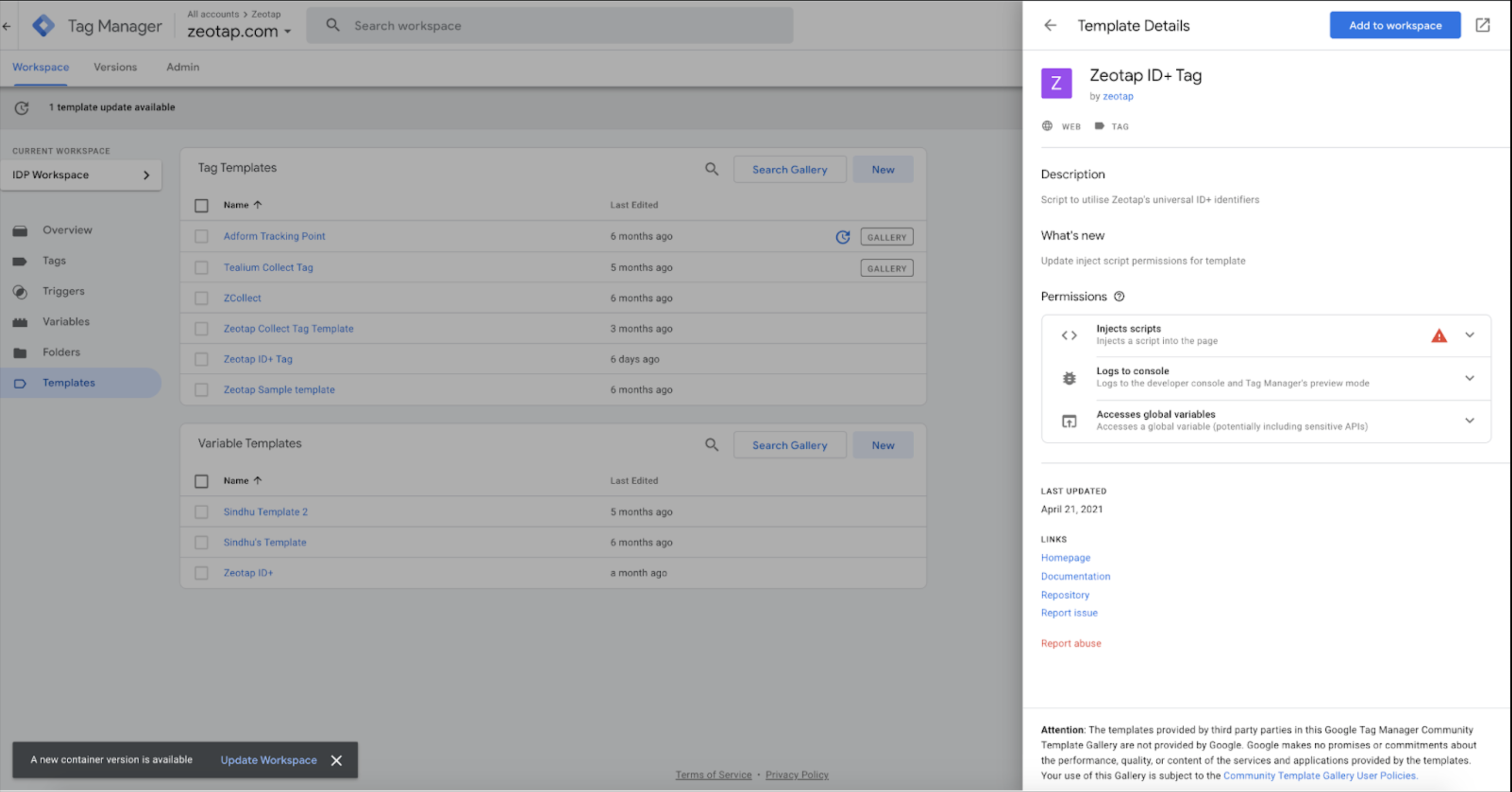
Method 2
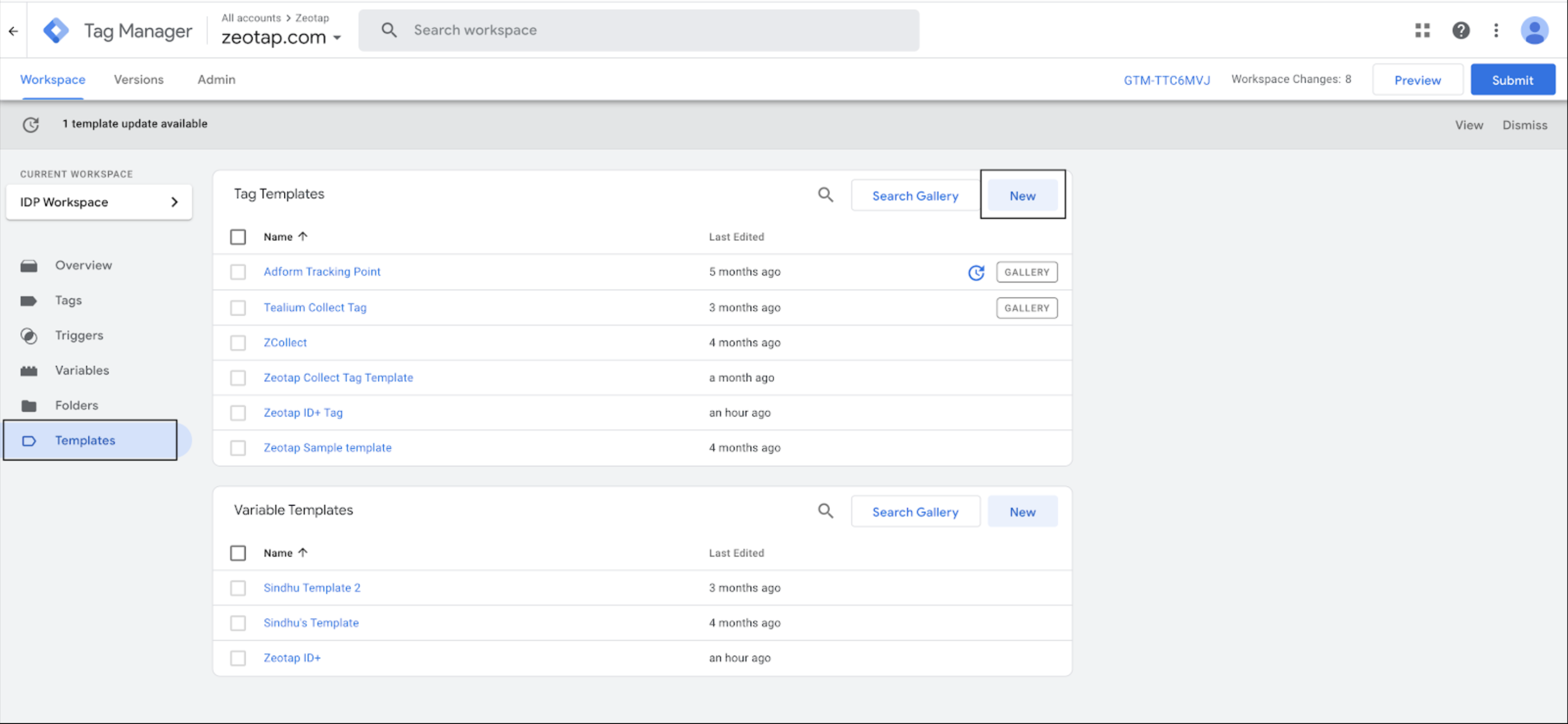
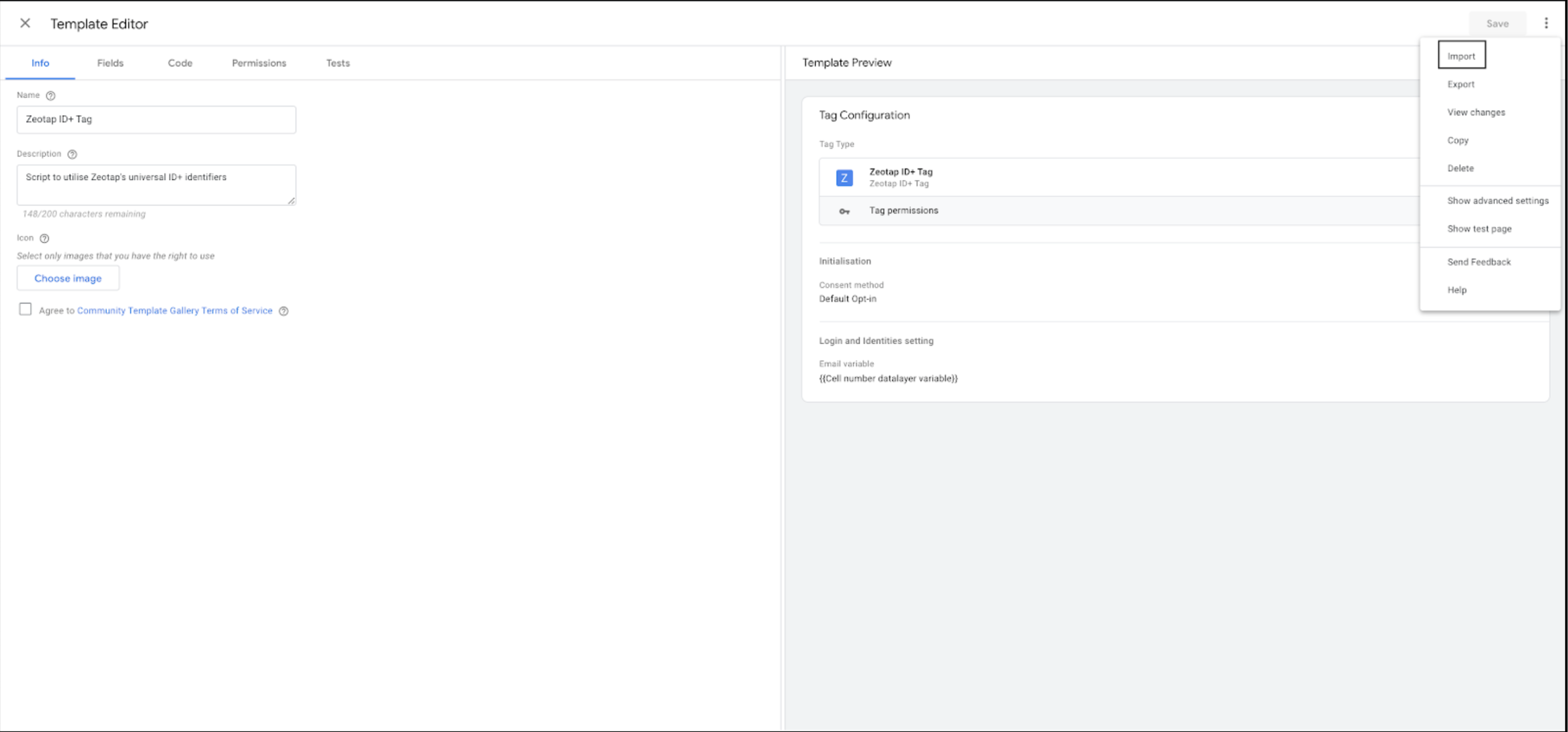
Adding the Tag
Once you have added the Tag Template, the next step is to add the tag. Perform the following steps to add the Tag: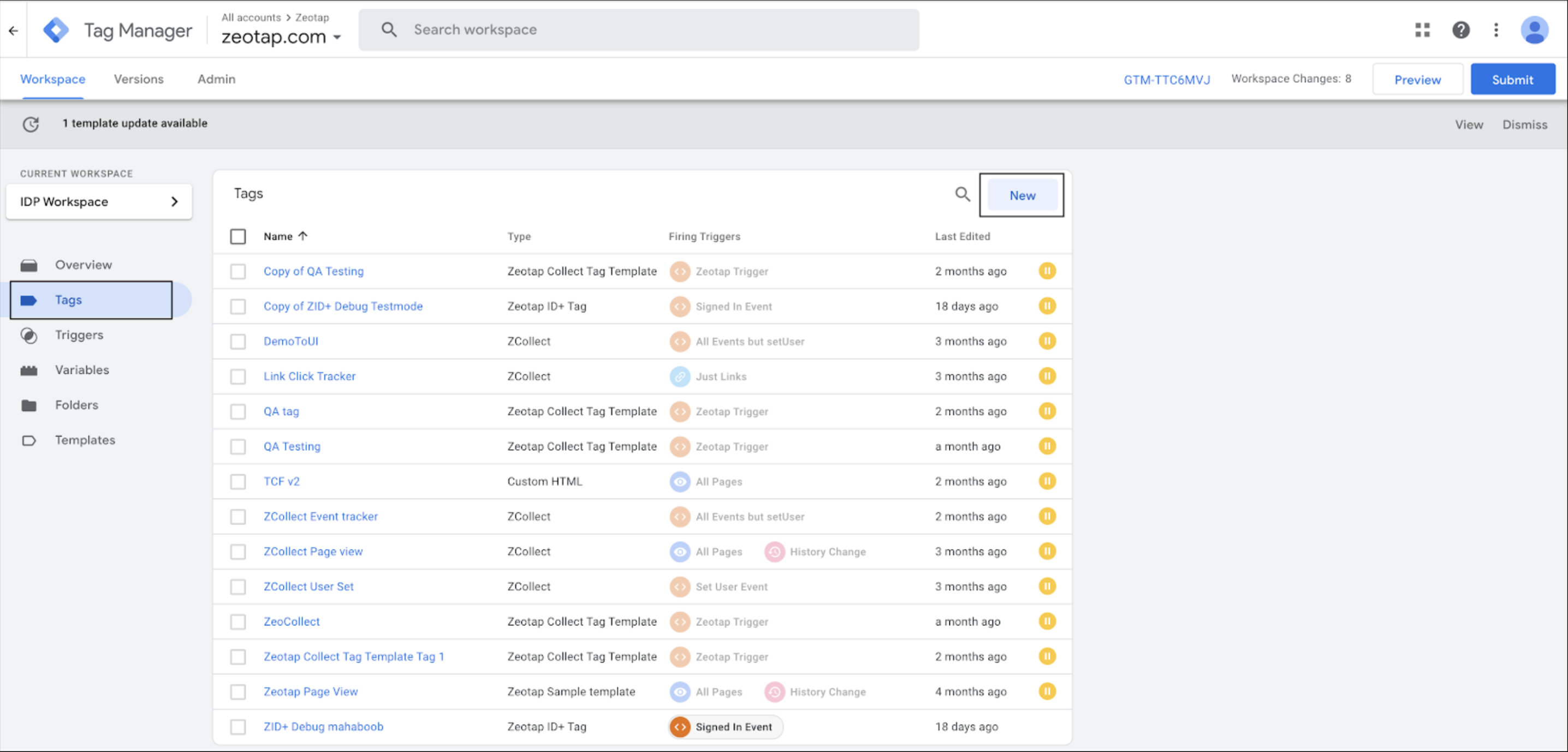

Click Zeotap ID+ Tag. To configure the tag, follow the steps mentioned below.
Configuring the Tag
The process of configuring a Tag is divided into the following sections: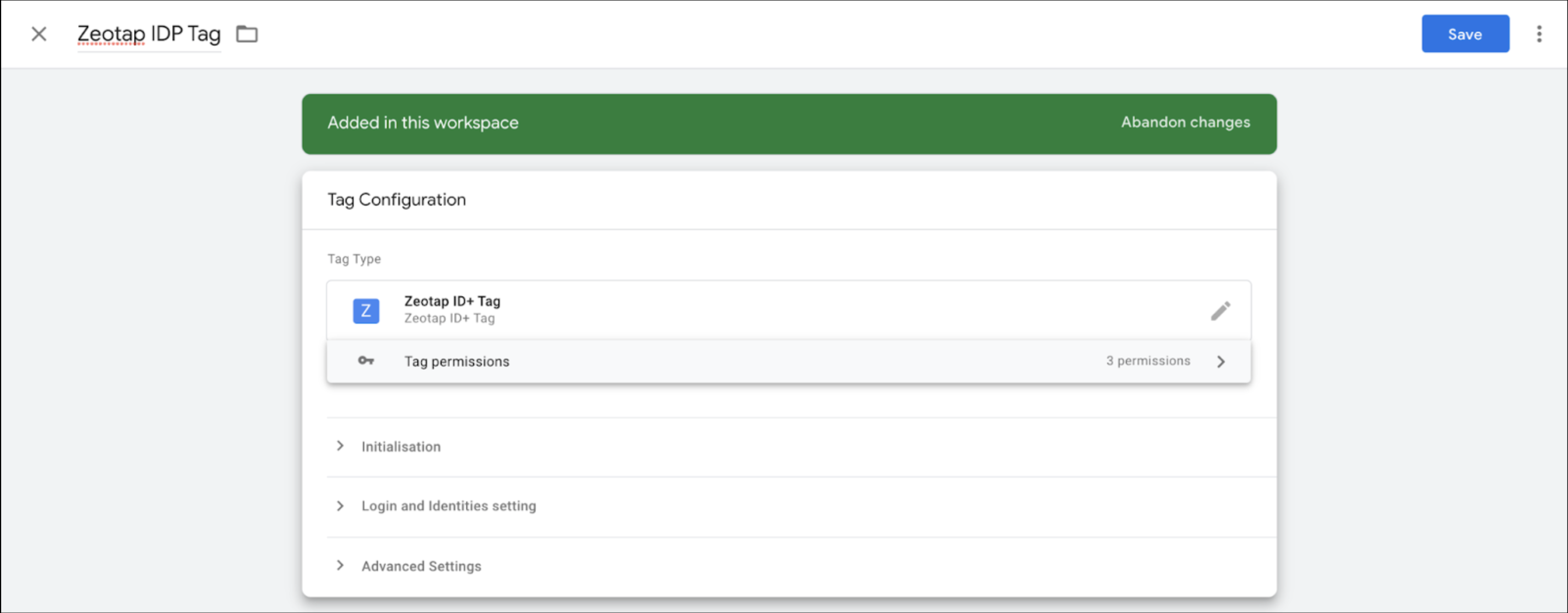
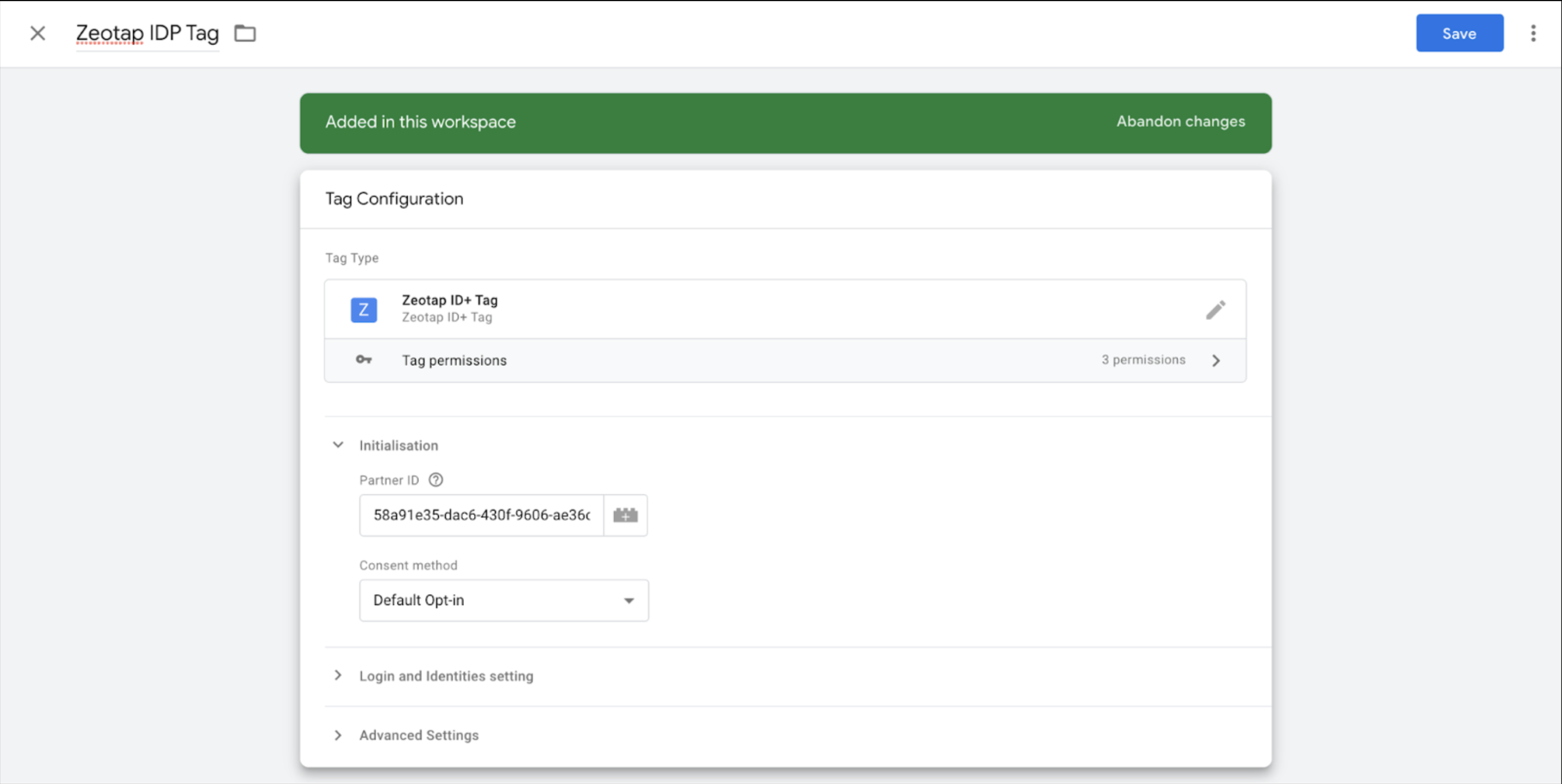
Configuring the Initialisation Settings
Under the Initialisation section, enter the following details to configure the initialisation options:- Partner ID – Zeotap provides this ID after enabling ID+ for your organisation. Ensure that you add the ID properly.
-
Consent Method – The Zeotap IDP SDK has the following two options that can be used to determine the consent actions:
- Default Opt-in – This option sets the optOut option to false and is used to record events. Choose this option to fire the tag only for the consented users.
- Check TCF CMP – This option sets the useConsent and checkForCMP options to true. The JS automatically checks for the presence of the cmp.js script and the __cmp variable in the global scope. The JS also queries the TCF API to fetch the latest Publisher consent before recording the events on each JS load.
Configuring the Login and Identities Settings
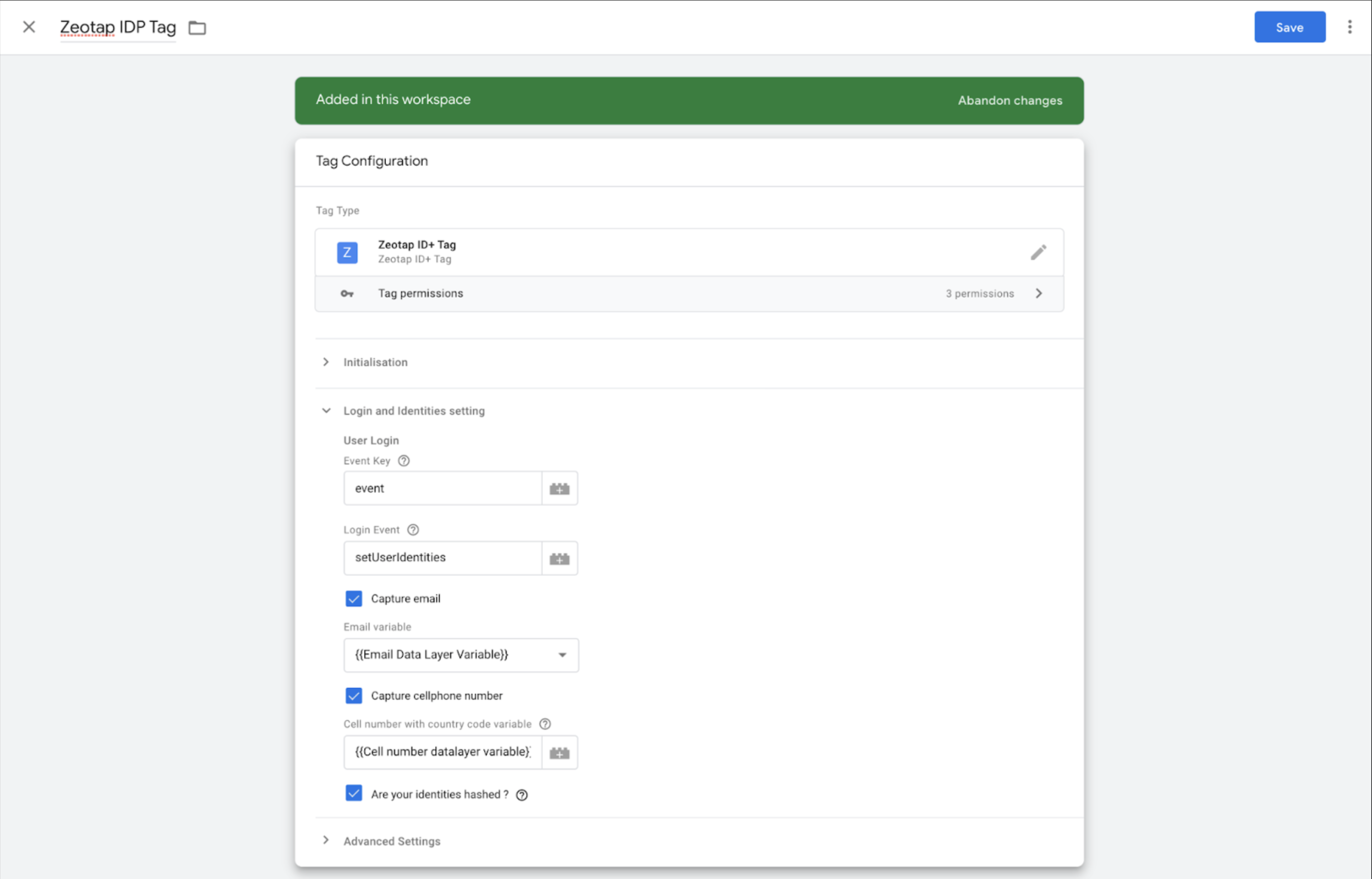
Under the Login and identities settings section, enter the following details to configure the login and identities settings:- Event Key – This is the key against which the login event names are stored in the dataLayer object. You can choose not to add this key if you are using the GTM’s default key.
- Login Event – Specify the dataLayer event fired on user login. For example, setUserIdentities.
- Capture email – Use this checkbox to specify if email address must be used for ID+ calls. If selected, the corresponding variable must be added in the next input box.
- Email variable – Specify the variable to pick up the email address from. The same email address is hashed to sha256 and is used to retrieve the IDP cookie against the email address.
- Capture cell phone number – Use this checkbox if cell phone number must be used for ID+ calls. If selected, the corresponding variable must be added in the next input box.
- Cellphone number variable – Specify the variable to pick up the phone number with the country code from. The same phone number is hashed to sha256 and is used to retrieve the IDP cookie against the cellphone.
- Are your identities hashed? – For ID+ calls, the email address in lowercase and cell phone number with country code must be hashed to sha256. If this checkbox is selected, then we assume that the email address and/or phone number variables are already in the hashed format as per guidelines. If unselected, then we treat them as raw values and perform the hashing before the ID+ calls.
Configuring the Advanced Settings
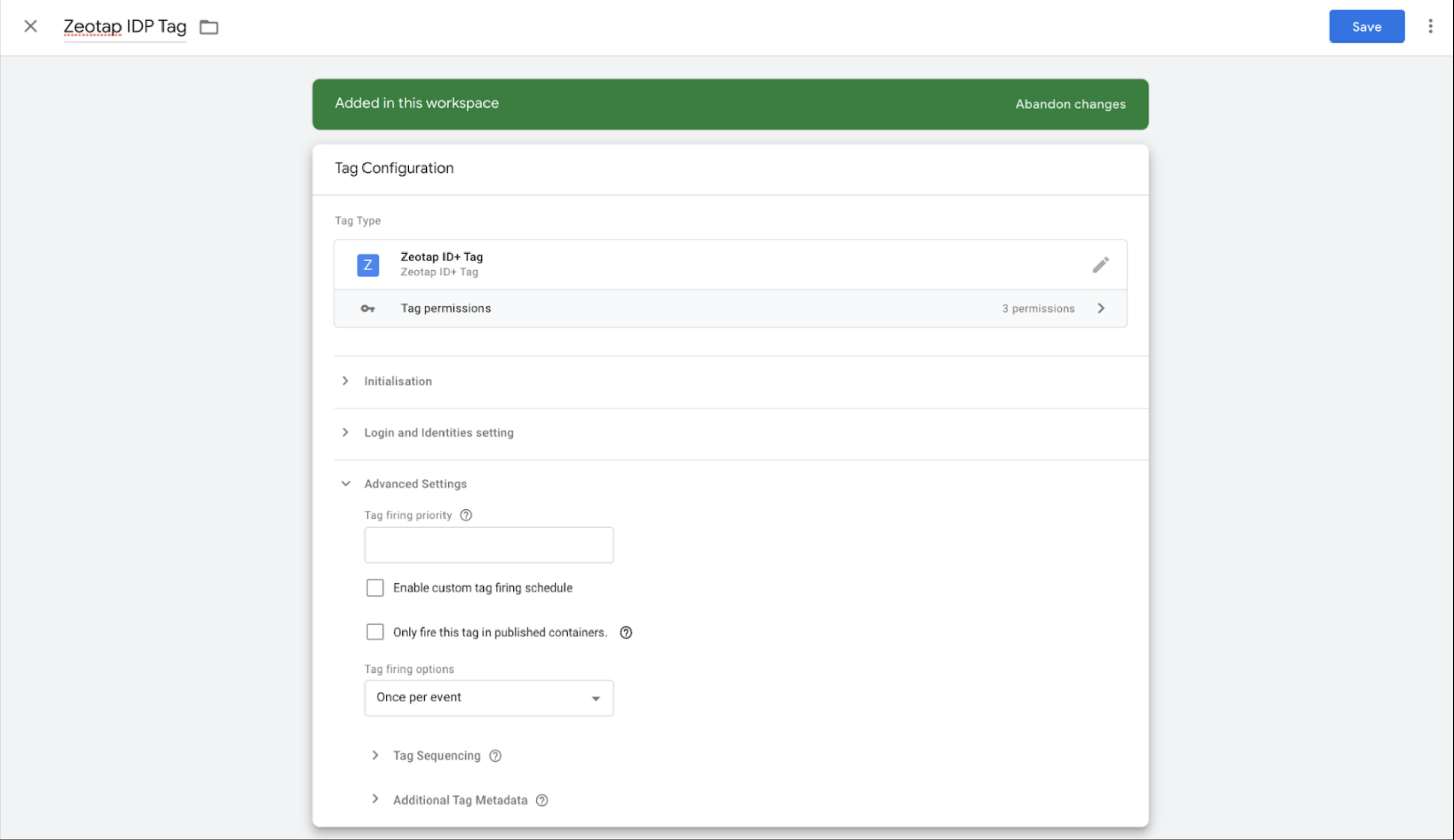
All the options available under the Advanced Settings section, function as usual. However, take a note of the following two options:- Tag firing options – Choose the Once per event option from the Tag firing drop-down menu. At this moment, we only support this option.
- Additional Tag Metadata – This section is not applicable for ID+. Therefore, you need not make any selections here.
Setting Up the Trigger
The IDP tag is recommended to have triggers during the login event so that you can attach triggers only for the login event key. You can either add a preconfigured trigger to a tag or create a trigger within the tag. The section below explains the two methods in detail.Method 1
If you want to fire the tag on the login event, then trigger ‘Custom event’ by performing the following steps: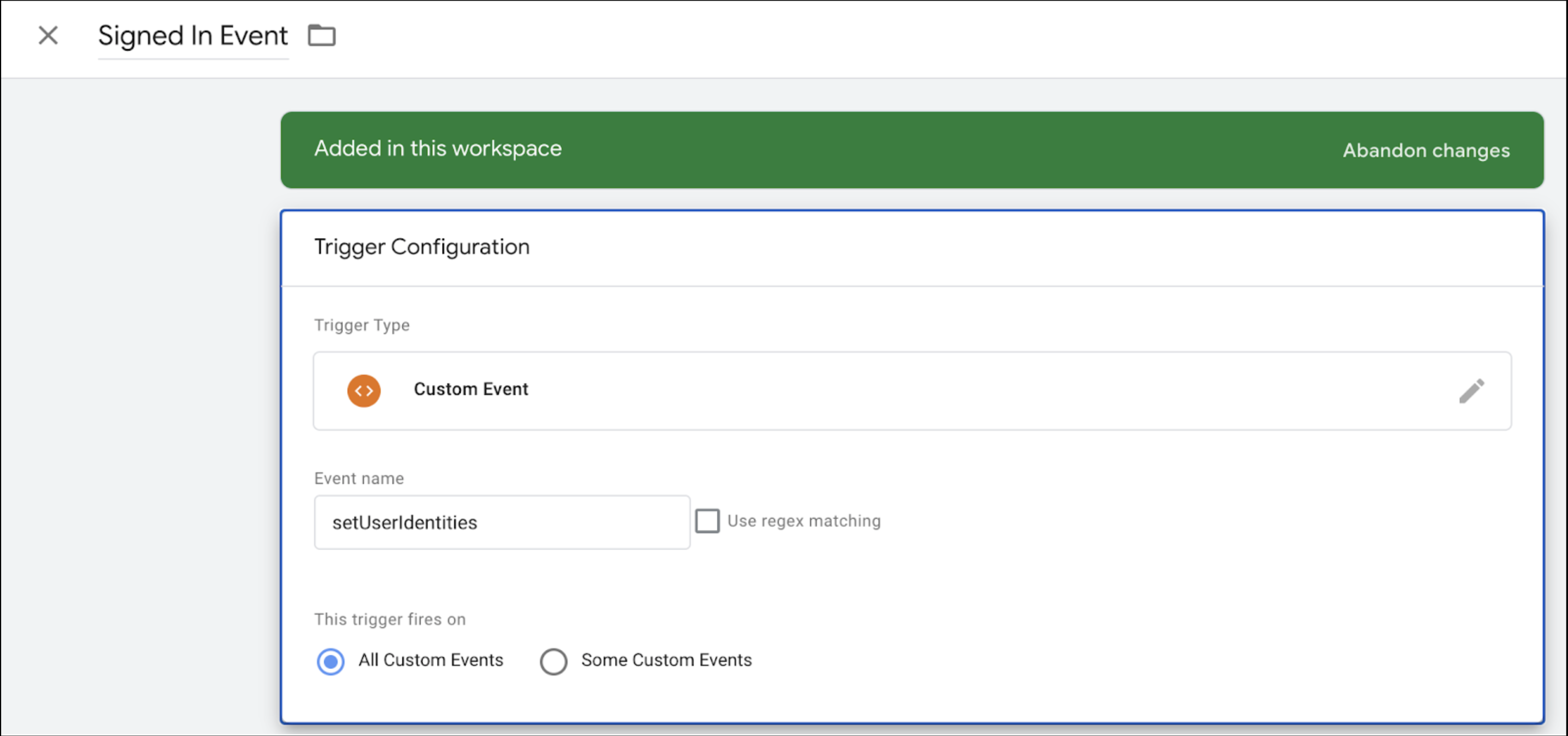
Method 2
You can also set a trigger to a tag while configuring it. Perform the following steps to set a trigger to a tag from the Tag Configuration section.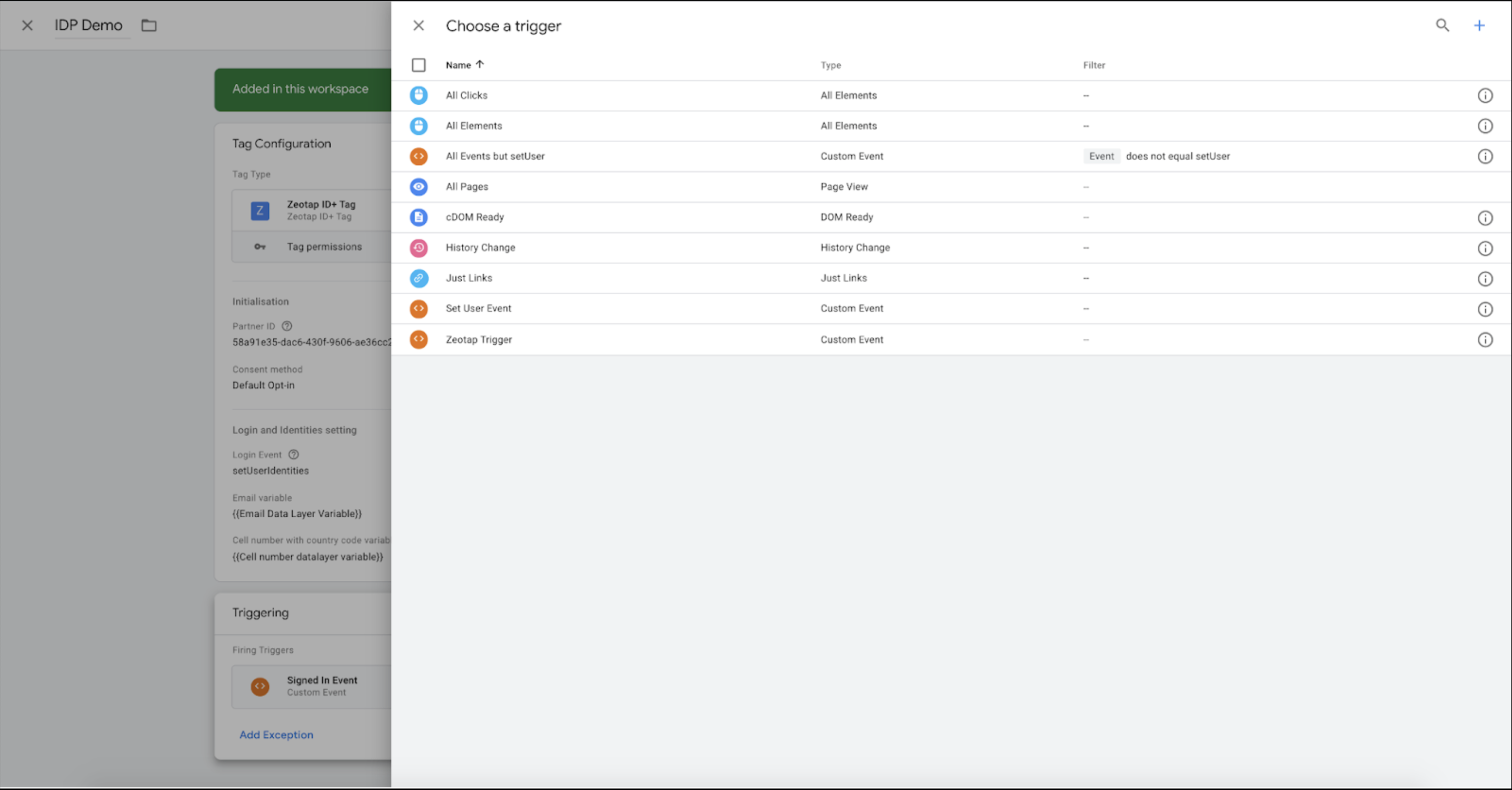
Validating the Configured IDP Tag
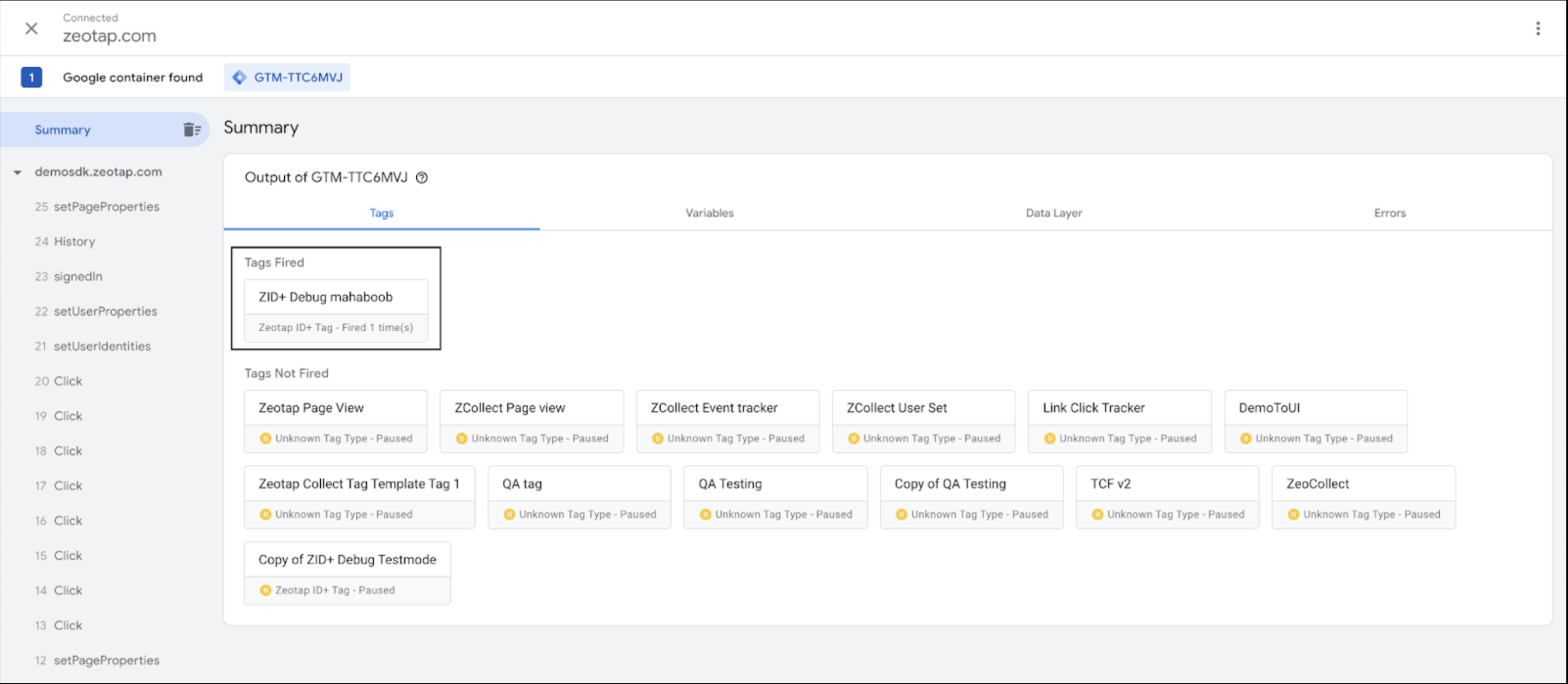
After you have added the Zeotap IDP Tag, configured the same and set the trigger to perform the following steps to evaluate how it works:Click Tag from the left menu. Of all the tags that are listed, ensure that your tag is in the active state and has not been paused.
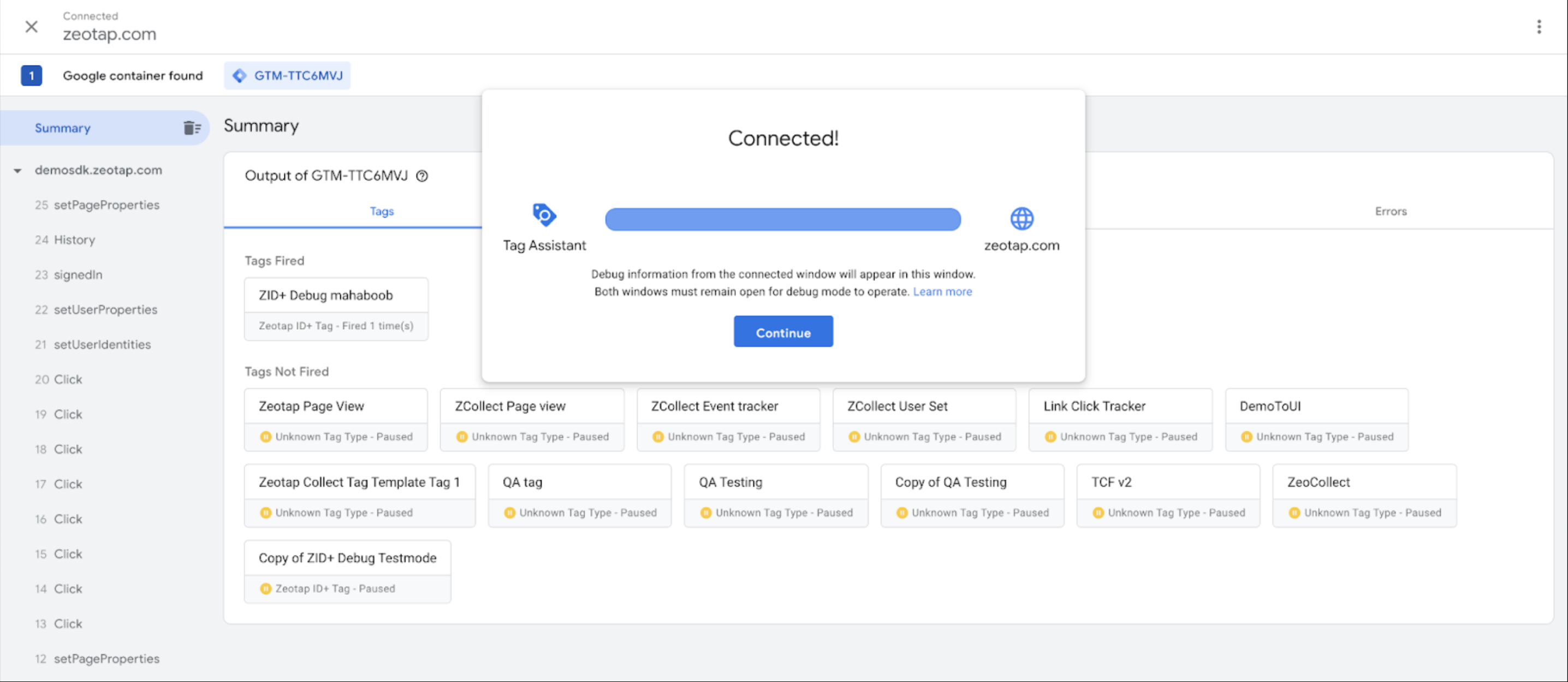
Click the Preview button that appears on the top right corner. You are taken to the Tag Assistant page.
In the Google Tag Assistant window that appears, enter the website where you have integrated the GTM and then click Start. Refer to the image below from a sample website.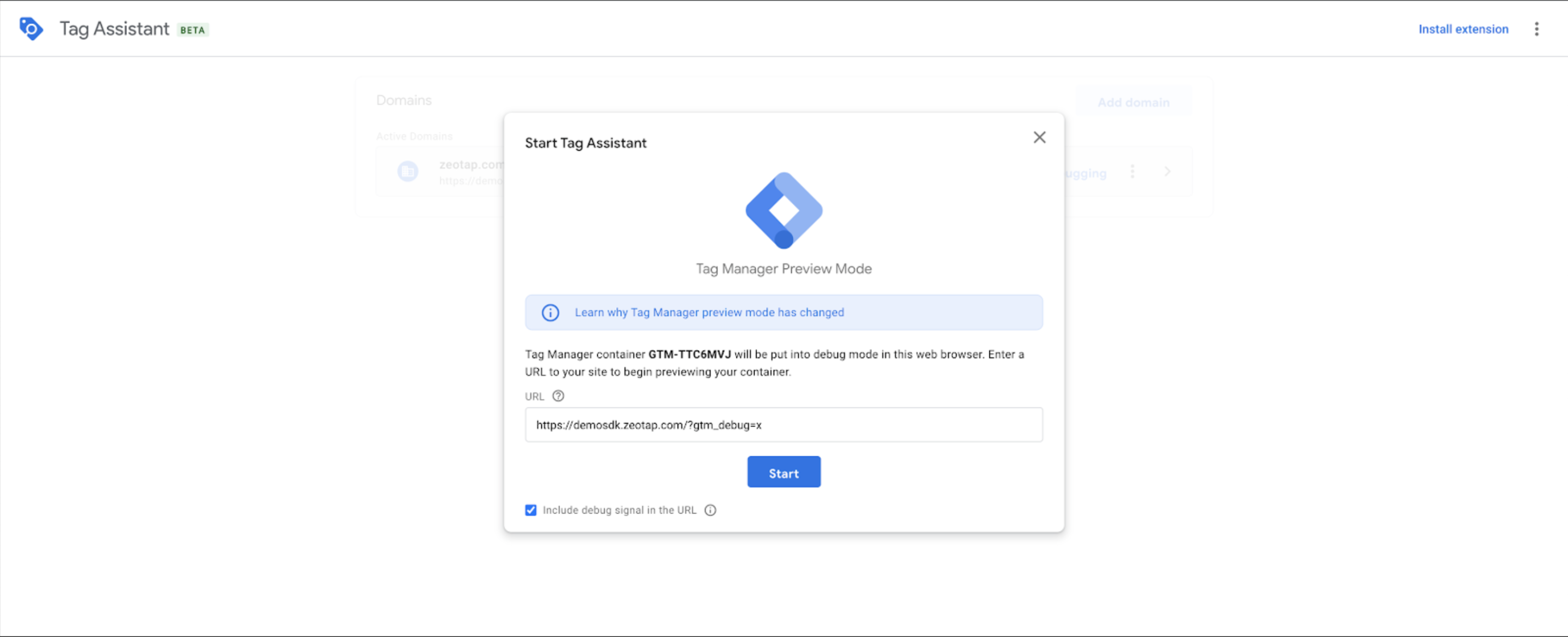

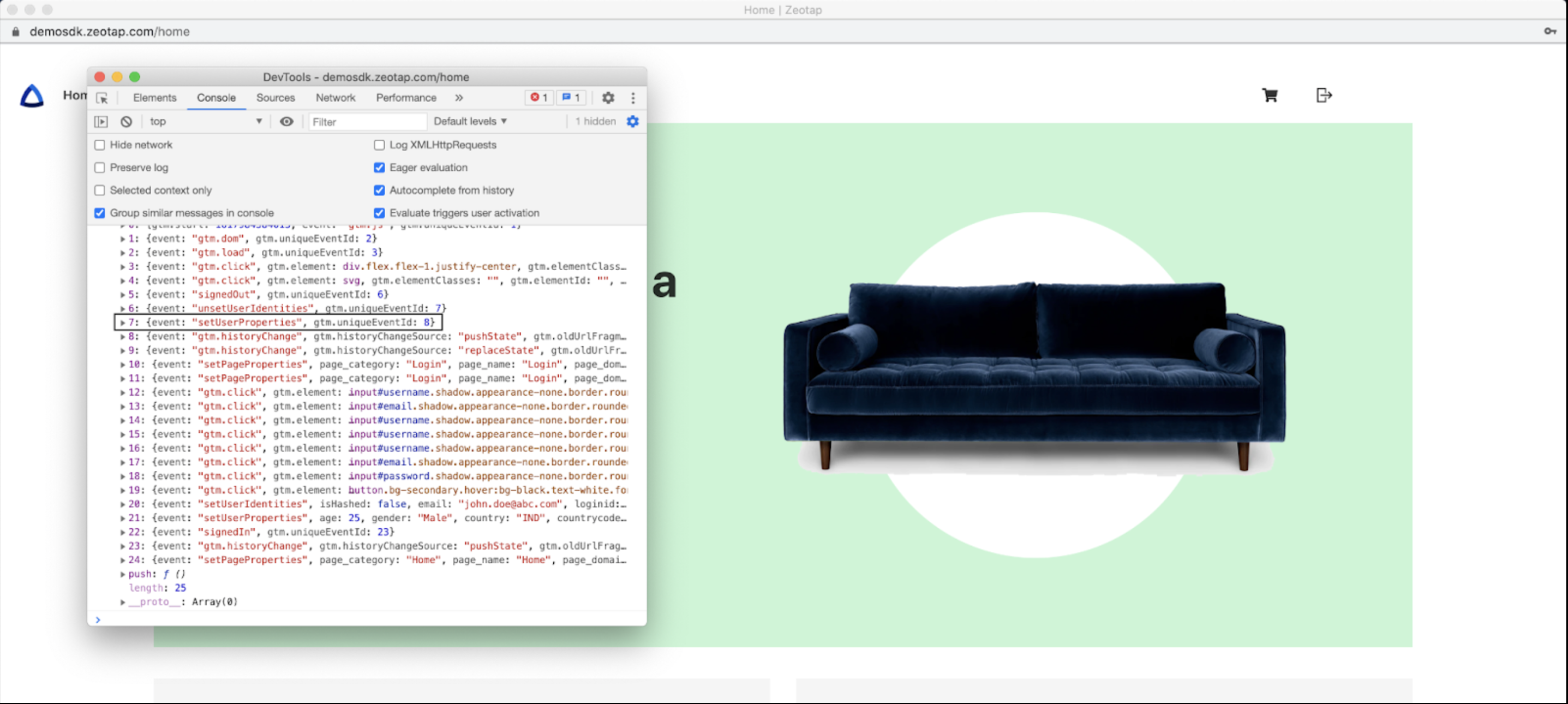
Go to the Console tab of the DevTools window that opens and under dataLayer look for the login event name that you have configured. The image below shows the event name setUserIdentities.