> ## Documentation Index
> Fetch the complete documentation index at: https://docs.zeotap.com/llms.txt
> Use this file to discover all available pages before exploring further.
# Components of the Catalogue Screen
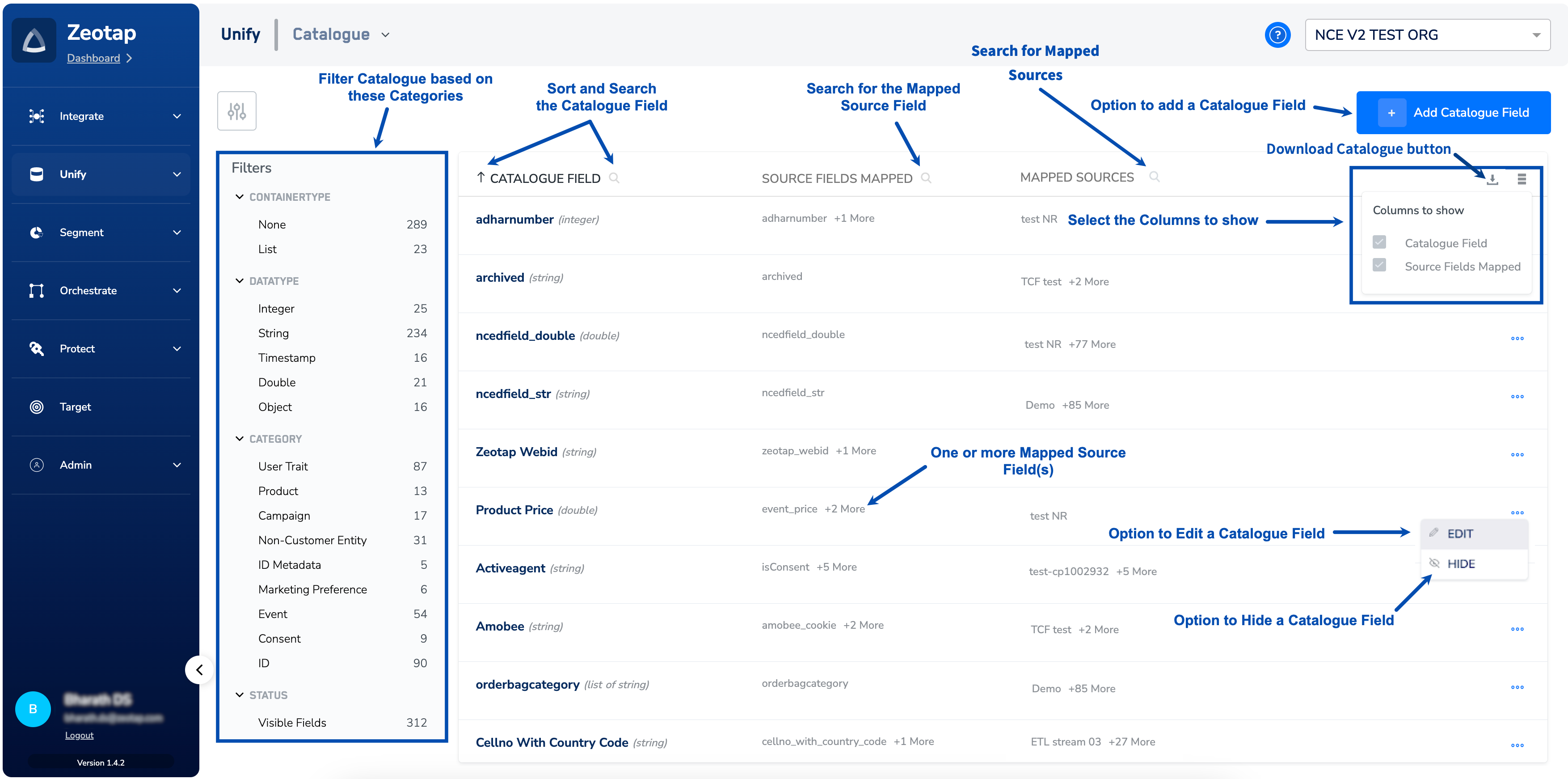
The Catalogue screen lists every field available in your Zeotap Catalogue, shows how each one is mapped to your sources, and is where you add, edit, hide and export catalogue fields. This page is the reference for the columns and actions on that screen — for what the individual field settings mean, see [Understand the Basic Fields](/articles/unify-customer/understand-the-basic-fields) and [Understand the Advance Fields](/articles/unify-customer/understand-the-advance-fields).
 **Note**
*Having a field in your catalogue list does not mean that there is data available for those attributes. Unless you map those fields to an incoming source field and save the mapping
in your individual sources, no data is ingested against those fields in your Zeotap account.*
## Columns
| **COLUMN NAME** | **DESCRIPTION** | **LOOKUP AND SORT** |
| -------------------- | ----------------------------------------------------------------------------------------------------------------------------------------------------------------------------------------------------------------------------------------------------------------------------------------------------------------------------------------------------------- | ------------------- |
| Catalogue Field | This is the list of fields available in your Zeotap catalogue for mapping. Each entry also shows the field's data type. To know more about the editable and non-editable fields, refer [here](/articles/unify-customer/edit-a-catalogue-field). | Lookup and sort |
| Source Fields Mapped | This is the list of source fields that is mapped to a catalogue field, coming from different sources defined in your Zeotap Organisation.
**Note**
*Having a field in your catalogue list does not mean that there is data available for those attributes. Unless you map those fields to an incoming source field and save the mapping
in your individual sources, no data is ingested against those fields in your Zeotap account.*
## Columns
| **COLUMN NAME** | **DESCRIPTION** | **LOOKUP AND SORT** |
| -------------------- | ----------------------------------------------------------------------------------------------------------------------------------------------------------------------------------------------------------------------------------------------------------------------------------------------------------------------------------------------------------- | ------------------- |
| Catalogue Field | This is the list of fields available in your Zeotap catalogue for mapping. Each entry also shows the field's data type. To know more about the editable and non-editable fields, refer [here](/articles/unify-customer/edit-a-catalogue-field). | Lookup and sort |
| Source Fields Mapped | This is the list of source fields that is mapped to a catalogue field, coming from different sources defined in your Zeotap Organisation.
This is the name of the field what you bring as a data point from your source through a file or from any of your streaming sources. | Lookup |
| Mapped Sources | This is the list of sources in which the particular catalogue field and sourcefields are mapped. | Lookup |
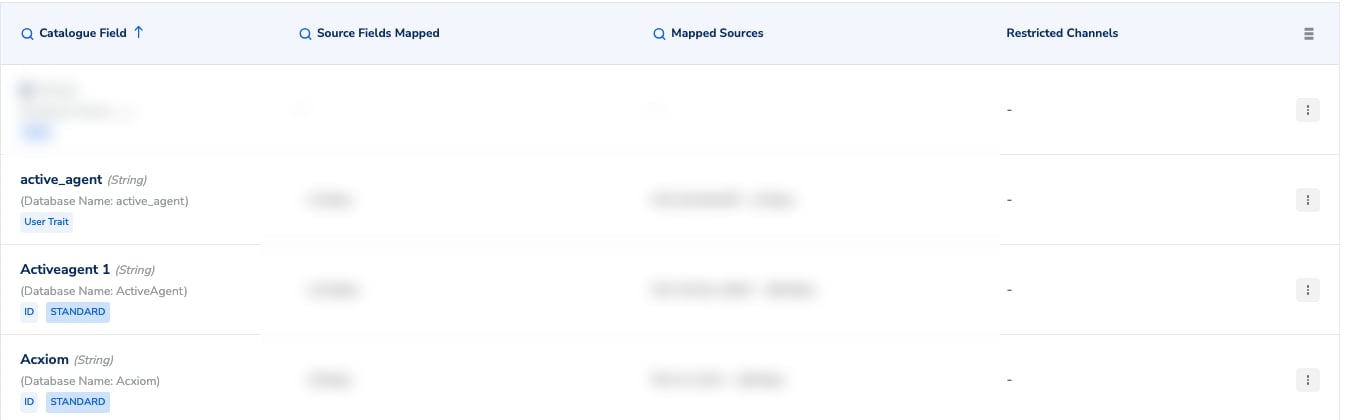
| Restricted Channels | This shows the channels a field is restricted from, for fields that carry a channel restriction. A dash means the field has no restriction. The column is hidden by default — switch it on from **Columns to Show**. To set or change a restriction, and for how it is enforced, see [Restrict on Channels](/articles/unify-customer/restrict-on-channels). | Display only |
 ## Actions
You can perform the following actions on this page:
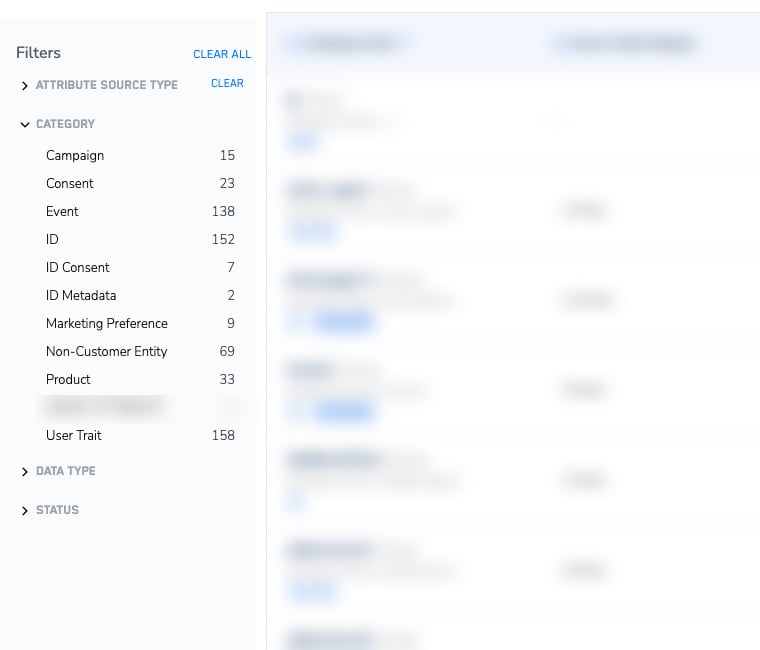
* **Filter** – Above the list, click the filter icon (to the left of the download icon) to open the **Filters** panel and narrow the list. You can filter by **attribute source type**, **category**, **data type** and **status** (visible or hidden fields). Each value shows a count of the catalogue fields it matches, and you can clear one group with **CLEAR** or reset everything with **CLEAR ALL**. To know more about the categories you can filter on, refer to [Categories for adding Catalogue fields](/articles/unify-customer/categories-in-catalogue).
## Actions
You can perform the following actions on this page:
* **Filter** – Above the list, click the filter icon (to the left of the download icon) to open the **Filters** panel and narrow the list. You can filter by **attribute source type**, **category**, **data type** and **status** (visible or hidden fields). Each value shows a count of the catalogue fields it matches, and you can clear one group with **CLEAR** or reset everything with **CLEAR ALL**. To know more about the categories you can filter on, refer to [Categories for adding Catalogue fields](/articles/unify-customer/categories-in-catalogue).
 * **Lookup** – Click the search icon in a column header to look up entries in that column. Lookup is available on Catalogue Field, Source Fields Mapped and Mapped Sources.
* **Sort** – Click the **Catalogue Field** header to sort the list by field name.
* **Columns to Show** – Towards the right, choose the columns that you want to show. You cannot remove the default selections for **Catalogue Field**, **Source Fields Mapped** and **Mapped Sources**; **Restricted Channels** is optional and off by default.
* **Download Catalogue** – This option allows you to download the organisation's catalogue in CSV format for your reference. The export includes each field's channel restrictions.
* **Add Catalogue Field** – Click **ADD CATALOGUE FIELD** to add a new Catalogue Field. To know more about the process, refer to [Add a Catalogue Field](/articles/unify-customer/add-a-catalogue-field).
* **Edit** – Click the three dots next to a Catalogue Field entry and click **EDIT** to modify it.
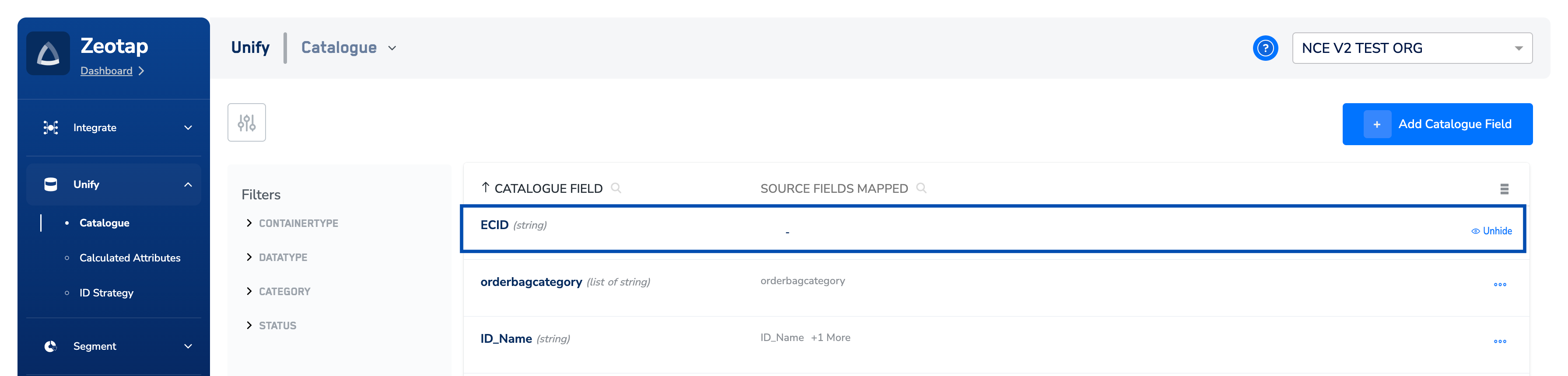
* **Hide** – Click the three dots next to a Catalogue Field entry and click **HIDE** to hide it. This action hides the Catalogue field from the interface and all activation modules.
**Note**
Ensure that you consider the following points while hiding an attribute in the Catalogue:
* **Lookup** – Click the search icon in a column header to look up entries in that column. Lookup is available on Catalogue Field, Source Fields Mapped and Mapped Sources.
* **Sort** – Click the **Catalogue Field** header to sort the list by field name.
* **Columns to Show** – Towards the right, choose the columns that you want to show. You cannot remove the default selections for **Catalogue Field**, **Source Fields Mapped** and **Mapped Sources**; **Restricted Channels** is optional and off by default.
* **Download Catalogue** – This option allows you to download the organisation's catalogue in CSV format for your reference. The export includes each field's channel restrictions.
* **Add Catalogue Field** – Click **ADD CATALOGUE FIELD** to add a new Catalogue Field. To know more about the process, refer to [Add a Catalogue Field](/articles/unify-customer/add-a-catalogue-field).
* **Edit** – Click the three dots next to a Catalogue Field entry and click **EDIT** to modify it.
* **Hide** – Click the three dots next to a Catalogue Field entry and click **HIDE** to hide it. This action hides the Catalogue field from the interface and all activation modules.
**Note**
Ensure that you consider the following points while hiding an attribute in the Catalogue:
- Hiding an attribute from the Zeotap Catalogue affects its visibility in the downstream modules like Audience, Journeys,Source Mapping and Destinations for new creations. However, it continues to exist in the backend database schema.
- If an attribute is already in use in any of the downstream modules mentioned above, then it continues to function withoutinterruptions. However, the system prompts appropriate actions based on the application/module for any edits. For example,if you choose a hidden attribute while editing a source, then the system prompts you to remove that attribute before savingthe changes. Alternatively, you can also unhide the attribute in the Catalogue application.
- When you hide an attribute in the Catalogue, any saved mappings or (auto) mappings are removed. For example, if you hide the `ECID` attribute in the Catalogue, then the saved mappings, `ecid` and `ECID` are removed and are not shown for new sourcemappings. However, only for standard catalogue fields with predefined internal mappings, such as the `id_mid_10` field mapped to `TheTradDesk`, these mappings can be restored upon unhiding the hidden attribute.
 ## Related Topics