> ## Documentation Index
> Fetch the complete documentation index at: https://docs.zeotap.com/llms.txt
> Use this file to discover all available pages before exploring further.
# Segment Membership Calculated Attribute
> Use segment membership as a profile attribute to build audiences and retrieve a user's segments via the Profile API.
## What Segment Membership gives you
Segment Membership is a system-defined Calculated Attribute that tags each user with the audiences they have joined or left. Because those tags sit on the customer profile, you can use them like any other attribute.
* **Build audiences from other audiences.** Reference an existing audience's members when defining a new one, without duplicating its logic.
* **Exclude users from a campaign.** Suppress everyone already in another audience, even when that audience is not activated to a Destination.
* **Understand user behaviour.** When running campaigns in platforms like Adobe, you may want to know which segments a user belongs to. Requesting Segment Membership in your Profile API call returns that list for a given user.
* **Drive Journeys.** Use membership as an entry condition or re-entry criterion.
**Terminology**
The terms **Audiences** and **Segments** are used interchangeably to refer to customer cohorts belonging to a specific category. An example of an audience/segment can be a specific group of customers who are over 18 years of age and have performed an `addToCart` event within the last 30 days.
## When you need to Enable Membership
Any audience with an active refresh schedule contributes to Segment Membership. Whether you need to do anything depends on how that audience gets its schedule.
| Your audience | What you need to do |
| --------------------------- | ----------------------------------------------------------------------------------------------------------- |
| Linked to a Destination | Nothing. It refreshes on the Destination's schedule, so its users are tagged automatically. |
| Not linked to a Destination | Enable Membership. Without a Destination the audience would not refresh, so it needs a schedule of its own. |
**Enable Membership** is not a switch that turns tagging on. Tagging follows the refresh schedule. **Enable Membership** gives a destination-less audience a refresh schedule so that tagging happens at all. This is the main reason the feature exists.
## Before you begin
Go to **Unify → Calculated Attributes** and look for **Segment Membership** in the **Batch Attributes** list. Its **Created By** value will be `System`.
 If it is not listed, it has not been provisioned for your organisation. Contact your Zeotap POC.
An audience only contributes membership data while it is actively refreshing. If an audience has neither a Destination nor membership enabled, or its schedule has become inactive, it contributes nothing even though the audience itself still opens normally.
## Enable membership on an audience
### On a new audience
Define your audience criteria as normal, then select **Save**.
On saving, you are asked how you would like to proceed.
If it is not listed, it has not been provisioned for your organisation. Contact your Zeotap POC.
An audience only contributes membership data while it is actively refreshing. If an audience has neither a Destination nor membership enabled, or its schedule has become inactive, it contributes nothing even though the audience itself still opens normally.
## Enable membership on an audience
### On a new audience
Define your audience criteria as normal, then select **Save**.
On saving, you are asked how you would like to proceed.
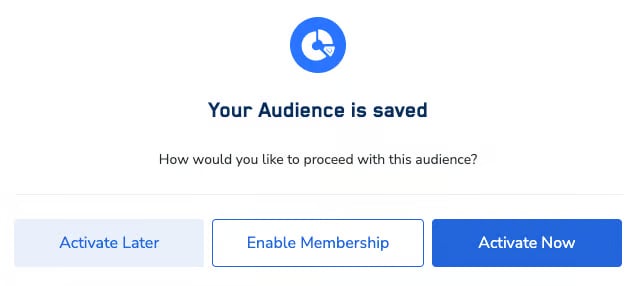 * **Enable Membership** gives the audience its own refresh schedule, so its users are tagged. Use this when the audience is not going to a Destination.
* **Activate Now** sends the audience to a Destination immediately. It will refresh on the Destination's schedule, so its users are tagged without enabling membership.
* **Activate Later** saves the audience without activating it. It has no refresh schedule yet, so it contributes no membership data until it gets one.
### On an existing audience
Membership is calculated for all audiences by default, so there is nothing to switch on for an audience you have already saved.
## Use Segment Membership in Audiences
In the audience builder, under **Let's define the Audience criteria**, set **Customers who have** to `calculated attributes`.
Choose **Segment Membership** as the attribute, then **Contains Any** as the operator.
Choose one or more audience IDs from the dropdown. The list is searchable and supports high-cardinality values.
Select **Check Estimates** to confirm the condition returns the population you expect before saving.
**What Contains Any matches**
**Contains Any** checks only whether a user is part of the referenced audience. It does not re-run that audience's own filters.
### Worked example: excluding an audience that has no Destination
Say you want to exclude the members of an existing audience from a new campaign, but that audience is not activated to any Destination. Because it has no Destination, it has no refresh schedule, so it is not contributing membership data and referencing it would return nothing.
1. Open the audience you want to exclude and select **Enable Membership**. It now has a refresh schedule, and its members start being tagged.
2. Wait for one refresh to complete.
3. In your new audience, add a **Segment Membership** condition referencing that audience ID, and negate it so those users are excluded.
4. Select **Check Estimates** to confirm the exclusion has taken effect.
## Retrieve Segment Membership via the Profile API
Request `segment_membership` inside the `calc_attributes` object of your `fetch` block. The Profile API requires mTLS, so supply your client certificate and key:
```bash theme={null}
curl -X POST 'https://mtls-api.zeotap.com/cdp/v1/users/_search' \
--cert /path/to/client.crt \
--key /path/to/client.key \
-H 'Content-Type: application/json' \
-d '{
"orgId": ,
"regions": [""],
"search": {
"cellphone_number_withoutcode_sha256": [""]
},
"fetch": {
"calc_attributes": ["segment_membership"]
}
}'
```
The response returns the user's audience IDs as an array:
```json theme={null}
{
"ucid": "",
"calc_attributes": {
"segment_membership": ["102228", "104732", "103515"]
}
}
```
The response returns audience **IDs** only. There is no mapping to business-readable audience names.
**Value type differs by context**
`segment_membership` is stored on the profile as an **integer array**, but serialises as a **string array** in JSON payloads, file exports, and the Journey engine.
When writing rules that compare against this attribute, whether Journey conditions, deletion rules or downstream filters, make sure your operand type matches the context you are evaluating in. A mismatched operand type will silently match **zero** users rather than raising an error.
For full endpoint and authentication details, see the [Profile API reference](/profile-api/profileapi).
## Refresh cadence
Segment Membership is recomputed when the contributing audiences refresh, so membership runs roughly 24 hours behind. The **Last Successful Refresh** and **Next Refresh Date** columns on the Calculated Attributes screen show the last completed run and the next scheduled start.
For general Calculated Attribute refresh timing and latency, see [Calculated Attributes: Guardrails & Limits](/articles/unify-customer/calculated-attributes-guardrails-and-limits).
## Troubleshooting
Work through these in order:
1. **Does the audience have an active refresh schedule?** It needs one either from a Destination or from **Enable Membership**. Without a schedule the audience contributes nothing. This is the most common cause.
2. **Has a refresh completed since the user qualified?** Check **Last Successful Refresh** on the Calculated Attributes screen. Newly ingested profiles do not appear until a refresh cycle covering them has completed.
3. **Has the schedule become inactive?** A schedule can stop running without an obvious signal, including on audiences that are linked to a Destination.
4. **Has the user requalified recently?** Membership is designed to lapse if a user does not requalify within 30 days.
If all four check out and membership is still empty, raise a support ticket with the organisation, audience ID, and an affected UCID.
Usually because the referenced audience has no active refresh schedule, either because it has no Destination and membership was never enabled, or because its schedule has stopped. Open the referenced audience, confirm it is refreshing, and wait for one cycle to complete before re-checking your estimate.
A referenced audience showing a healthy count when opened directly does not tell you whether its membership data is populated. These are computed separately.
Conditions that each return results individually can return zero when combined. If you hit this, raise a support ticket with the audience IDs and the combinations you have tried, rather than assuming the logic is wrong.
**Next Refresh Date** shows the scheduled *start* time of the batch run, not the time fresh data becomes available. A run can take some hours to complete, so the displayed timestamp can sit in the past while the run is still in progress.
Known limitations of this display: there is no run-state indicator distinguishing scheduled, in-progress and completed, and the time is shown without an AM/PM marker or timezone. A past-dated timestamp does not by itself mean the refresh has failed.
After changing audience criteria, allow at least one full refresh cycle for membership to be recomputed.
If stale membership persists well beyond that, raise a support ticket and include the audience ID, the organisation, and the expected versus actual counts. Do not rely on the attribute for suppression or Journey targeting until it is confirmed accurate.
Searching for a segment ID under **Customer 360 → Traits → Calculated Attributes** is a known issue. Verify membership through the Profile API or the audience builder estimate instead.
## Related Topics
* **Enable Membership** gives the audience its own refresh schedule, so its users are tagged. Use this when the audience is not going to a Destination.
* **Activate Now** sends the audience to a Destination immediately. It will refresh on the Destination's schedule, so its users are tagged without enabling membership.
* **Activate Later** saves the audience without activating it. It has no refresh schedule yet, so it contributes no membership data until it gets one.
### On an existing audience
Membership is calculated for all audiences by default, so there is nothing to switch on for an audience you have already saved.
## Use Segment Membership in Audiences
In the audience builder, under **Let's define the Audience criteria**, set **Customers who have** to `calculated attributes`.
Choose **Segment Membership** as the attribute, then **Contains Any** as the operator.
Choose one or more audience IDs from the dropdown. The list is searchable and supports high-cardinality values.
Select **Check Estimates** to confirm the condition returns the population you expect before saving.
**What Contains Any matches**
**Contains Any** checks only whether a user is part of the referenced audience. It does not re-run that audience's own filters.
### Worked example: excluding an audience that has no Destination
Say you want to exclude the members of an existing audience from a new campaign, but that audience is not activated to any Destination. Because it has no Destination, it has no refresh schedule, so it is not contributing membership data and referencing it would return nothing.
1. Open the audience you want to exclude and select **Enable Membership**. It now has a refresh schedule, and its members start being tagged.
2. Wait for one refresh to complete.
3. In your new audience, add a **Segment Membership** condition referencing that audience ID, and negate it so those users are excluded.
4. Select **Check Estimates** to confirm the exclusion has taken effect.
## Retrieve Segment Membership via the Profile API
Request `segment_membership` inside the `calc_attributes` object of your `fetch` block. The Profile API requires mTLS, so supply your client certificate and key:
```bash theme={null}
curl -X POST 'https://mtls-api.zeotap.com/cdp/v1/users/_search' \
--cert /path/to/client.crt \
--key /path/to/client.key \
-H 'Content-Type: application/json' \
-d '{
"orgId": ,
"regions": [""],
"search": {
"cellphone_number_withoutcode_sha256": [""]
},
"fetch": {
"calc_attributes": ["segment_membership"]
}
}'
```
The response returns the user's audience IDs as an array:
```json theme={null}
{
"ucid": "",
"calc_attributes": {
"segment_membership": ["102228", "104732", "103515"]
}
}
```
The response returns audience **IDs** only. There is no mapping to business-readable audience names.
**Value type differs by context**
`segment_membership` is stored on the profile as an **integer array**, but serialises as a **string array** in JSON payloads, file exports, and the Journey engine.
When writing rules that compare against this attribute, whether Journey conditions, deletion rules or downstream filters, make sure your operand type matches the context you are evaluating in. A mismatched operand type will silently match **zero** users rather than raising an error.
For full endpoint and authentication details, see the [Profile API reference](/profile-api/profileapi).
## Refresh cadence
Segment Membership is recomputed when the contributing audiences refresh, so membership runs roughly 24 hours behind. The **Last Successful Refresh** and **Next Refresh Date** columns on the Calculated Attributes screen show the last completed run and the next scheduled start.
For general Calculated Attribute refresh timing and latency, see [Calculated Attributes: Guardrails & Limits](/articles/unify-customer/calculated-attributes-guardrails-and-limits).
## Troubleshooting
Work through these in order:
1. **Does the audience have an active refresh schedule?** It needs one either from a Destination or from **Enable Membership**. Without a schedule the audience contributes nothing. This is the most common cause.
2. **Has a refresh completed since the user qualified?** Check **Last Successful Refresh** on the Calculated Attributes screen. Newly ingested profiles do not appear until a refresh cycle covering them has completed.
3. **Has the schedule become inactive?** A schedule can stop running without an obvious signal, including on audiences that are linked to a Destination.
4. **Has the user requalified recently?** Membership is designed to lapse if a user does not requalify within 30 days.
If all four check out and membership is still empty, raise a support ticket with the organisation, audience ID, and an affected UCID.
Usually because the referenced audience has no active refresh schedule, either because it has no Destination and membership was never enabled, or because its schedule has stopped. Open the referenced audience, confirm it is refreshing, and wait for one cycle to complete before re-checking your estimate.
A referenced audience showing a healthy count when opened directly does not tell you whether its membership data is populated. These are computed separately.
Conditions that each return results individually can return zero when combined. If you hit this, raise a support ticket with the audience IDs and the combinations you have tried, rather than assuming the logic is wrong.
**Next Refresh Date** shows the scheduled *start* time of the batch run, not the time fresh data becomes available. A run can take some hours to complete, so the displayed timestamp can sit in the past while the run is still in progress.
Known limitations of this display: there is no run-state indicator distinguishing scheduled, in-progress and completed, and the time is shown without an AM/PM marker or timezone. A past-dated timestamp does not by itself mean the refresh has failed.
After changing audience criteria, allow at least one full refresh cycle for membership to be recomputed.
If stale membership persists well beyond that, raise a support ticket and include the audience ID, the organisation, and the expected versus actual counts. Do not rely on the attribute for suppression or Journey targeting until it is confirmed accurate.
Searching for a segment ID under **Customer 360 → Traits → Calculated Attributes** is a known issue. Verify membership through the Profile API or the audience builder estimate instead.
## Related Topics