> ## Documentation Index
> Fetch the complete documentation index at: https://docs.zeotap.com/llms.txt
> Use this file to discover all available pages before exploring further.

# Add a Marketing Preference Category

The Marketing Preference category stores the user's marketing preference — for what each category stores and how it behaves after ID resolution, see [Categories for adding Catalogue fields](/articles/unify-customer/categories-in-catalogue).

## Steps

Perform the following steps to add a Marketing Preference category:

<Steps>
  <Step>
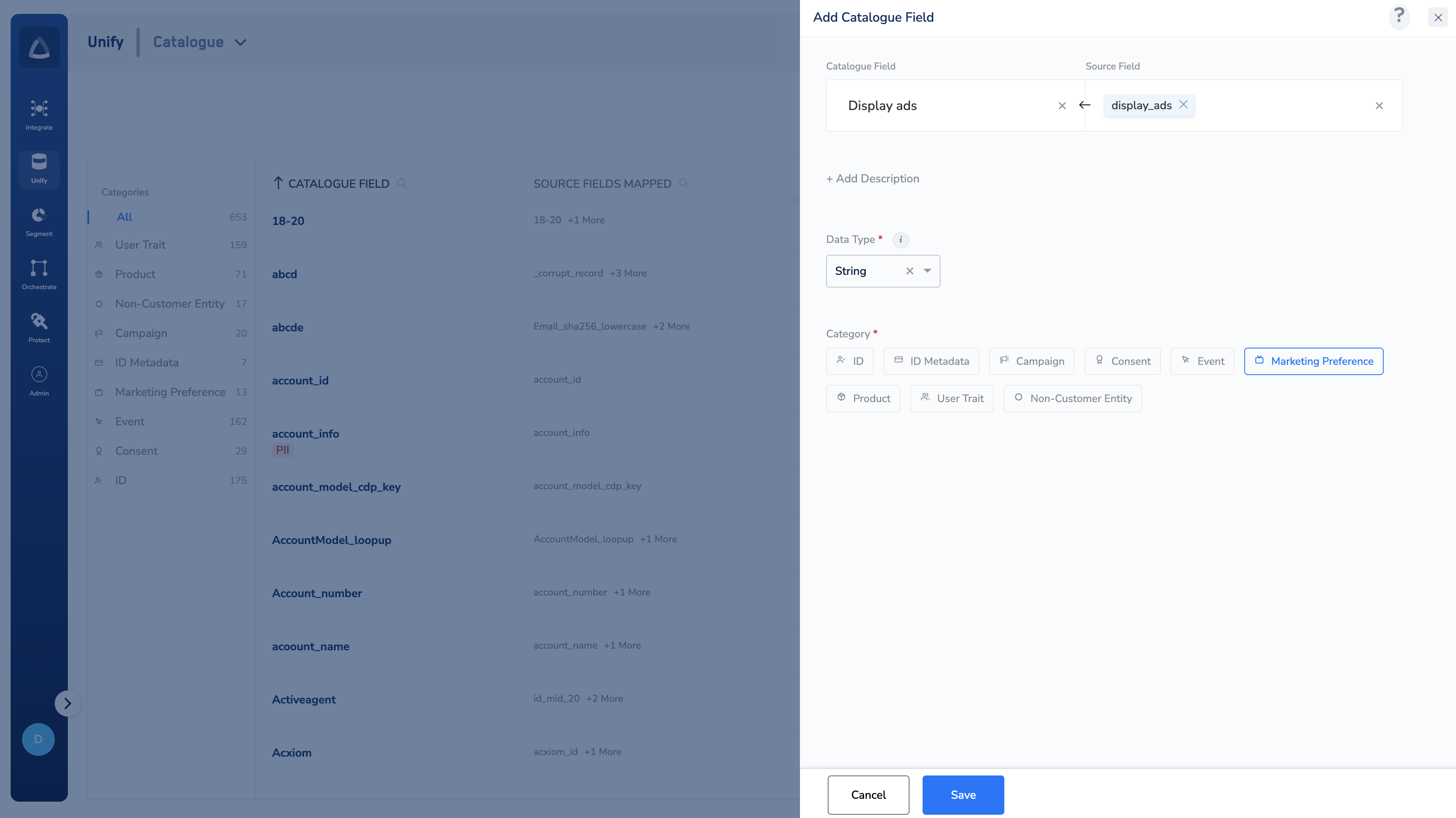
    Enter a Catalogue Field. As you type, suggestions based on the existing Catalogue Fields appear. You can choose a suggested Catalogue Field or click **+Add Catalogue Field** to add a new field.
  </Step>

  <Step>
    Map the Catalogue Field to its corresponding Source Field. Same as the above behaviour, you can choose a suggested Source Field or click **+Add a new Source Field** to add a new field.
  </Step>

  <Step>
    Enter a description for easy identification.
  </Step>

  <Step>
    Choose **String** as the **Data Type**.
  </Step>

  <Step>
    Choose **Marketing Preference** as the **Category**.
  </Step>

  <Step>
    Save the changes.

    <Frame>
      <img src="https://mintcdn.com/zeotap/htBST1bc1LEJ85Nd/articles/unify-customer/Storage/unify-customer/unify/mark_pref.png?fit=max&auto=format&n=htBST1bc1LEJ85Nd&q=85&s=8768d69802243e0207ad5ef15165d87f" alt="" width="3562" height="2000" data-path="articles/unify-customer/Storage/unify-customer/unify/mark_pref.png" />
    </Frame>
  </Step>
</Steps>

## Related Topics

<CardGroup>
  <Card title="Categories for adding Catalogue fields" href="/articles/unify-customer/categories-in-catalogue" icon="angles-right" iconType="solid" horizontal={true} />

  <Card title="Add a Catalogue Field" href="/articles/unify-customer/add-a-catalogue-field" icon="angles-right" iconType="solid" horizontal={true} />

  <Card title="Add a Consent Category" href="/articles/unify-customer/adding-a-consent-category" icon="angles-right" iconType="solid" horizontal={true} />

  <Card title="Consent Orchestration" href="/articles/protect-customer/consent-orchestration-2830401643" icon="angles-right" iconType="solid" horizontal={true} />
</CardGroup>