> ## Documentation Index
> Fetch the complete documentation index at: https://docs.zeotap.com/llms.txt
> Use this file to discover all available pages before exploring further.
# LinkedIn destination
> Activate Zeotap audiences as Matched Audiences in your LinkedIn Campaign Manager Ad Account using SHA256 emails or MAIDs.
## What this is
The LinkedIn destination activates Zeotap audiences as Matched Audiences inside your LinkedIn Campaign Manager Ad Account. You authorise Zeotap against a LinkedIn user with Ad Account access, map your output identifiers (SHA256-hashed emails or MAIDs / Google AID), and link audiences to push contact-targeting lists into LinkedIn ads. This page covers destination creation, audience linking, verification in Campaign Manager, campaign attachment, and ongoing token maintenance.
## Prerequisites
Before you start, confirm you have:
* Access to the **Destinations** application in your Zeotap CDP workspace.
* A LinkedIn login with access to the LinkedIn Campaign Manager Ad Account where audiences will be activated. If your Customer Success Manager (CSM) administers the Ad Account on your behalf, the CSM can complete the OAuth step as the destination owner.
* Source identifiers that resolve to one of the supported identifier types below.
### Supported identifiers and actions
This integration supports **SHA256-hashed emails** and **MAIDs (Google AID)**.
| Action | [ID Extension](/articles/segment-customer/extend-your-audience#id-extension) | [Delete](/articles/segment-customer/delta-upload-and-delete-functions) | [Delta Upload](/articles/segment-customer/delta-upload-and-delete-functions) |
| ---------------------------- | ---------------------------------------------------------------------------- | ---------------------------------------------------------------------- | ---------------------------------------------------------------------------- |
| Send identifiers to LinkedIn | ✅ | ✅ | — |
If your source data carries raw email addresses, hash them with SHA256 over the lowercased, trimmed value so they align with LinkedIn member matching:
```python theme={null}
import hashlib
def sha256_email(email: str) -> str:
return hashlib.sha256(email.strip().lower().encode("utf-8")).hexdigest()
sha256_email("Alice@Example.com")
# returns a 64-character lowercase hex SHA256 digest
```
## Create the LinkedIn destination
1. Sign in to the Zeotap CDP App and open the **Destinations** application.
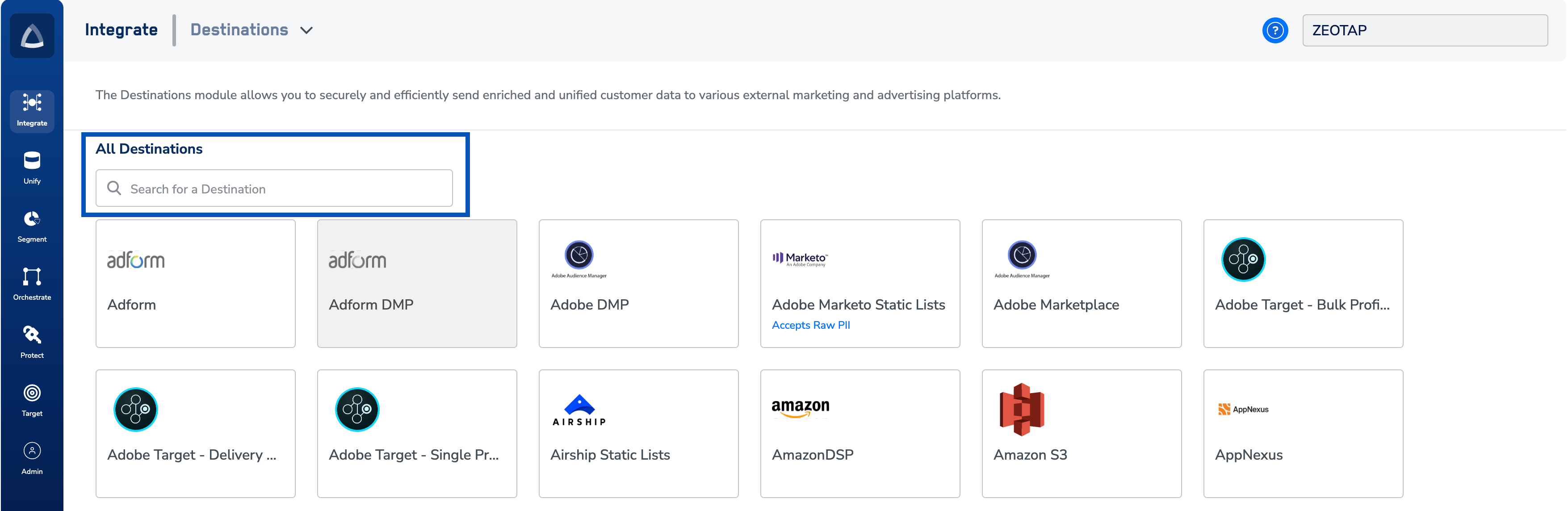
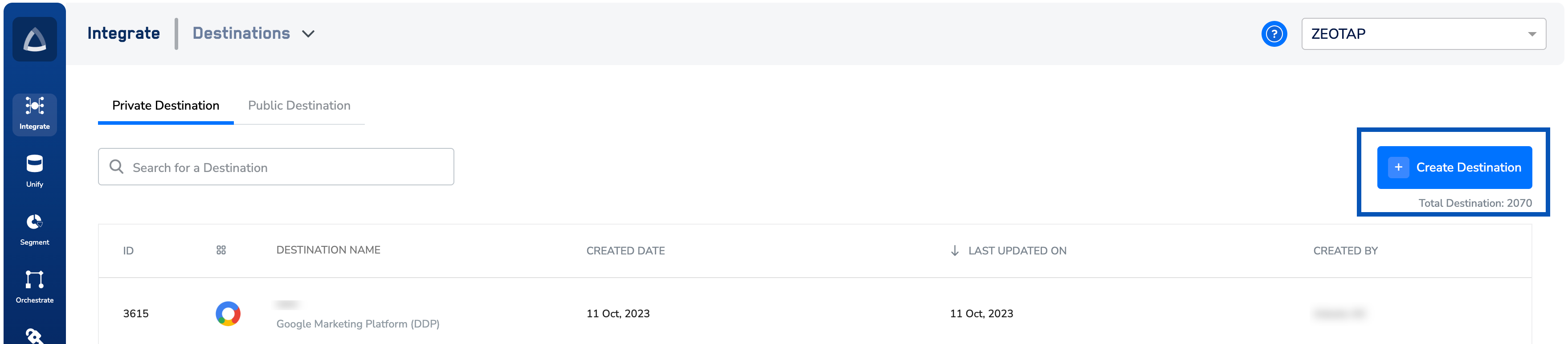 2. Click **+ Create Destination**, then under **All Channels** search for **LinkedIn** and select it.
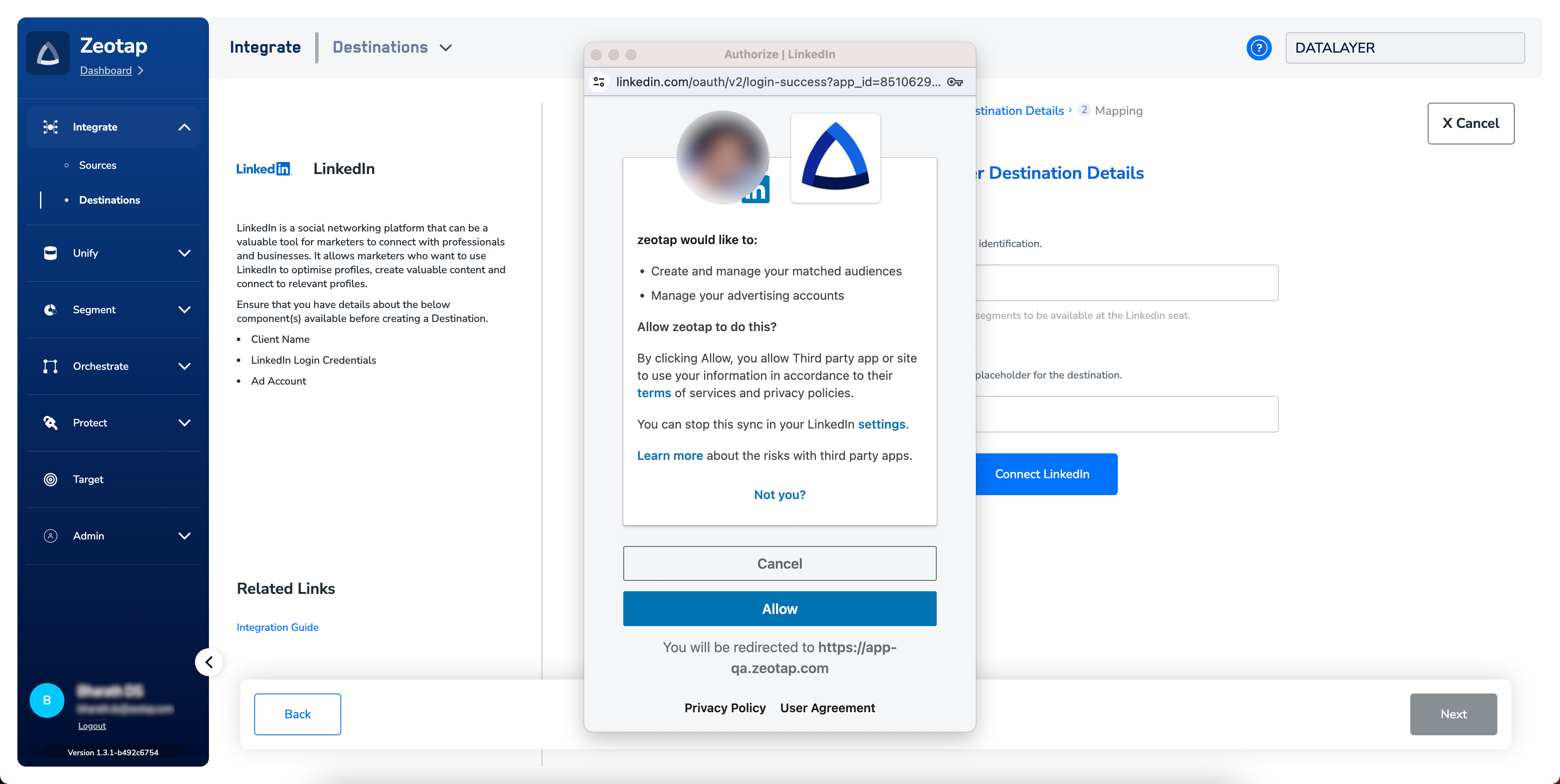
 3. Configure the destination details:
* Enter a **name** for the destination.
* Enter the **Client name** — a placeholder label your team will recognise when listing destinations.
* Click **Connect LinkedIn**.
3. Configure the destination details:
* Enter a **name** for the destination.
* Enter the **Client name** — a placeholder label your team will recognise when listing destinations.
* Click **Connect LinkedIn**.
 4. You are redirected to LinkedIn. Sign in with the account that has access to the target Ad Account and accept the requested permissions.
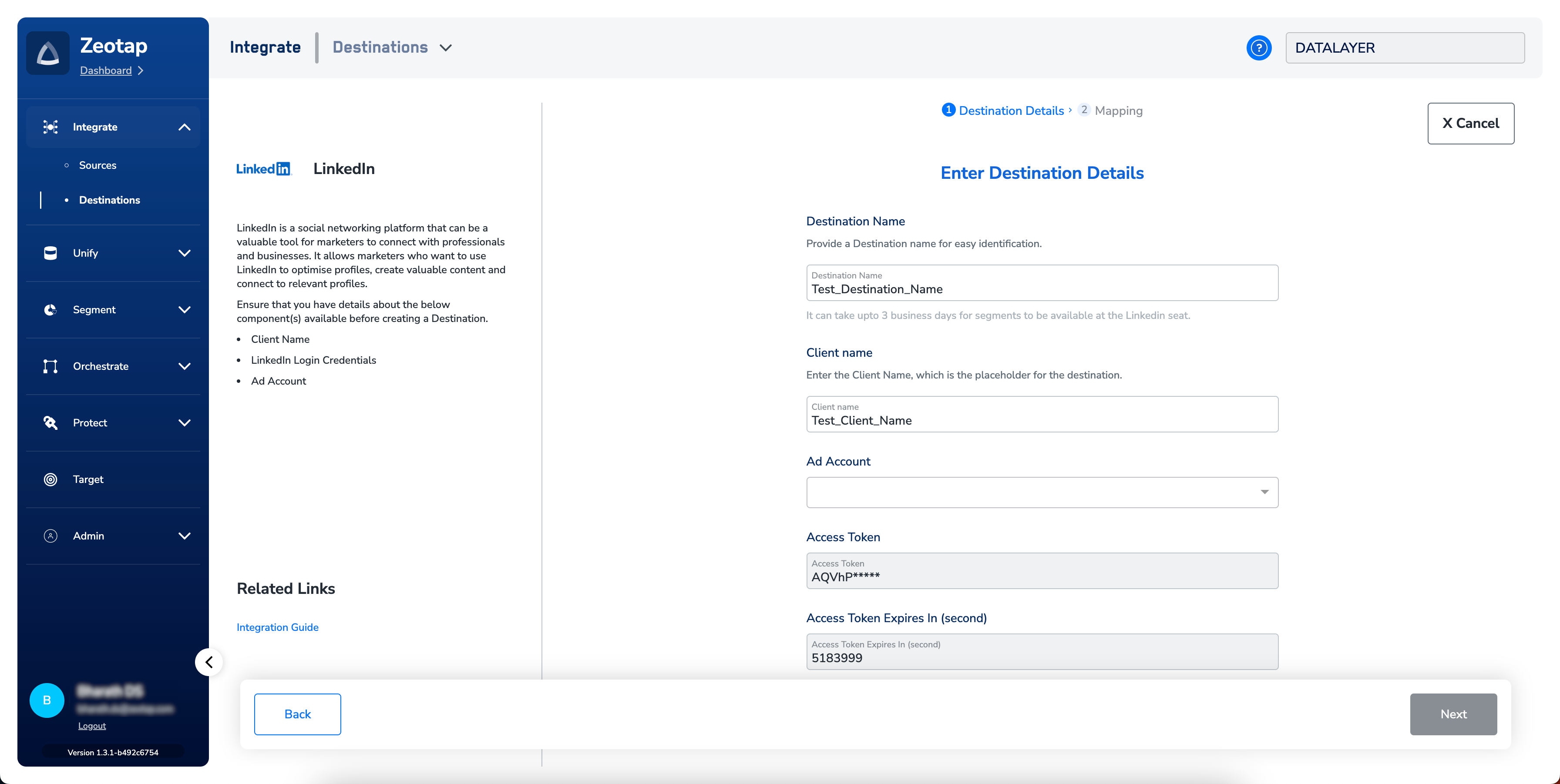
 5. Choose the **Ad Account** to bind this destination to. The **Access Token** and **Refresh Token** populate automatically along with each token's expiry date.
 If a working LinkedIn destination already exists for this Ad Account, do **not** create a second one with the same details. Reuse the existing destination instead.
6. Click **Next** to proceed to mapping.
7. Under **Choose your Action**, select **Send identifiers to LinkedIn**. Under **Map the Fields**, select the identifiers to send (SHA256 emails, MAIDs, or both). The default list shows the [output identifiers](/articles/segment-customer/choose-the-output-identifiers) accepted by the platform; edit, add, or remove entries as needed. See [Destinations → Mappings](/articles/integrate-customer/destinations#mappings) for mapping rules.
If a working LinkedIn destination already exists for this Ad Account, do **not** create a second one with the same details. Reuse the existing destination instead.
6. Click **Next** to proceed to mapping.
7. Under **Choose your Action**, select **Send identifiers to LinkedIn**. Under **Map the Fields**, select the identifiers to send (SHA256 emails, MAIDs, or both). The default list shows the [output identifiers](/articles/segment-customer/choose-the-output-identifiers) accepted by the platform; edit, add, or remove entries as needed. See [Destinations → Mappings](/articles/integrate-customer/destinations#mappings) for mapping rules.
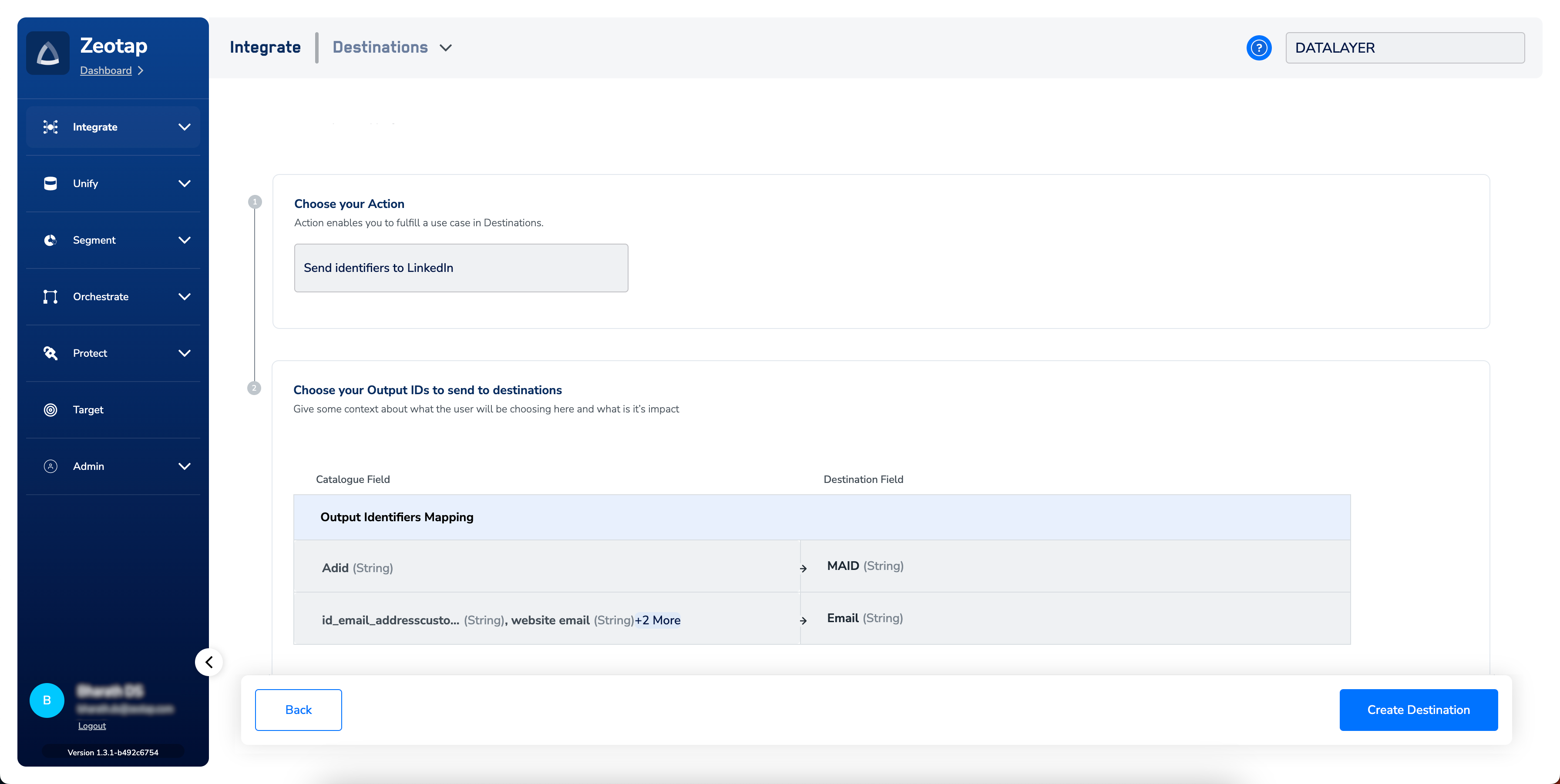 8. Click **Create Destination**. The new destination is listed in the **Audiences** application, ready to be linked to an audience or segment.
## Link an audience to the destination
Follow [Link an audience to the destination](/articles/integrate-customer/link-an-audience-to-the-destination) to attach a Zeotap audience to your LinkedIn destination. Once linked, the audience's refresh schedule controls when records are pushed.
A few things to know about pushing segments to LinkedIn:
* Segments take up to **two days** to appear at the LinkedIn seat after activation.
* **Audiences** and **Segments** describe the same object — a customer cohort matching a defined criterion (for example, customers over 18 who triggered `addToCart` in the last 30 days).
* Apply the Zeotap Graph extension to derive activatable online identifiers from your first-party offline identifiers (email, phone, cookies, device IDs), increasing the addressable LinkedIn reach.
## Verify the audience reached LinkedIn
The destination is working when your Zeotap audience appears in LinkedIn Campaign Manager with a non-zero Match rate.
1. Sign in to LinkedIn Campaign Manager and open **Audiences**.
8. Click **Create Destination**. The new destination is listed in the **Audiences** application, ready to be linked to an audience or segment.
## Link an audience to the destination
Follow [Link an audience to the destination](/articles/integrate-customer/link-an-audience-to-the-destination) to attach a Zeotap audience to your LinkedIn destination. Once linked, the audience's refresh schedule controls when records are pushed.
A few things to know about pushing segments to LinkedIn:
* Segments take up to **two days** to appear at the LinkedIn seat after activation.
* **Audiences** and **Segments** describe the same object — a customer cohort matching a defined criterion (for example, customers over 18 who triggered `addToCart` in the last 30 days).
* Apply the Zeotap Graph extension to derive activatable online identifiers from your first-party offline identifiers (email, phone, cookies, device IDs), increasing the addressable LinkedIn reach.
## Verify the audience reached LinkedIn
The destination is working when your Zeotap audience appears in LinkedIn Campaign Manager with a non-zero Match rate.
1. Sign in to LinkedIn Campaign Manager and open **Audiences**.
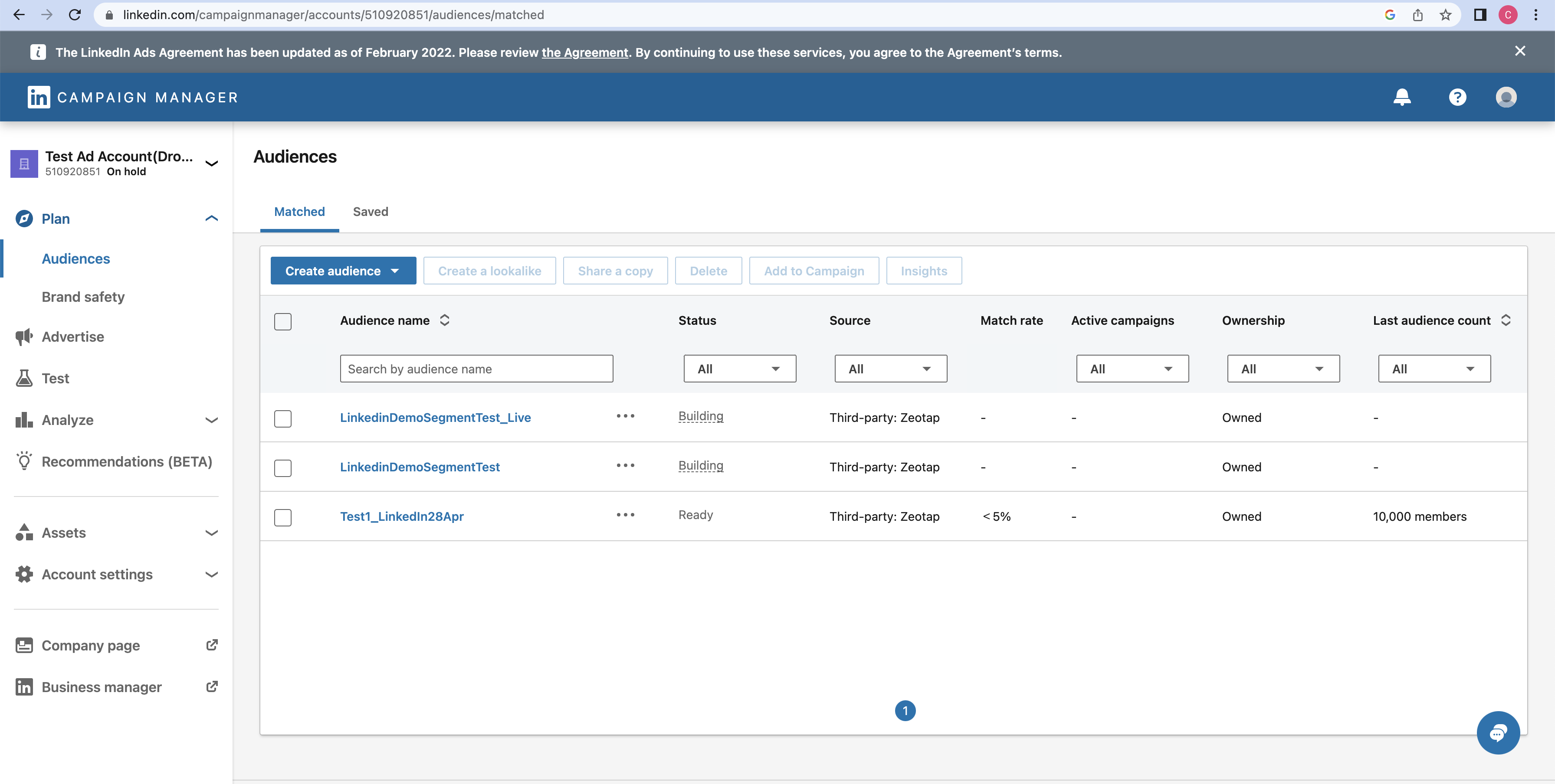 2. Locate the audience by the name you gave it in Zeotap and check three fields:
* **Match rate** — the percentage of your uploaded list that matched LinkedIn members for contact targeting. See LinkedIn's [Match rate documentation](https://www.linkedin.com/help/lms/answer/a420595).
* **Status** — indicates whether the audience is ready to be used or needs attention. An audience must reach the ready-to-use state before you can attach it to a campaign.
* **Last modified** — timestamp of the last update from Zeotap. A value within your audience refresh window confirms the latest sync landed.
If the audience does not appear after two days, jump to [Troubleshoot connection and token issues](#troubleshoot-connection-and-token-issues).
For more on Matched Audience definitions, see [LinkedIn's Matched Audiences help](https://www.linkedin.com/help/lms/answer/a795242).
## Attach the audience to a campaign
1. In LinkedIn Campaign Manager, open **Advertise → Campaigns**.
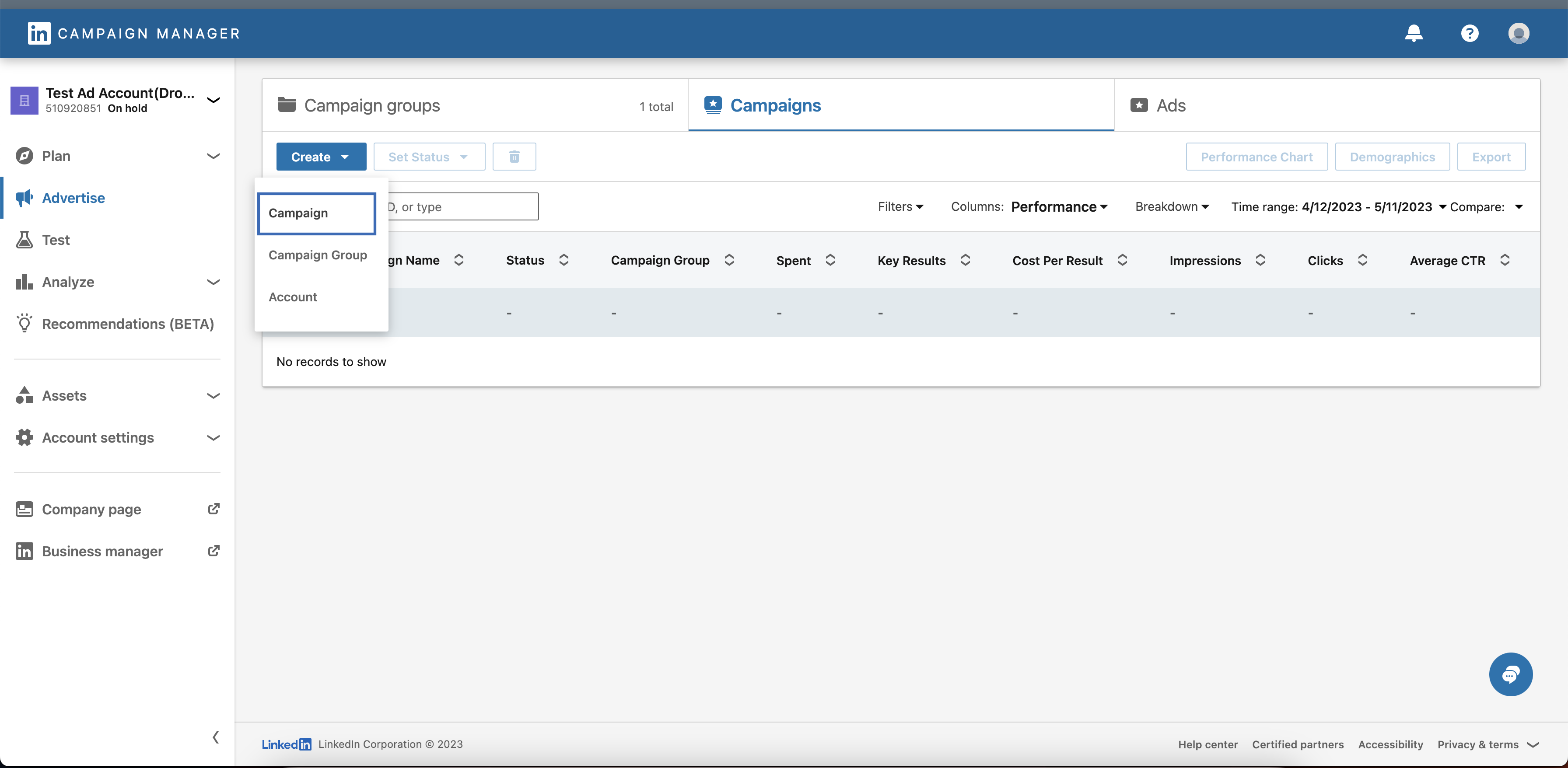
2. Under the **Campaigns** tab, click **Create → Campaign**.
2. Locate the audience by the name you gave it in Zeotap and check three fields:
* **Match rate** — the percentage of your uploaded list that matched LinkedIn members for contact targeting. See LinkedIn's [Match rate documentation](https://www.linkedin.com/help/lms/answer/a420595).
* **Status** — indicates whether the audience is ready to be used or needs attention. An audience must reach the ready-to-use state before you can attach it to a campaign.
* **Last modified** — timestamp of the last update from Zeotap. A value within your audience refresh window confirms the latest sync landed.
If the audience does not appear after two days, jump to [Troubleshoot connection and token issues](#troubleshoot-connection-and-token-issues).
For more on Matched Audience definitions, see [LinkedIn's Matched Audiences help](https://www.linkedin.com/help/lms/answer/a795242).
## Attach the audience to a campaign
1. In LinkedIn Campaign Manager, open **Advertise → Campaigns**.
2. Under the **Campaigns** tab, click **Create → Campaign**.
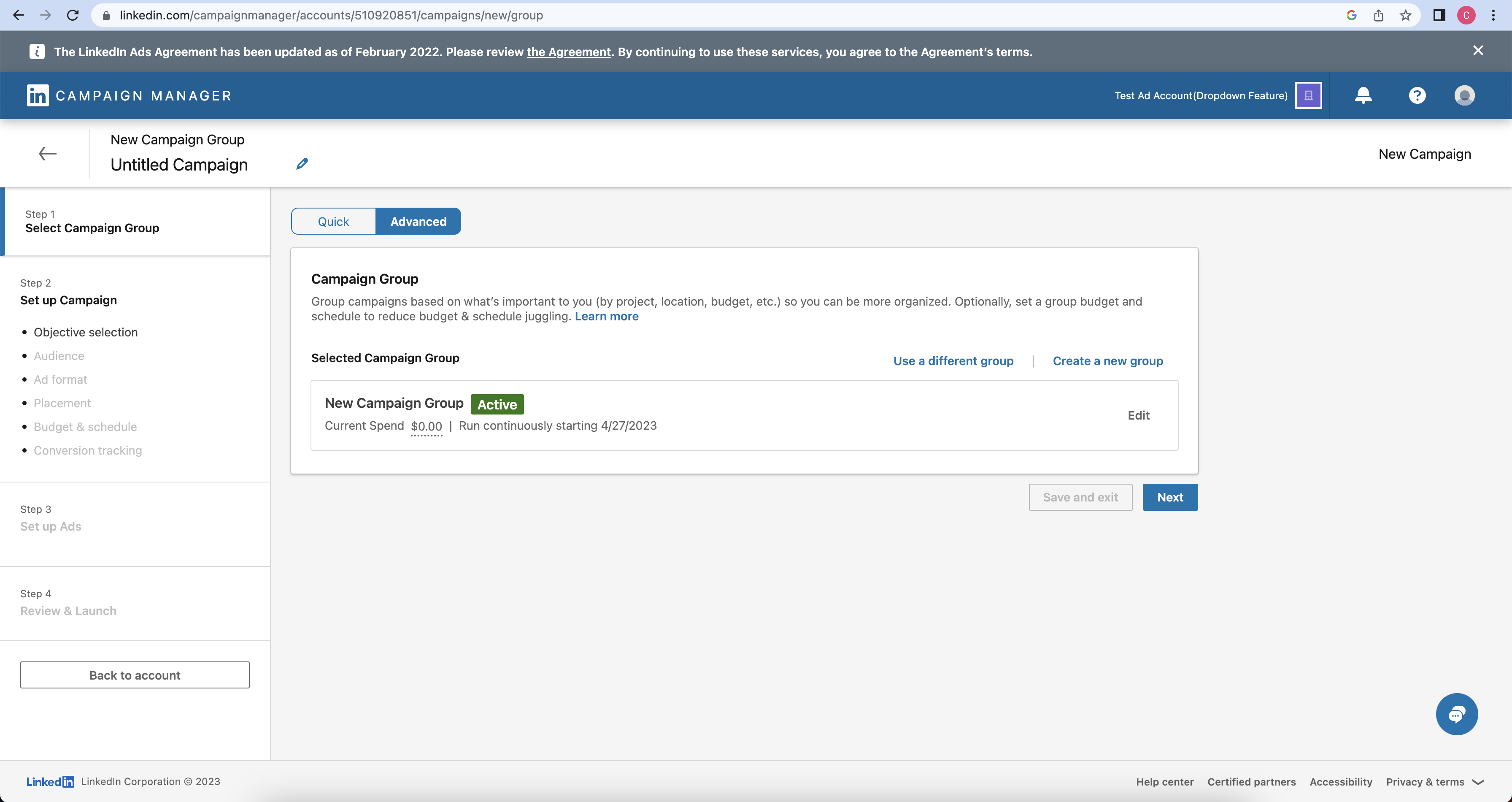
 3. Confirm the pre-filled Campaign Group settings and click **Next**.
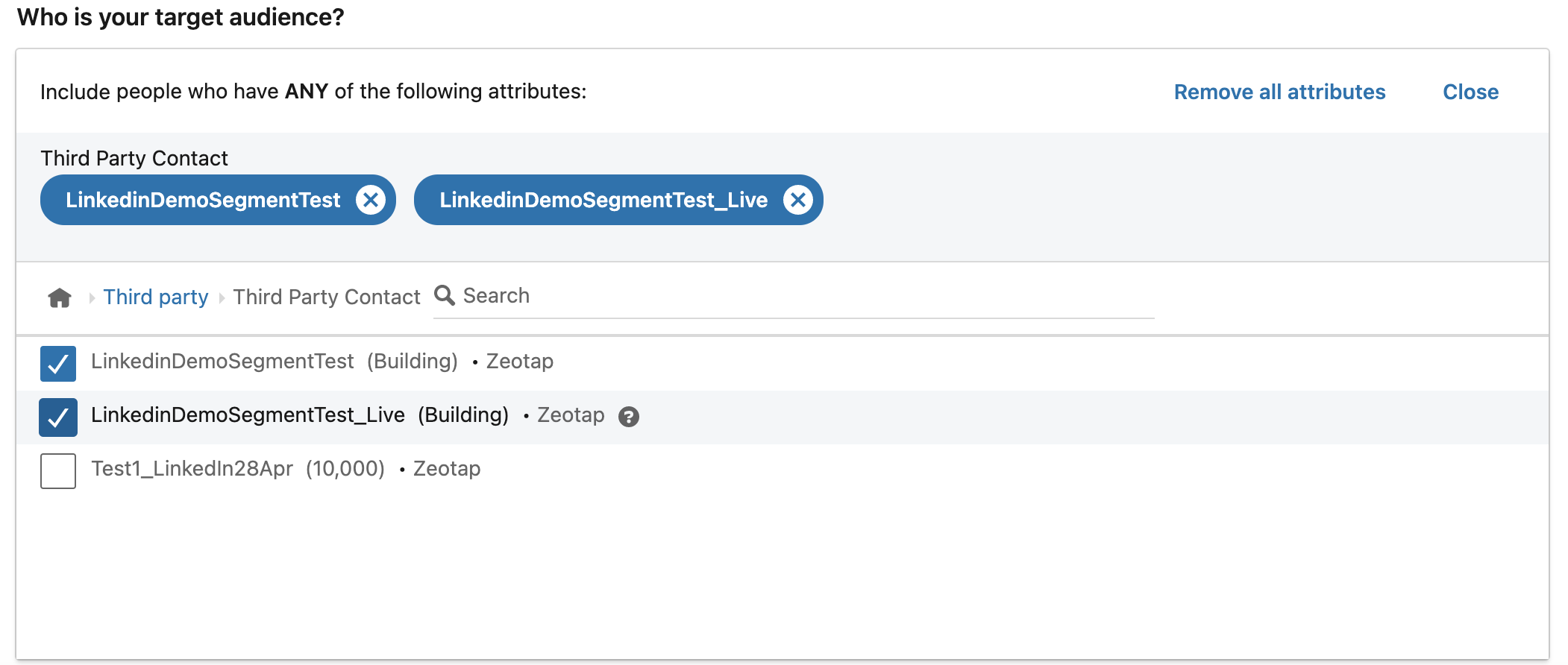
 4. Under **Who is your target audience?**, click **Audiences → Third party → Third Party Contact**.
 5. Select the Zeotap segment and continue with the rest of the campaign setup.
 ## Maintain access and refresh tokens
LinkedIn issues two OAuth tokens when you connect the destination:
* **Access Token** — valid for **60 days**. Zeotap renews it automatically using the Refresh Token.
* **Refresh Token** — valid for **1 year**. When the Refresh Token expires, the destination owner must reauthorise the destination.
Both tokens can be revoked at any time for technical or policy reasons. If either token expires or is revoked, Zeotap cannot push audiences to this destination — recreate the destination by repeating the OAuth flow above on receipt of the expiry or revocation notification.
## How user disqualification works
When a user no longer matches an audience's criteria (criteria change, consent withdrawal, or other audience conditions), Zeotap CDP issues a user-deletion request to LinkedIn in the next refresh cycle. Disqualified users are excluded from the LinkedIn audience on the refresh frequency configured for that audience. This runs automatically — no manual trigger is required.
## Troubleshoot connection and token issues
### Why this happens
Audience activation to LinkedIn fails for one of a small set of reasons — almost always token expiry, token revocation, lost Ad Account access, or an identifier-format mismatch on LinkedIn's side.
| Error condition | What it means | Where to look |
| --------------------------- | ---------------------------------------------------------------------------------------------- | ---------------------------------------------------------------- |
| Access Token expired | The 60-day Access Token expired and was not renewed by the Refresh Token | Destinations → LinkedIn destination → token expiry date |
| Refresh Token expired | The 1-year Refresh Token expired; full reauthorisation required | Destinations → LinkedIn destination → token expiry date |
| Token revoked | A LinkedIn admin or policy event revoked the token | LinkedIn account security settings; destination status in Zeotap |
| Ad Account access removed | The LinkedIn user who authorised the destination lost access to the Ad Account | LinkedIn Campaign Manager → user roles on the Ad Account |
| Match rate is 0 or very low | Identifiers are not in a form LinkedIn can match (unhashed, wrong case, wrong identifier type) | LinkedIn Campaign Manager → Audiences → **Match rate** column |
### Resolve token expiry or revocation
1. In Zeotap, open the **Destinations** application and select the affected LinkedIn destination.
2. Recreate the destination by running the OAuth flow from [Create the LinkedIn destination](#create-the-linkedin-destination) again. The new token pair replaces the expired or revoked pair.
3. Reattach the destination to the affected audiences if the original destination was removed.
To verify the fix worked: the destination's token expiry date moves forward, and the next audience refresh delivers records to LinkedIn within two days.
### Resolve a low or zero match rate
1. Confirm your source identifiers are SHA256-hashed emails or MAIDs (Google AID). LinkedIn rejects unhashed email values for this integration.
2. Re-hash emails over the lowercased, trimmed value (see the snippet in [Prerequisites](#prerequisites)).
3. Trigger an audience refresh and recheck the **Match rate** in LinkedIn Campaign Manager 48 hours later.
## When to contact support
Open a support ticket when:
* You completed the OAuth flow but the destination remains in an error state after one full refresh cycle.
* The audience appears in LinkedIn Campaign Manager but the Match rate stays at 0% after a second refresh with correctly-hashed identifiers.
* You see a destination behaviour not described on this page.
**Include in your request:**
* The destination name and the LinkedIn Ad Account ID.
* The audience name and ID.
* Timestamp of the last successful refresh (from the Audiences listing).
* The current token expiry date shown in the destination configuration.
* A screenshot of the Match rate, Status, and Last modified columns from LinkedIn Campaign Manager → Audiences.
## FAQ
Segments take up to two days to appear at the LinkedIn seat after the first activation. Subsequent refreshes push delta records on the audience's configured refresh frequency.
The LinkedIn integration requires SHA256-hashed emails. Hash over the lowercased, trimmed value — see the snippet in Prerequisites. MAIDs (Google AID) are sent unhashed.
Zeotap issues a user-deletion request to LinkedIn in the next refresh cycle. Disqualified users are excluded from the LinkedIn Matched Audience automatically; no manual action is required.
No. Create one destination per Ad Account, and do not duplicate destinations for the same Ad Account. If a working destination already exists, link your audience to it rather than creating a second one.
## Next steps
* [Explore audience linking → Link an audience to the destination](/articles/integrate-customer/link-an-audience-to-the-destination)
* [Explore identifier coverage → Extend your audience with ID Extension](/articles/segment-customer/extend-your-audience#id-extension)
* [Explore output identifier choices → Choose the output identifiers](/articles/segment-customer/choose-the-output-identifiers)
* [Explore delta and delete behaviour → Delta upload and delete functions](/articles/segment-customer/delta-upload-and-delete-functions)
* [Explore the full destination catalog → Integrations master list](/articles/integrations-master-list-publication/integrations-master-list)
## Maintain access and refresh tokens
LinkedIn issues two OAuth tokens when you connect the destination:
* **Access Token** — valid for **60 days**. Zeotap renews it automatically using the Refresh Token.
* **Refresh Token** — valid for **1 year**. When the Refresh Token expires, the destination owner must reauthorise the destination.
Both tokens can be revoked at any time for technical or policy reasons. If either token expires or is revoked, Zeotap cannot push audiences to this destination — recreate the destination by repeating the OAuth flow above on receipt of the expiry or revocation notification.
## How user disqualification works
When a user no longer matches an audience's criteria (criteria change, consent withdrawal, or other audience conditions), Zeotap CDP issues a user-deletion request to LinkedIn in the next refresh cycle. Disqualified users are excluded from the LinkedIn audience on the refresh frequency configured for that audience. This runs automatically — no manual trigger is required.
## Troubleshoot connection and token issues
### Why this happens
Audience activation to LinkedIn fails for one of a small set of reasons — almost always token expiry, token revocation, lost Ad Account access, or an identifier-format mismatch on LinkedIn's side.
| Error condition | What it means | Where to look |
| --------------------------- | ---------------------------------------------------------------------------------------------- | ---------------------------------------------------------------- |
| Access Token expired | The 60-day Access Token expired and was not renewed by the Refresh Token | Destinations → LinkedIn destination → token expiry date |
| Refresh Token expired | The 1-year Refresh Token expired; full reauthorisation required | Destinations → LinkedIn destination → token expiry date |
| Token revoked | A LinkedIn admin or policy event revoked the token | LinkedIn account security settings; destination status in Zeotap |
| Ad Account access removed | The LinkedIn user who authorised the destination lost access to the Ad Account | LinkedIn Campaign Manager → user roles on the Ad Account |
| Match rate is 0 or very low | Identifiers are not in a form LinkedIn can match (unhashed, wrong case, wrong identifier type) | LinkedIn Campaign Manager → Audiences → **Match rate** column |
### Resolve token expiry or revocation
1. In Zeotap, open the **Destinations** application and select the affected LinkedIn destination.
2. Recreate the destination by running the OAuth flow from [Create the LinkedIn destination](#create-the-linkedin-destination) again. The new token pair replaces the expired or revoked pair.
3. Reattach the destination to the affected audiences if the original destination was removed.
To verify the fix worked: the destination's token expiry date moves forward, and the next audience refresh delivers records to LinkedIn within two days.
### Resolve a low or zero match rate
1. Confirm your source identifiers are SHA256-hashed emails or MAIDs (Google AID). LinkedIn rejects unhashed email values for this integration.
2. Re-hash emails over the lowercased, trimmed value (see the snippet in [Prerequisites](#prerequisites)).
3. Trigger an audience refresh and recheck the **Match rate** in LinkedIn Campaign Manager 48 hours later.
## When to contact support
Open a support ticket when:
* You completed the OAuth flow but the destination remains in an error state after one full refresh cycle.
* The audience appears in LinkedIn Campaign Manager but the Match rate stays at 0% after a second refresh with correctly-hashed identifiers.
* You see a destination behaviour not described on this page.
**Include in your request:**
* The destination name and the LinkedIn Ad Account ID.
* The audience name and ID.
* Timestamp of the last successful refresh (from the Audiences listing).
* The current token expiry date shown in the destination configuration.
* A screenshot of the Match rate, Status, and Last modified columns from LinkedIn Campaign Manager → Audiences.
## FAQ
Segments take up to two days to appear at the LinkedIn seat after the first activation. Subsequent refreshes push delta records on the audience's configured refresh frequency.
The LinkedIn integration requires SHA256-hashed emails. Hash over the lowercased, trimmed value — see the snippet in Prerequisites. MAIDs (Google AID) are sent unhashed.
Zeotap issues a user-deletion request to LinkedIn in the next refresh cycle. Disqualified users are excluded from the LinkedIn Matched Audience automatically; no manual action is required.
No. Create one destination per Ad Account, and do not duplicate destinations for the same Ad Account. If a working destination already exists, link your audience to it rather than creating a second one.
## Next steps
* [Explore audience linking → Link an audience to the destination](/articles/integrate-customer/link-an-audience-to-the-destination)
* [Explore identifier coverage → Extend your audience with ID Extension](/articles/segment-customer/extend-your-audience#id-extension)
* [Explore output identifier choices → Choose the output identifiers](/articles/segment-customer/choose-the-output-identifiers)
* [Explore delta and delete behaviour → Delta upload and delete functions](/articles/segment-customer/delta-upload-and-delete-functions)
* [Explore the full destination catalog → Integrations master list](/articles/integrations-master-list-publication/integrations-master-list)