> ## Documentation Index
> Fetch the complete documentation index at: https://docs.zeotap.com/llms.txt
> Use this file to discover all available pages before exploring further.
# Facebook 1P (Meta)
> Configure the Facebook 1P (Meta) destination to send Zeotap CDP audiences to Facebook Custom Audiences for targeting across Facebook, Instagram, Audience Network, and Messenger.
## What this is
Facebook 1P (Meta) is a Zeotap CDP destination that pushes audience segments into Meta as Custom Audiences. Once linked, your audience is available for targeting across Facebook, Instagram, Audience Network, and Messenger — you choose which apps at the placement stage of campaign setup. The integration supports two action types: send a single identifier per profile, or send multiple user identifiers per profile to raise the match rate. The terms **Facebook** and **Meta** refer to the same platform throughout this page.
## Supported actions, identifiers, and features
| Action | Supported identifiers/attributes | Supported features |
| --------------------------------------------- | ----------------------------------------------------------------------------------------------------------------------------------------------------------------------------------------- | ------------------------- |
| Send Identifiers to Facebook 1P | MAIDs; Email address (SHA256); Phone number (SHA256); [Facebook External ID](#facebook-external-id) | Audience Boost and Delete |
| Send Multiple User Identifiers to Facebook 1P | MAIDs; Email address (SHA256); Phone number (SHA256); Gender; Date of birth; First Name and Last Name; State; City; ZIP Code; Country Code; [Facebook External ID](#facebook-external-id) | Audience Boost and Delete |
To raise the match rate, use **Send Multiple User Identifiers to Facebook 1P** so every identifier on a profile is sent as a single user record.
### Facebook External ID
A Facebook External ID is a unique string that represents a user on an advertiser's system — for example, a loyalty membership ID, internal user ID, or external cookie ID. For a given event, Facebook uses the `external_id` to match a record to a user on its platform. Before sending an External ID to Facebook, [add the identifier in your Zeotap Catalogue](/articles/unify-customer/add-a-catalogue-field), then map it when you create the destination.
For background, see Meta's [Custom Audiences External Identifiers guide](https://developers.facebook.com/docs/marketing-api/audiences/guides/custom-audiences/#external_identifiers). See [How External IDs flow between a brand and Facebook](#how-external-ids-flow-between-a-brand-and-facebook) for the end-to-end capture flow.
## Prerequisites
Complete the following before you create the destination in Zeotap CDP:
* **Full Access to a Facebook Ad Account** — the 16-digit Facebook Ad Account ID linked to your Facebook Business Manager, with **People with full control** access for the user who will set up the integration.
* **Accepted Facebook Audiences Terms of Service** — the ad account has accepted the Custom Audiences ToS at [business.facebook.com/ads/manage/customaudiences/tos/](https://business.facebook.com/ads/manage/customaudiences/tos/?act=). This has been mandatory since September 2021.
* **An app in the Facebook Developers portal** — created at [developers.facebook.com](https://developers.facebook.com/) and signed off through [App Review](https://developers.facebook.com/docs/app-review) and [Business Verification](https://developers.facebook.com/docs/development/release/business-verification). If a Zeotap partner has already created the app on your behalf under the name **Zeotap CDP** via OAuth2, skip this step.
* **An Access Token** — either a System User Access Token or a Page Access Token (see [Generate an access token](#generate-an-access-token)).
* **Your Facebook Graph API version** — for example, `17.0`. Enter only the numerical part when configuring the destination; do not include the `v` prefix.
### Grant Full Access to the Ad Account
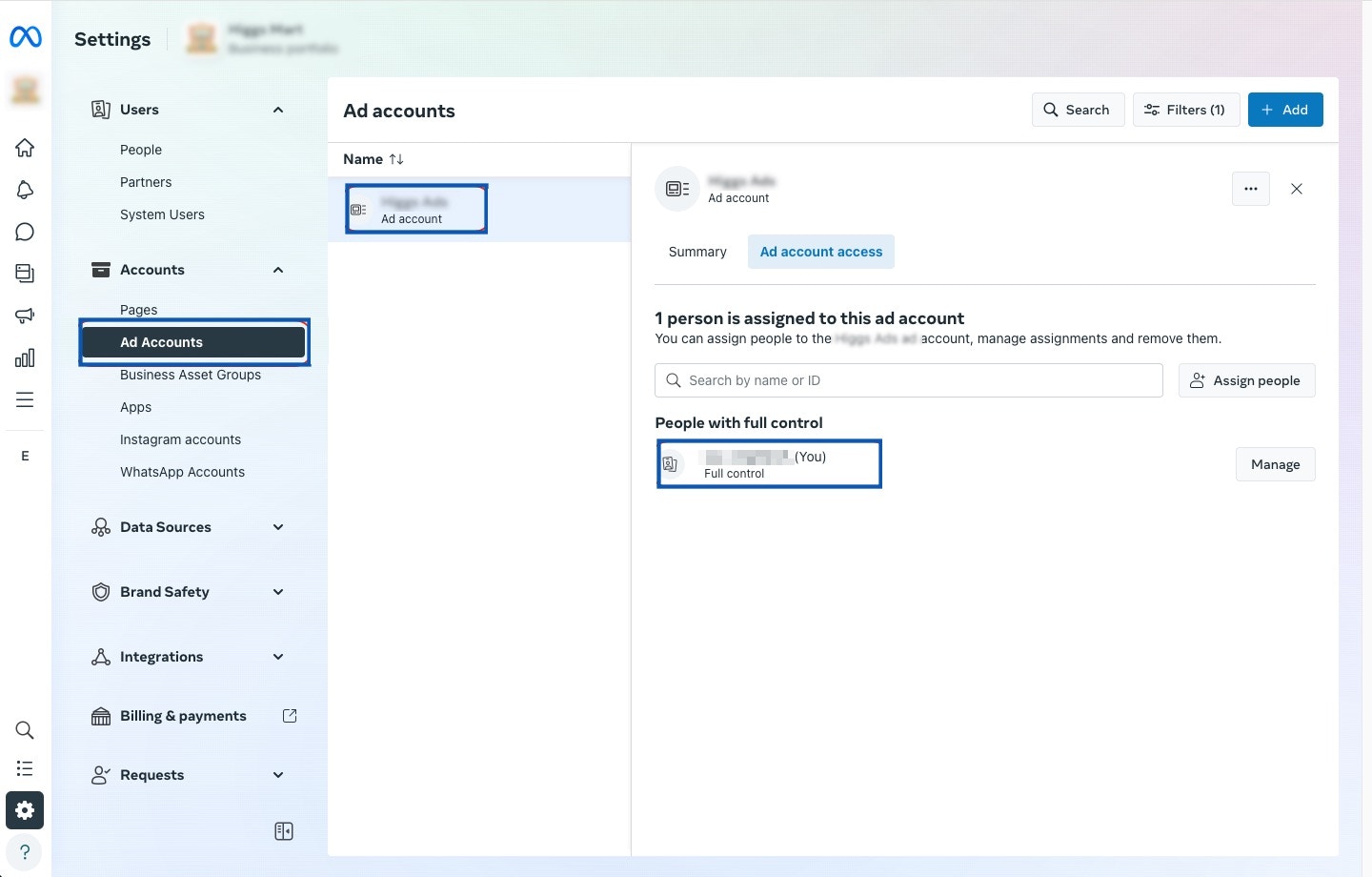
Confirm your Facebook user has full control of the Ad Account that will receive audience data. From Facebook Business Manager at [business.facebook.com](https://business.facebook.com/), select the business portfolio in the top-right corner, open **Settings → Accounts → Ad Accounts**, select the ad account, and open **Ad Account Access**. Under **People with full control**, your account must appear. To grant Full Access to another user, click **Manage** next to their name, then **Assign People**, and select them from the people with access to your Meta Business portfolio.
 ### Accept the Facebook Audiences Terms of Service
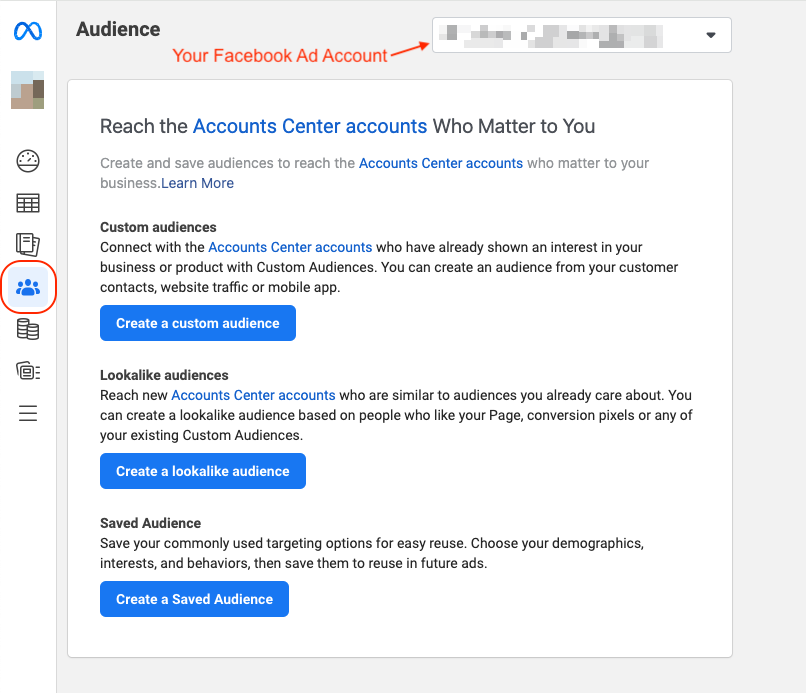
Sign in to your Facebook Ad Account at [adsmanager.facebook.com](https://adsmanager.facebook.com/), confirm the correct ad account is selected in the top-right dropdown, and open **Audiences** from the left navigation. If the ToS has not been accepted, you are prompted to accept it. If it has already been accepted, you see options to create new audiences.
### Accept the Facebook Audiences Terms of Service
Sign in to your Facebook Ad Account at [adsmanager.facebook.com](https://adsmanager.facebook.com/), confirm the correct ad account is selected in the top-right dropdown, and open **Audiences** from the left navigation. If the ToS has not been accepted, you are prompted to accept it. If it has already been accepted, you see options to create new audiences.
 ### Obtain the App ID
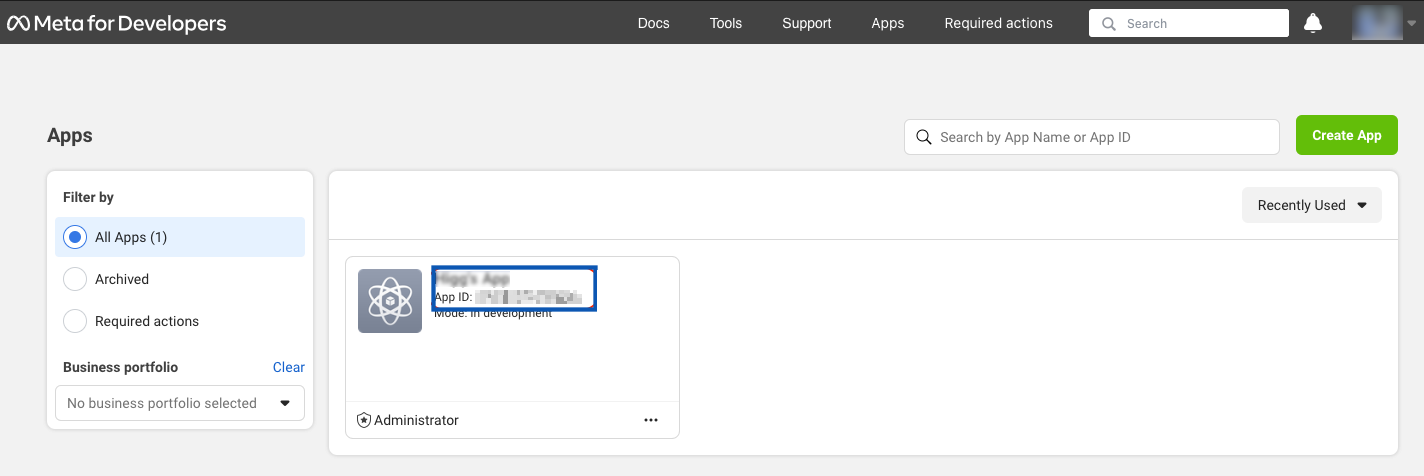
Sign in at [developers.facebook.com](https://developers.facebook.com/), open **My Apps** in the top navigation, and read the App ID listed under the app name on your dashboard.
### Obtain the App ID
Sign in at [developers.facebook.com](https://developers.facebook.com/), open **My Apps** in the top navigation, and read the App ID listed under the app name on your dashboard.
 ### Generate an access token
The Access Token authenticates Zeotap CDP on the Facebook platform. Two types are supported:
* **System User Access Token** — for programmatic, automated actions on business clients' Ad objects or Pages without re-authentication. See Meta's [System User Tokens](https://developers.facebook.com/docs/facebook-login/guides/access-tokens/#usertokens).
* **Page Access Token** — for reading, writing, and modifying data on a Facebook Page. Retrieved from a long-lived user access token; this token does not expire. See Meta's [Page Tokens](https://developers.facebook.com/docs/facebook-login/guides/access-tokens/#pagetokens).
An incorrect or expired access token causes segment activation to fail. Use the never-expiring page token where available, and validate it in Meta's [Access Token Debugger](https://developers.facebook.com/tools/accesstoken) before pasting it into Zeotap CDP. For debugging an invalid token, see Meta's [Access Token Debugging guide](https://developers.facebook.com/docs/facebook-login/guides/access-tokens/debugging).
#### Generate a System User Access Token
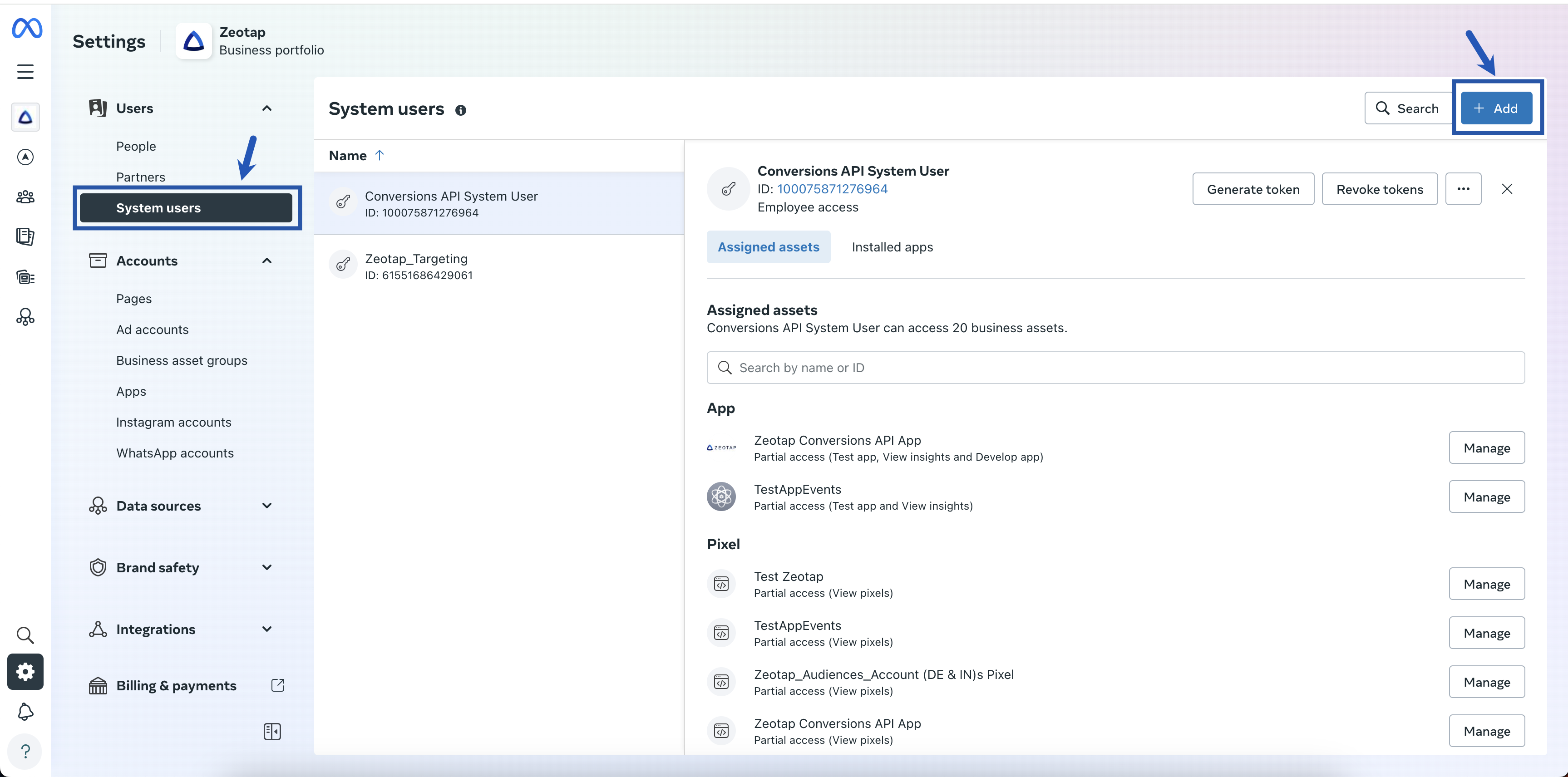
In Facebook Business Manager, open **Settings → Users → System users** and click **+ Add**.
### Generate an access token
The Access Token authenticates Zeotap CDP on the Facebook platform. Two types are supported:
* **System User Access Token** — for programmatic, automated actions on business clients' Ad objects or Pages without re-authentication. See Meta's [System User Tokens](https://developers.facebook.com/docs/facebook-login/guides/access-tokens/#usertokens).
* **Page Access Token** — for reading, writing, and modifying data on a Facebook Page. Retrieved from a long-lived user access token; this token does not expire. See Meta's [Page Tokens](https://developers.facebook.com/docs/facebook-login/guides/access-tokens/#pagetokens).
An incorrect or expired access token causes segment activation to fail. Use the never-expiring page token where available, and validate it in Meta's [Access Token Debugger](https://developers.facebook.com/tools/accesstoken) before pasting it into Zeotap CDP. For debugging an invalid token, see Meta's [Access Token Debugging guide](https://developers.facebook.com/docs/facebook-login/guides/access-tokens/debugging).
#### Generate a System User Access Token
In Facebook Business Manager, open **Settings → Users → System users** and click **+ Add**.
 Enter a name, select the role (**Admin** or **Employee**), and click **Create system user**. One Admin and one Employee user is supported per business; attempting to create more displays:
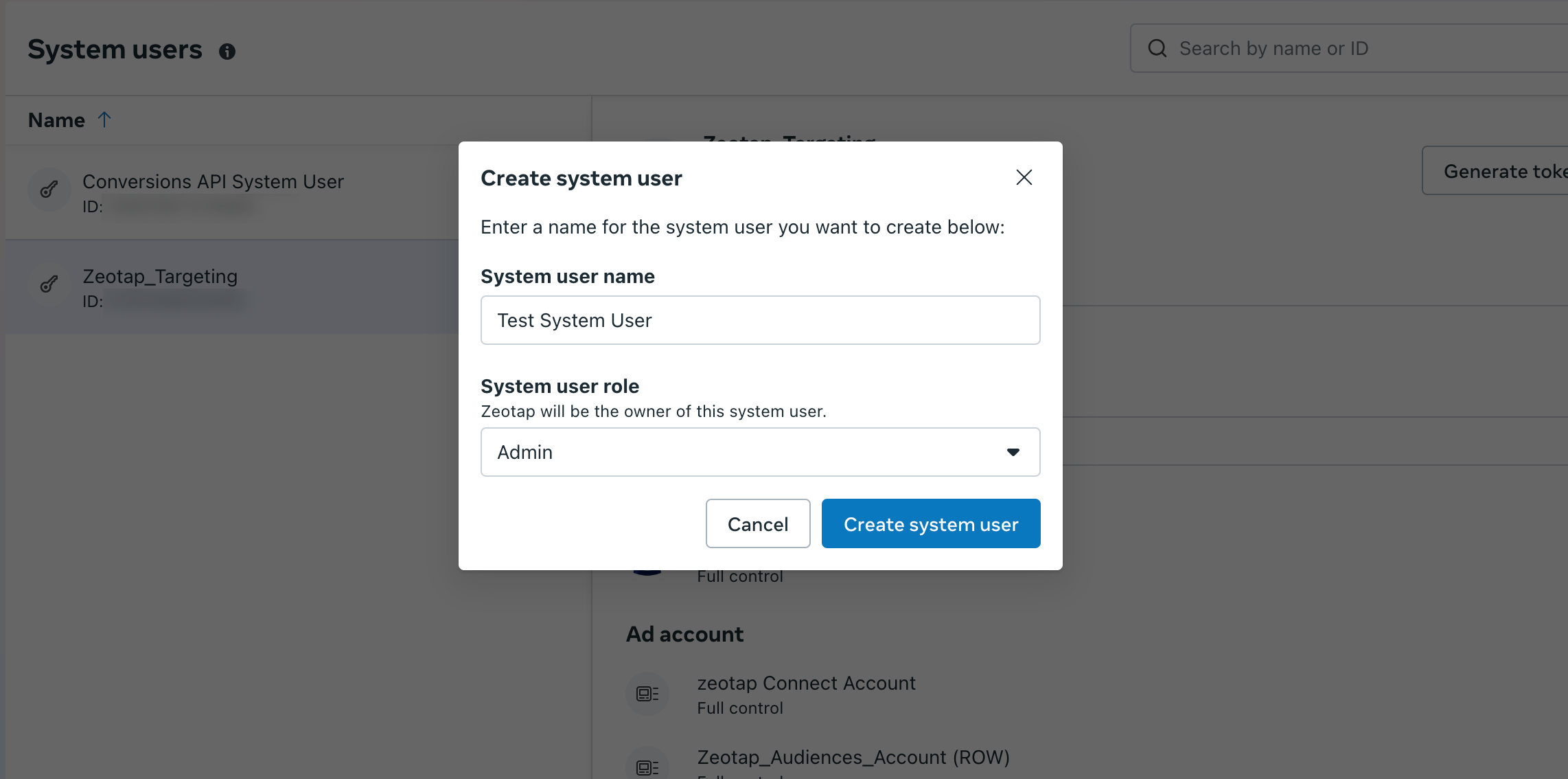 `This business has reached the maximum number of system users. The maximum number of system users allowed is 1.`
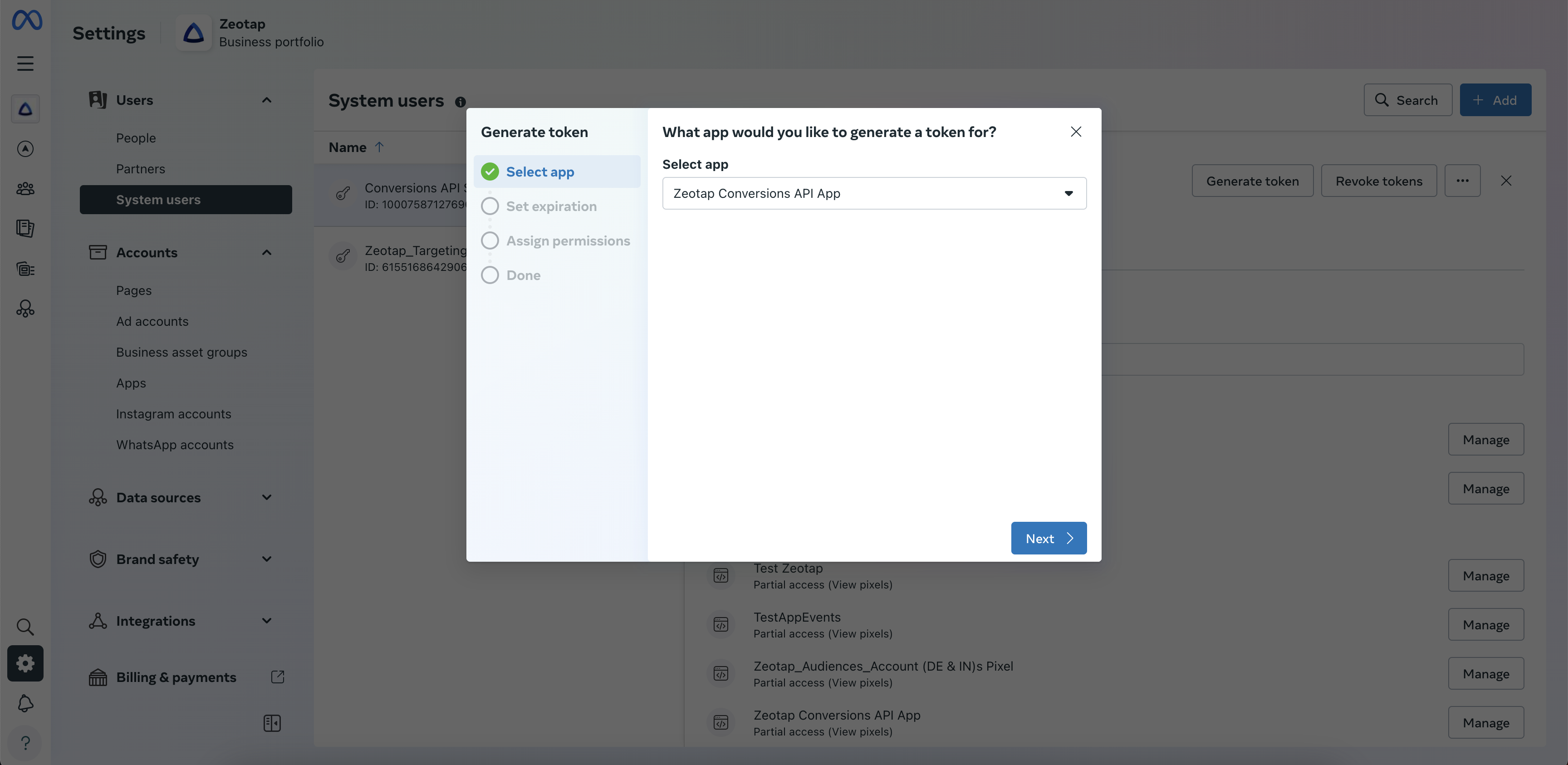
Under **Select app**, choose your app from the drop-down and click **Next**.
`This business has reached the maximum number of system users. The maximum number of system users allowed is 1.`
Under **Select app**, choose your app from the drop-down and click **Next**.
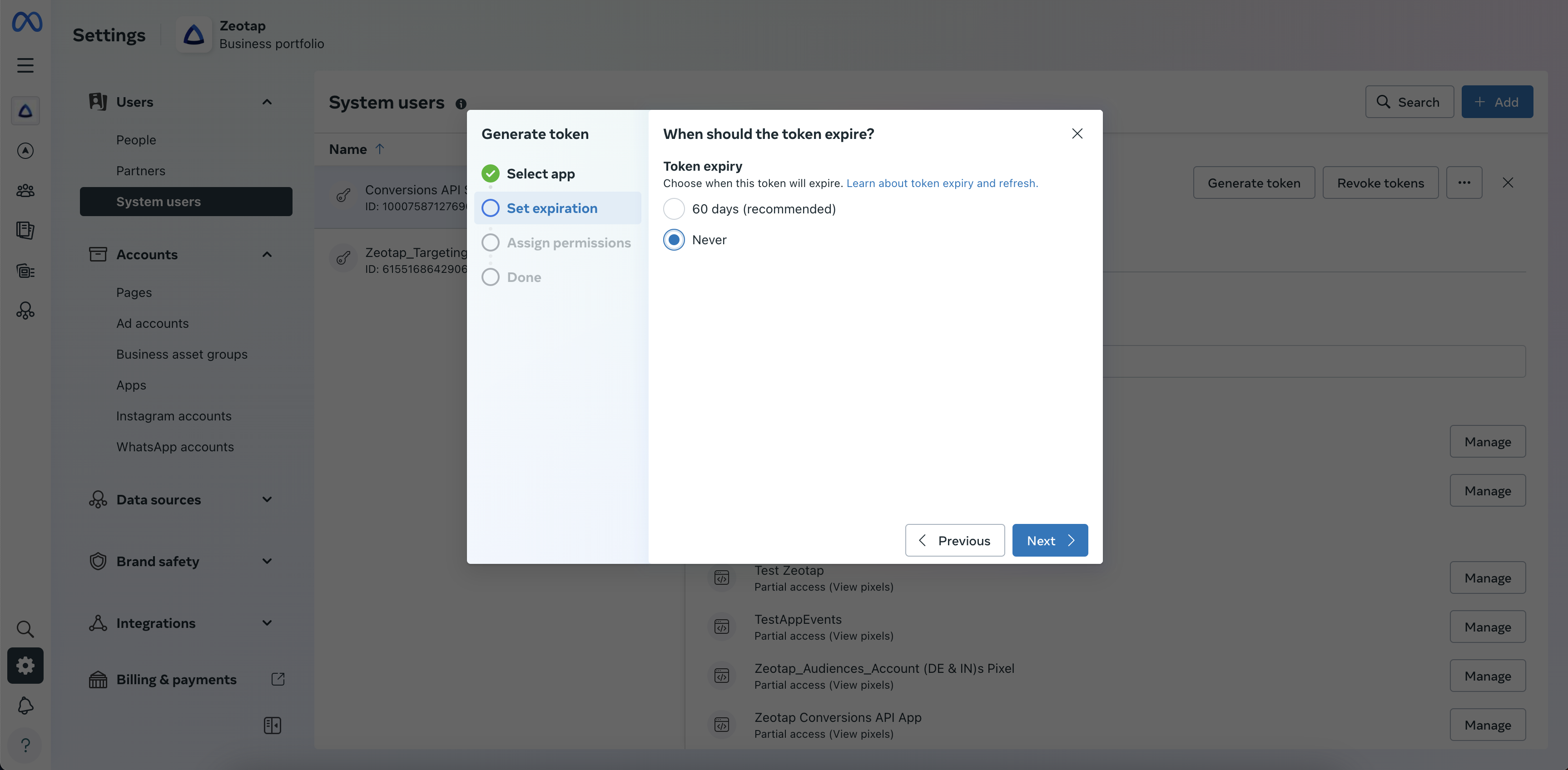
 In **Set expiration**, choose **60 days** or **Never**. Facebook recommends **60 days**.
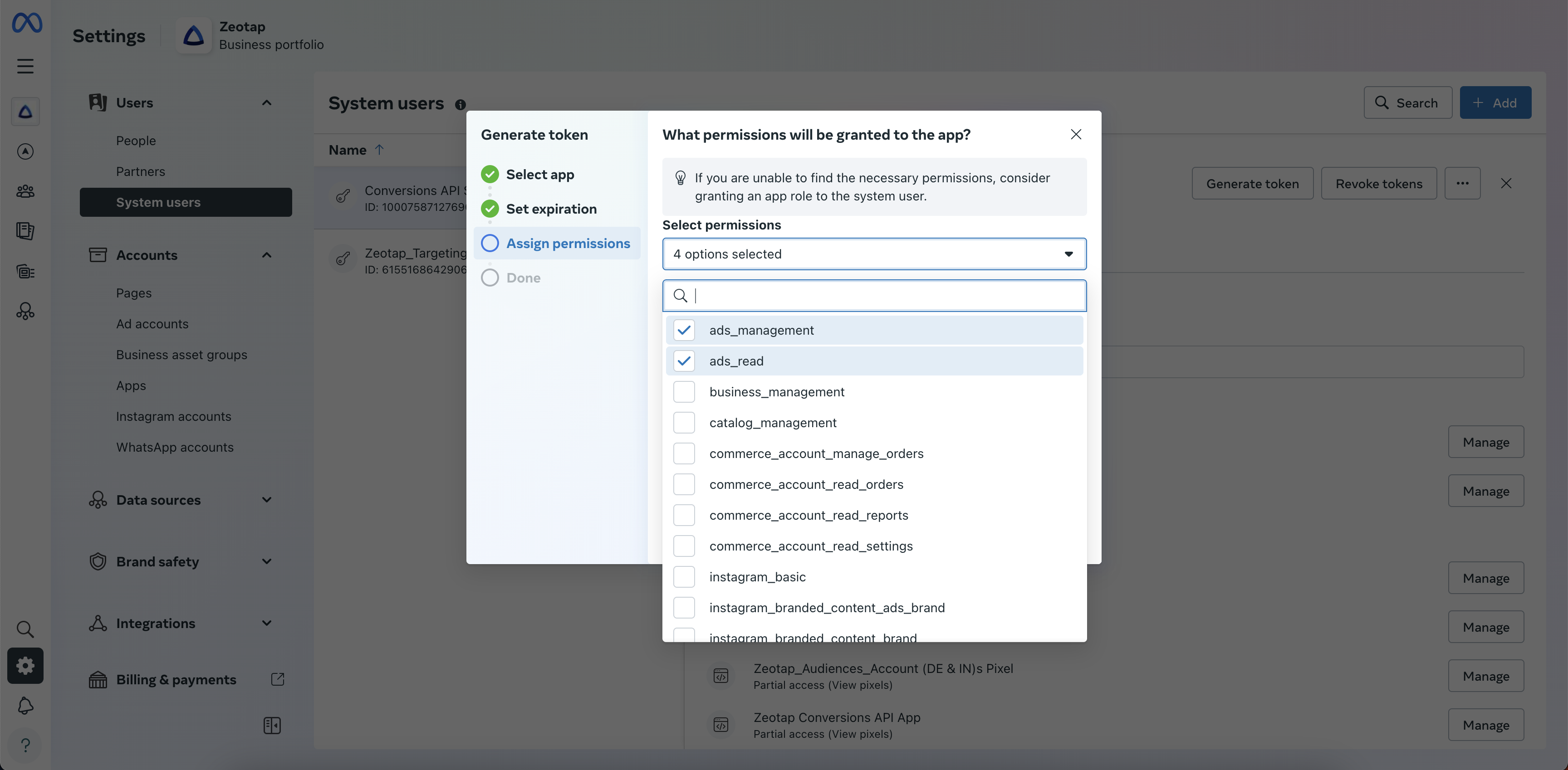
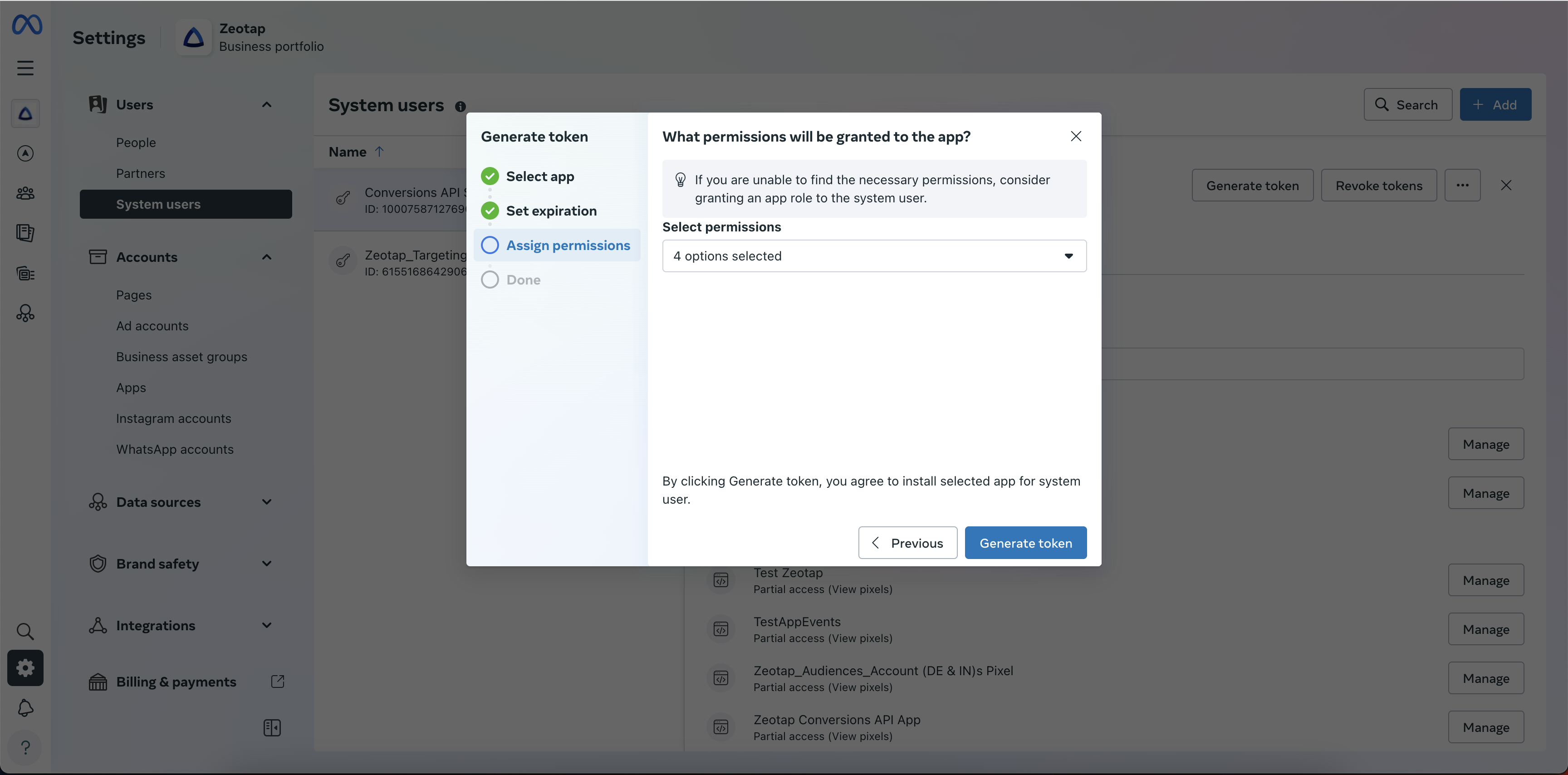
 In **Assign Permissions**, select:
* `ads_read`
* `ads_management`
* `pages_manage_ads`
* `pages_show_list`
For what each permission grants, see Meta's [Permissions Reference](https://developers.facebook.com/docs/permissions/reference).
In **Assign Permissions**, select:
* `ads_read`
* `ads_management`
* `pages_manage_ads`
* `pages_show_list`
For what each permission grants, see Meta's [Permissions Reference](https://developers.facebook.com/docs/permissions/reference).
 Review the permissions and click **Generate token**. Copy the token and store it for the destination setup.
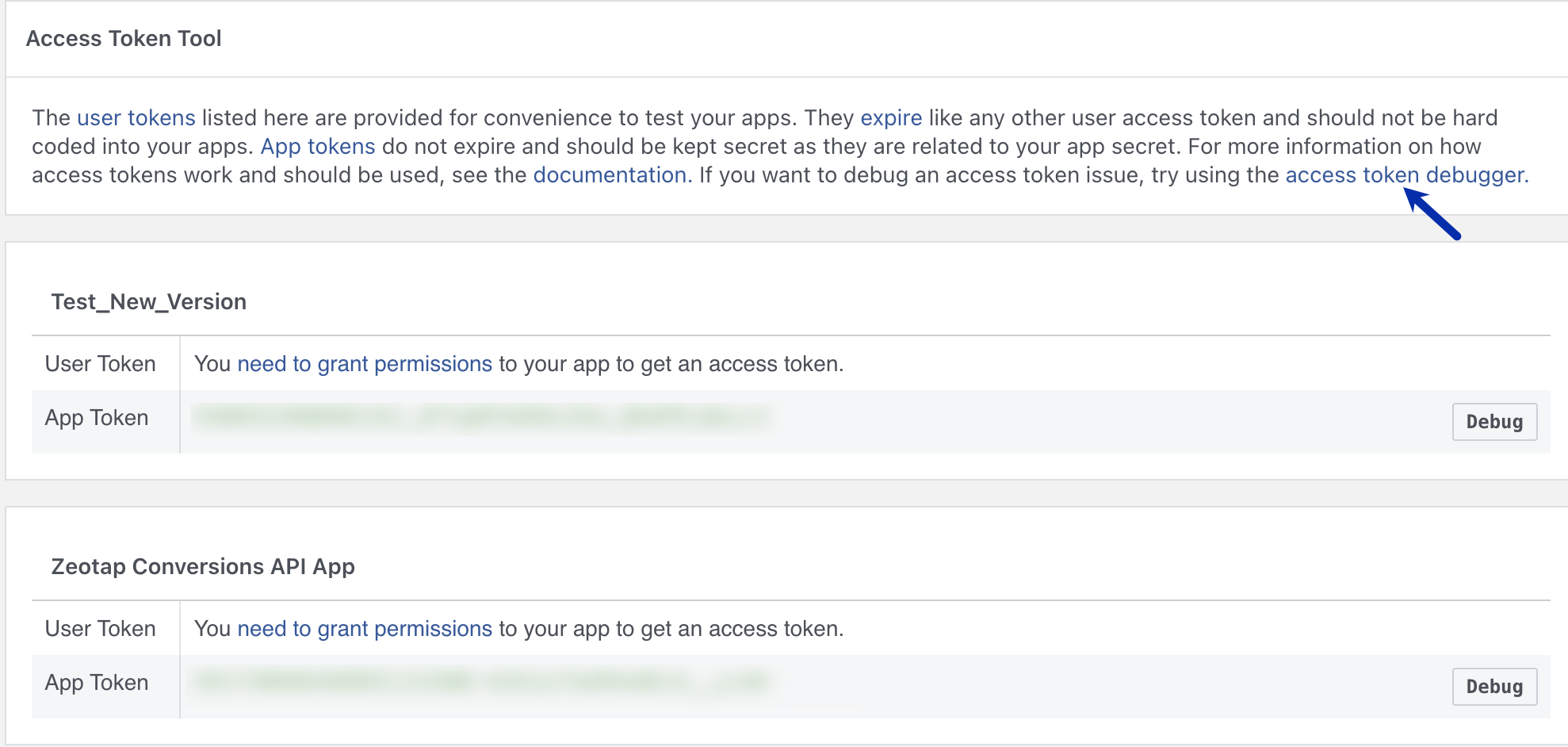
 Validate the token at the [Access Token Tool](https://developers.facebook.com/tools/accesstoken) — open the **access token debugger**, paste the token, and click **Debug**.
 Whenever you change the access granted to the system user, generate a new access token and update the destination in Zeotap CDP.
#### Generate a Page Access Token
A Page admin must grant your app the required Page permission. With that granted, retrieve the never-expiring Page Access Token from a long-lived user access token.
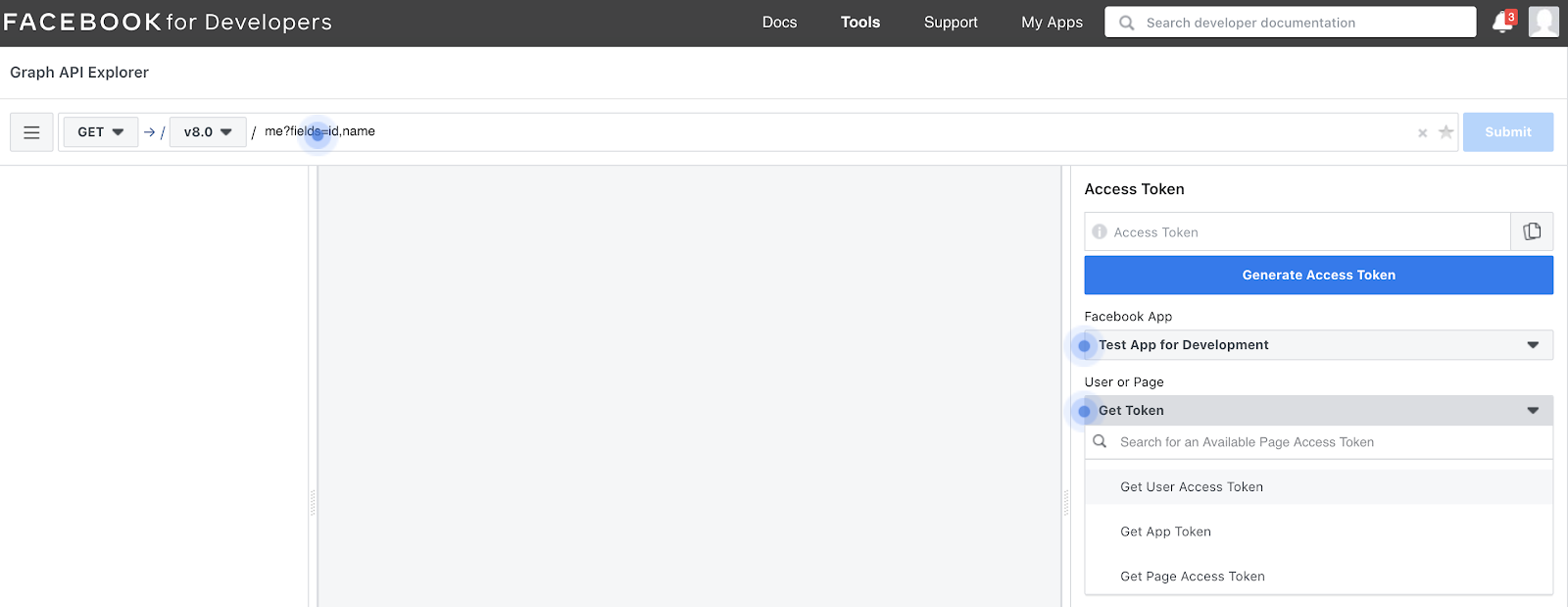
Open the [Facebook Graph API Explorer](https://developers.facebook.com/tools/explorer/), select your app from the **Application** drop-down, then select **Get user access token** from the next drop-down.
Whenever you change the access granted to the system user, generate a new access token and update the destination in Zeotap CDP.
#### Generate a Page Access Token
A Page admin must grant your app the required Page permission. With that granted, retrieve the never-expiring Page Access Token from a long-lived user access token.
Open the [Facebook Graph API Explorer](https://developers.facebook.com/tools/explorer/), select your app from the **Application** drop-down, then select **Get user access token** from the next drop-down.
 In **Add a Permission**, select **Event Groups Pages** and select:
* `ads_read`
* `ads_management`
* `pages_manage_ads`
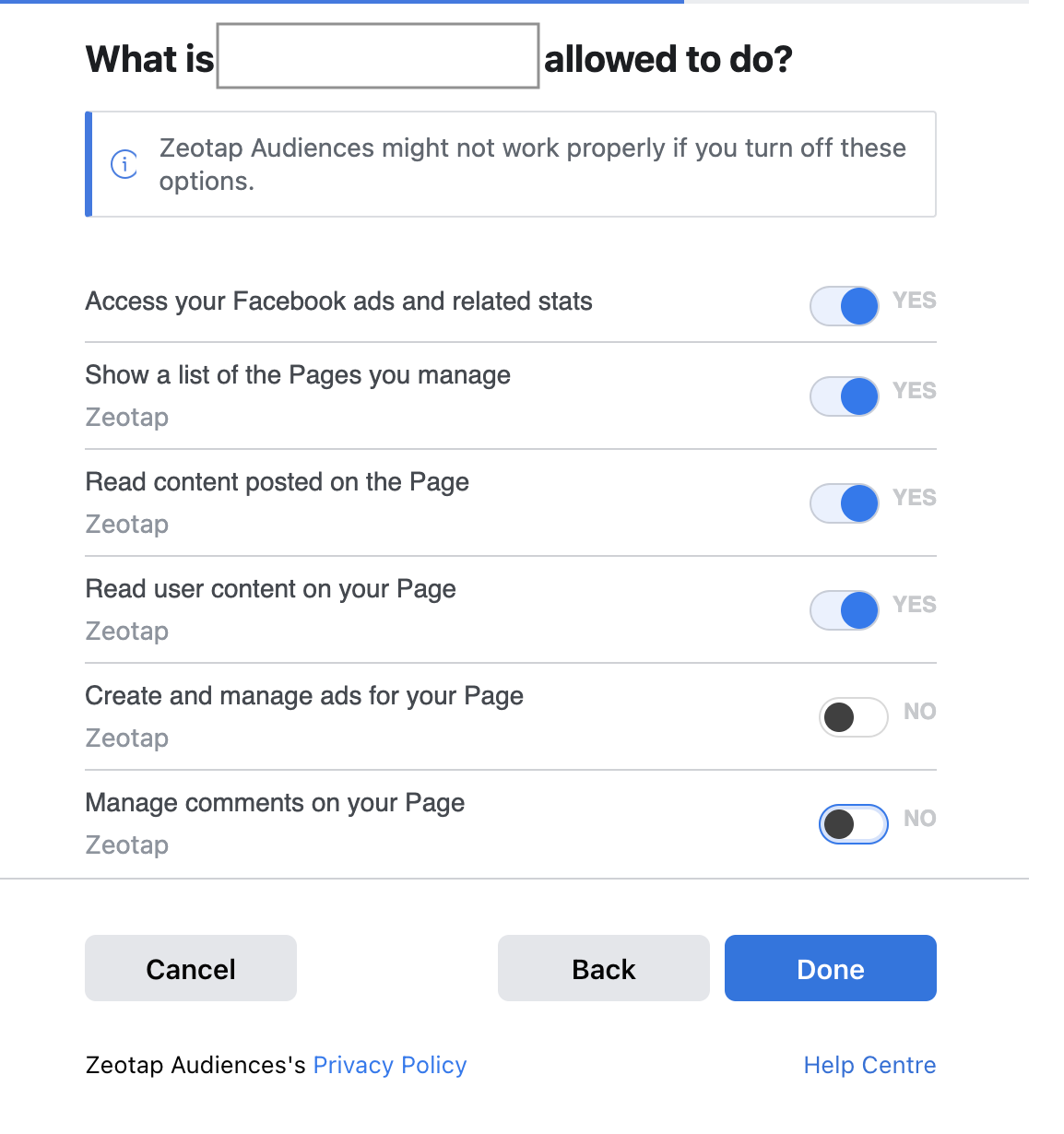
Click **Generate Access Token**. A popup prompts you to select the relevant Page.
In **Add a Permission**, select **Event Groups Pages** and select:
* `ads_read`
* `ads_management`
* `pages_manage_ads`
Click **Generate Access Token**. A popup prompts you to select the relevant Page.
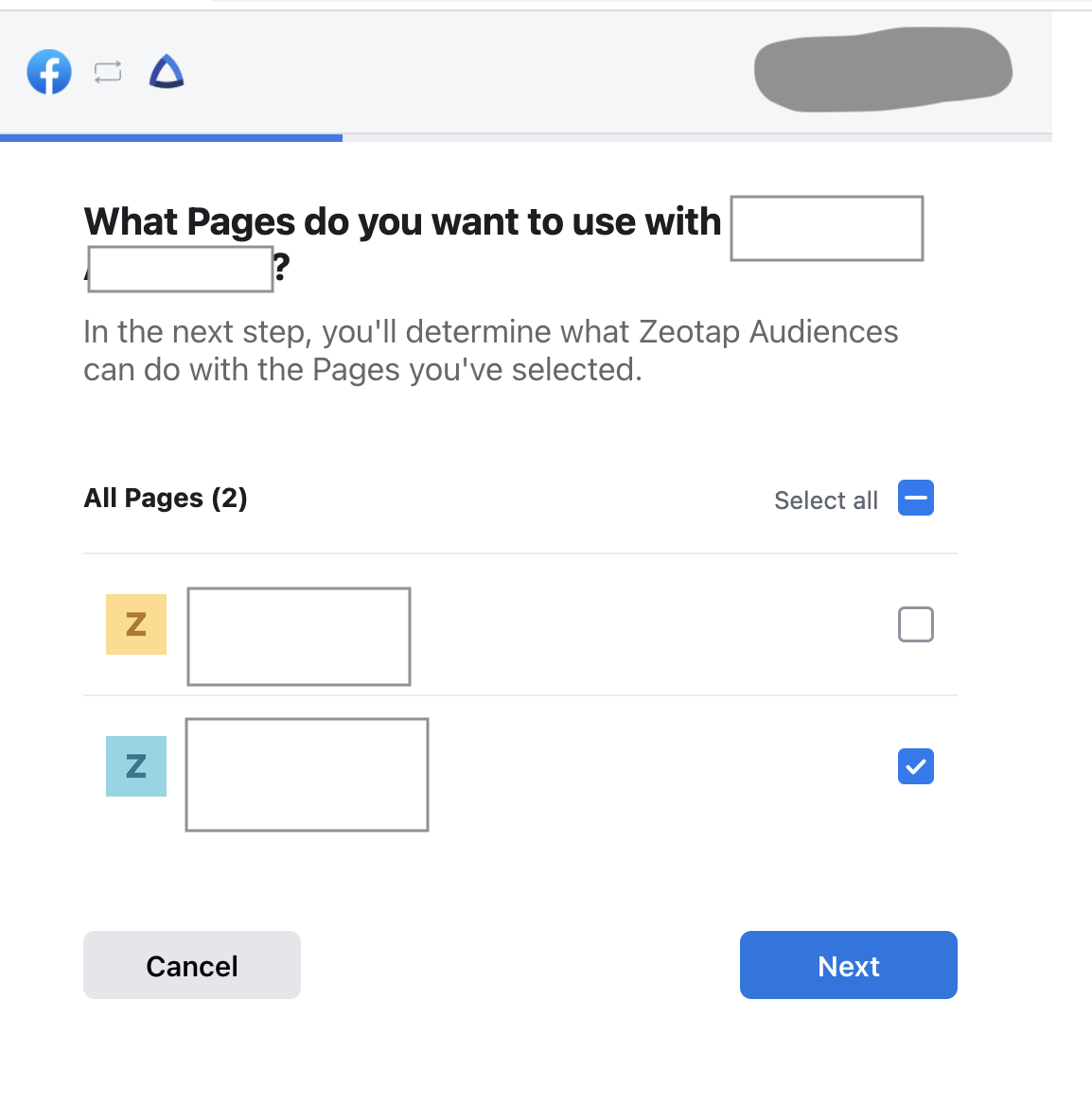 Click **Next** to confirm the requested permissions.
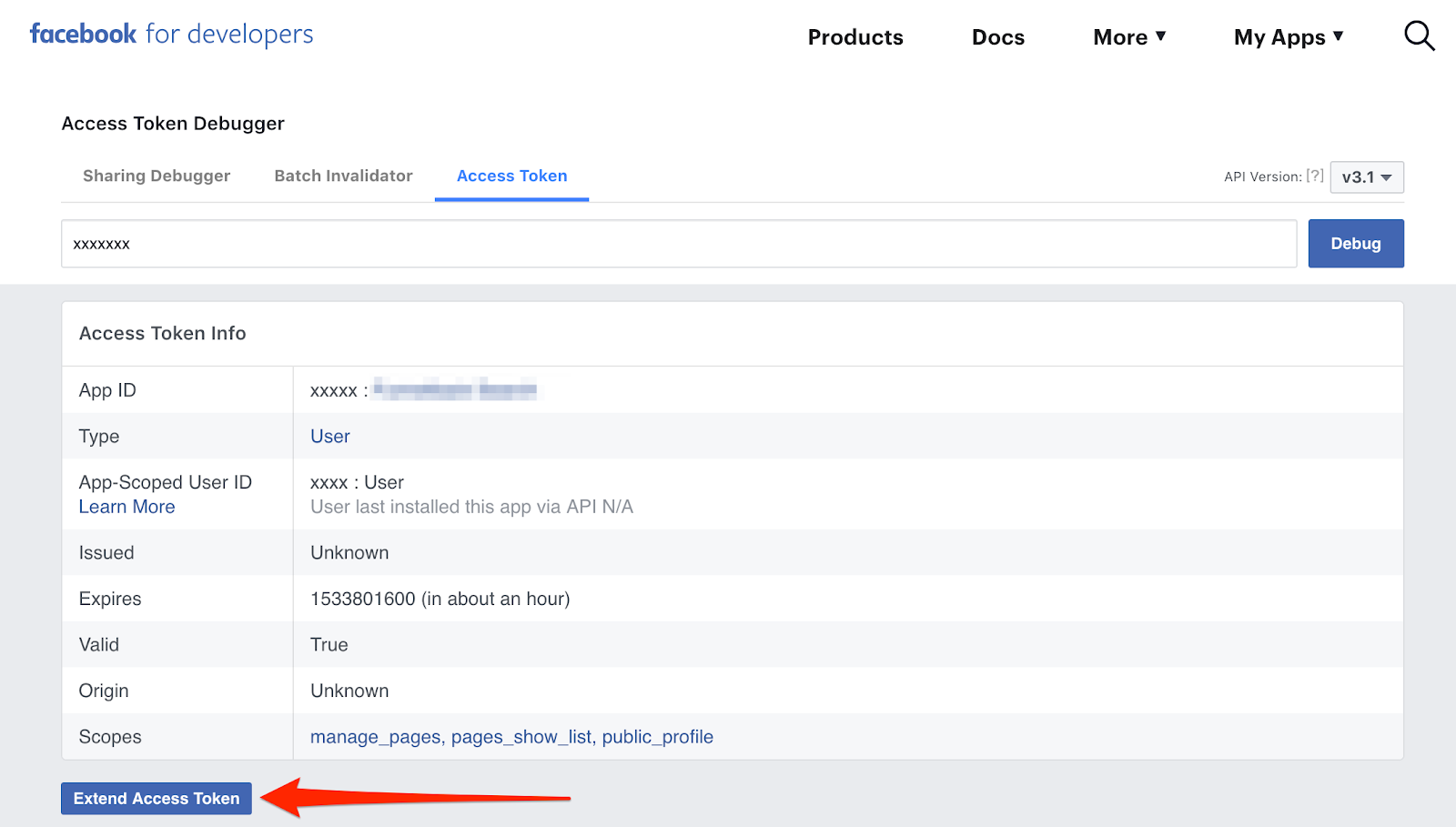
 Click **Debug** on the token. The short-lived user access token expires after one hour. To extend it, click **Extend Access Token** — this returns the long-lived access token. If **Extend Access Token** is not shown and the token expires within two months, you already hold the long-lived token; skip this step.
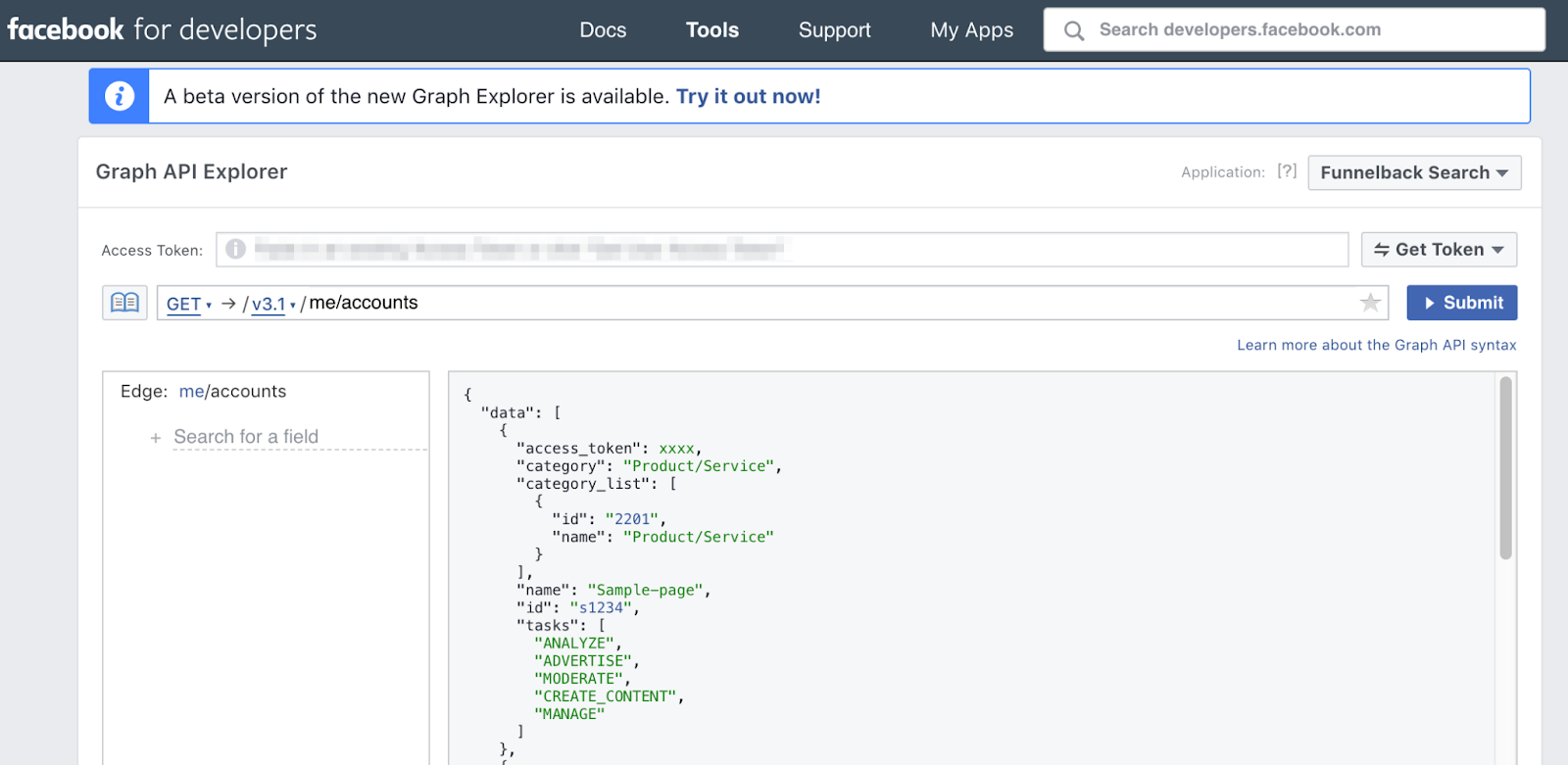
 Paste the long-lived user access token into the **Access Token** field, change the API endpoint to `/me/accounts`, and click **Submit**. The response lists each Page and its page access token (the never-expiring token). Copy the access token of the relevant Page and note the API version used in the request — both are required when you configure the destination in Zeotap CDP.
 Alternatively, run the equivalent request from Postman:
```bash theme={null}
curl --location --request GET 'https://graph.facebook.com/v12.0/{your-user-id}/accounts?access_token={long-lived-access-token}'
```
Replace `{your-user-id}` with the App-Scoped User ID and `{long-lived-access-token}` with the long-lived token you generated.
Alternatively, run the equivalent request from Postman:
```bash theme={null}
curl --location --request GET 'https://graph.facebook.com/v12.0/{your-user-id}/accounts?access_token={long-lived-access-token}'
```
Replace `{your-user-id}` with the App-Scoped User ID and `{long-lived-access-token}` with the long-lived token you generated.
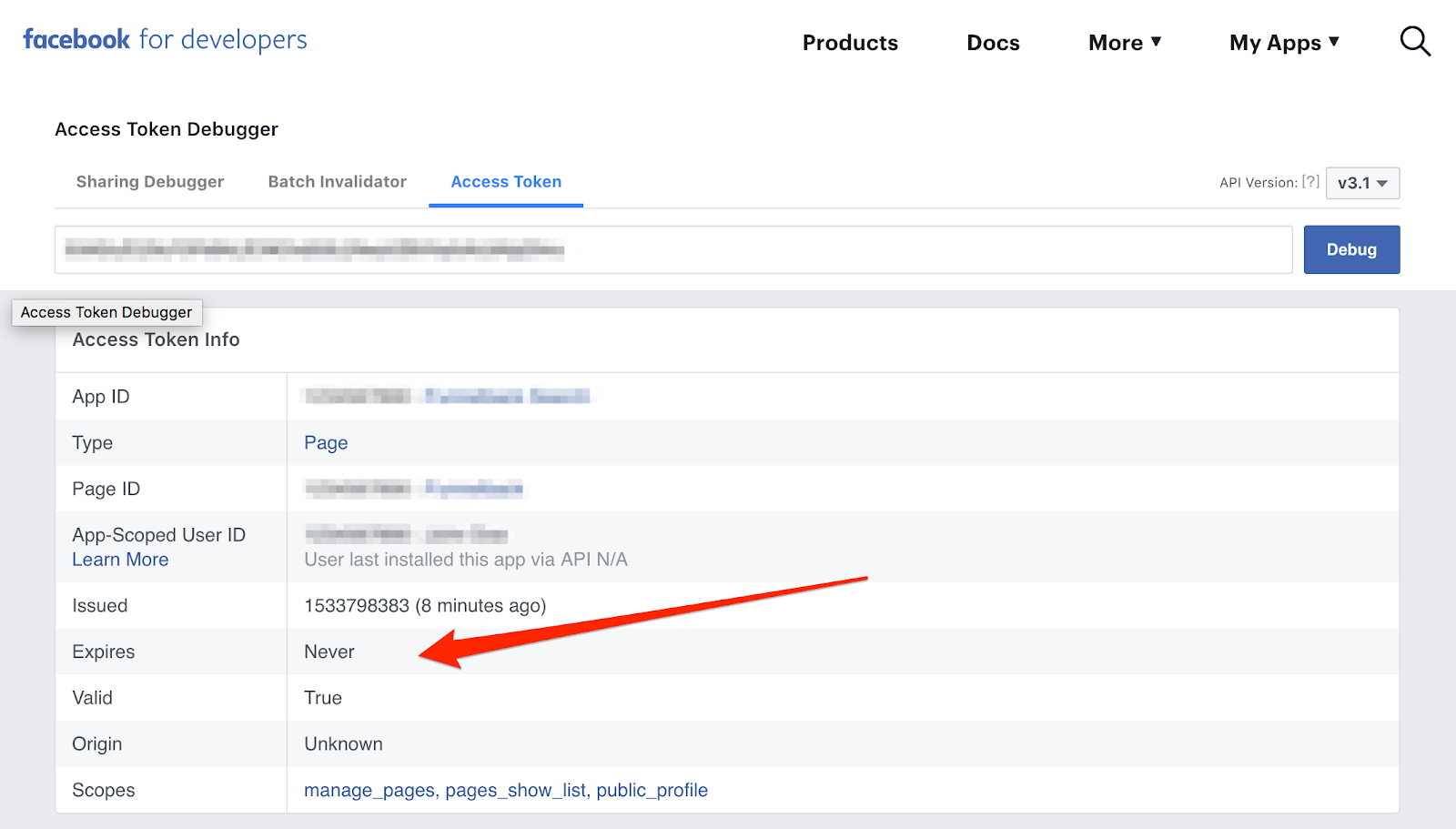
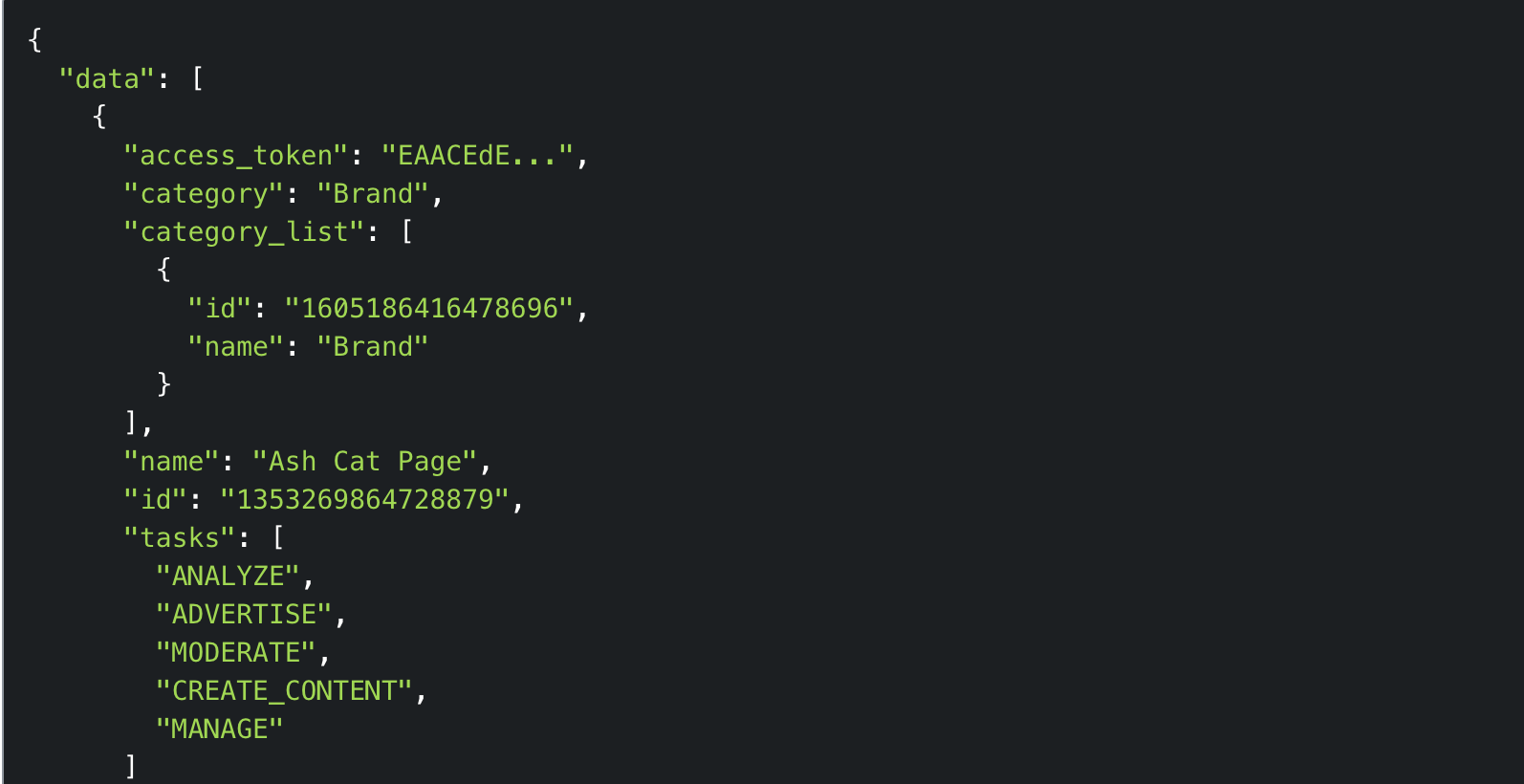 Verify the page access token does not expire — paste it into the Access Token Debugger and click **Debug**.
 ### Obtain your Facebook Graph API version
Read the Graph API version from the left-hand side of the Access Token Tool while generating the token. When configuring the destination in Zeotap CDP, enter only the numerical part — for `v17.0`, enter `17.0`.
## Create the Facebook 1P destination in Zeotap CDP
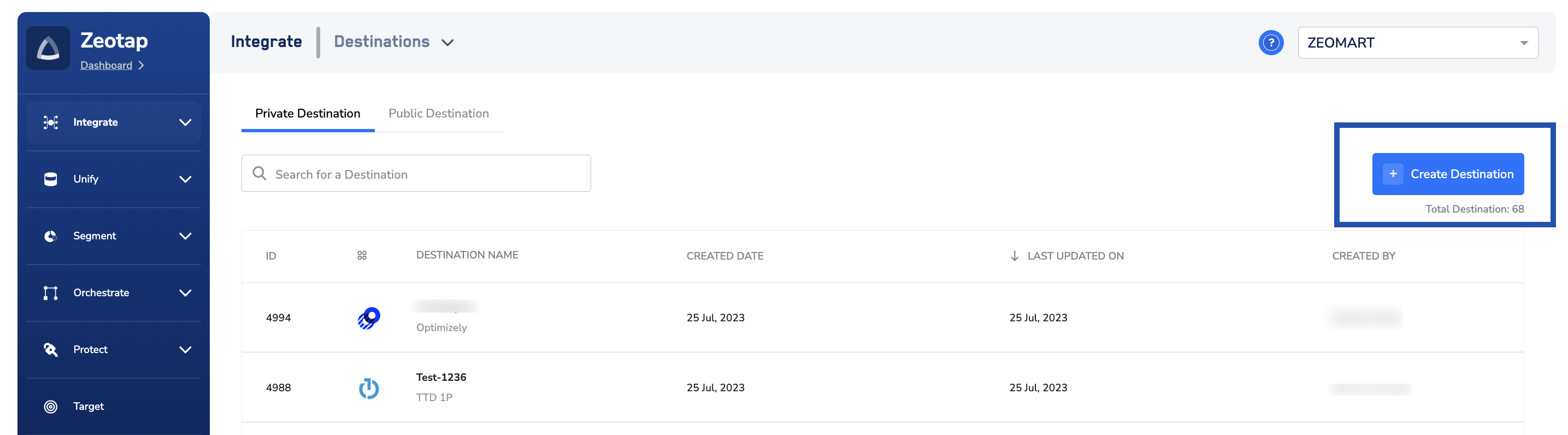
In Zeotap CDP, open the **Destinations** application and start a new destination by clicking **+ Create Destination**.
### Obtain your Facebook Graph API version
Read the Graph API version from the left-hand side of the Access Token Tool while generating the token. When configuring the destination in Zeotap CDP, enter only the numerical part — for `v17.0`, enter `17.0`.
## Create the Facebook 1P destination in Zeotap CDP
In Zeotap CDP, open the **Destinations** application and start a new destination by clicking **+ Create Destination**.
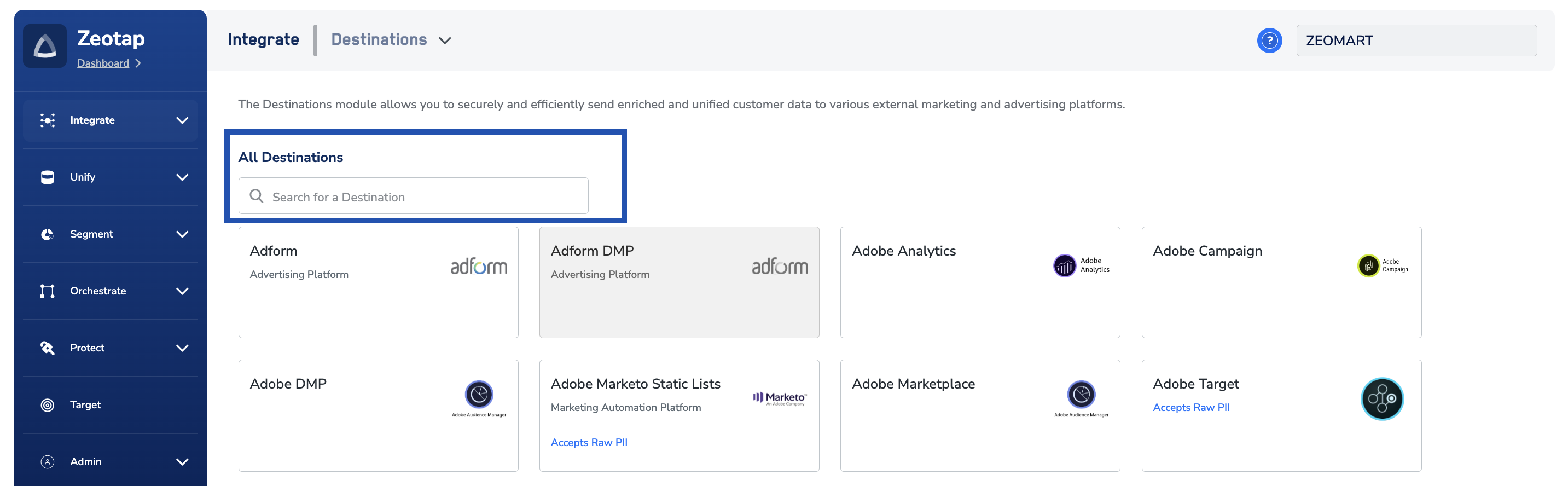
 Search **All Destinations** for **Facebook 1P** and select it.
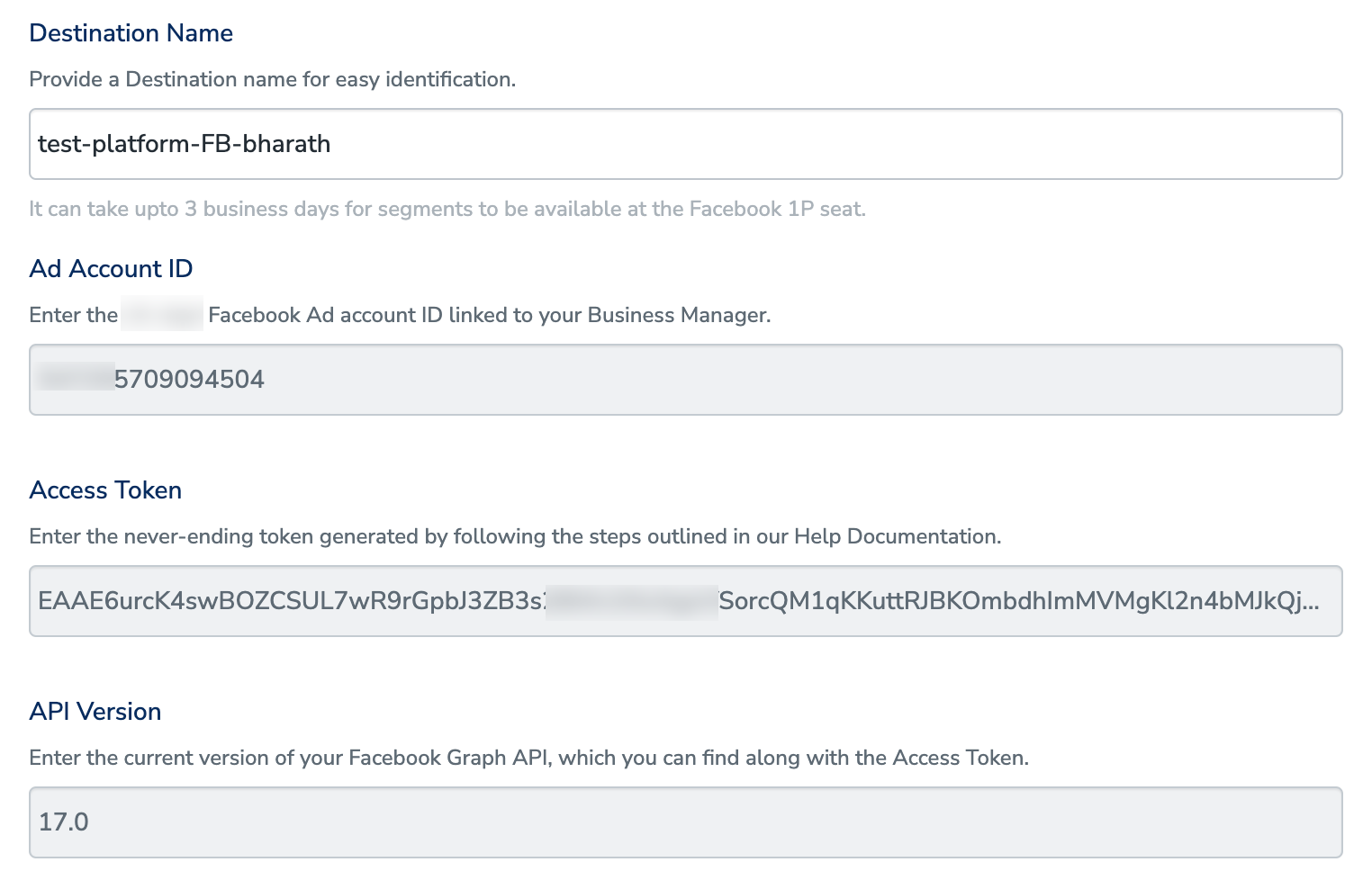
 On the destination configuration screen, enter:
* A name for the destination
* The **Ad Account ID** (the 16-digit ID associated with Facebook Business Manager)
* The **Access Token** you obtained above
* The **API Version** (numerical part only — for `v17.0`, enter `17.0`)
Review the values and click **Next**.
On the destination configuration screen, enter:
* A name for the destination
* The **Ad Account ID** (the 16-digit ID associated with Facebook Business Manager)
* The **Access Token** you obtained above
* The **API Version** (numerical part only — for `v17.0`, enter `17.0`)
Review the values and click **Next**.
 ### Choose the action and map identifiers
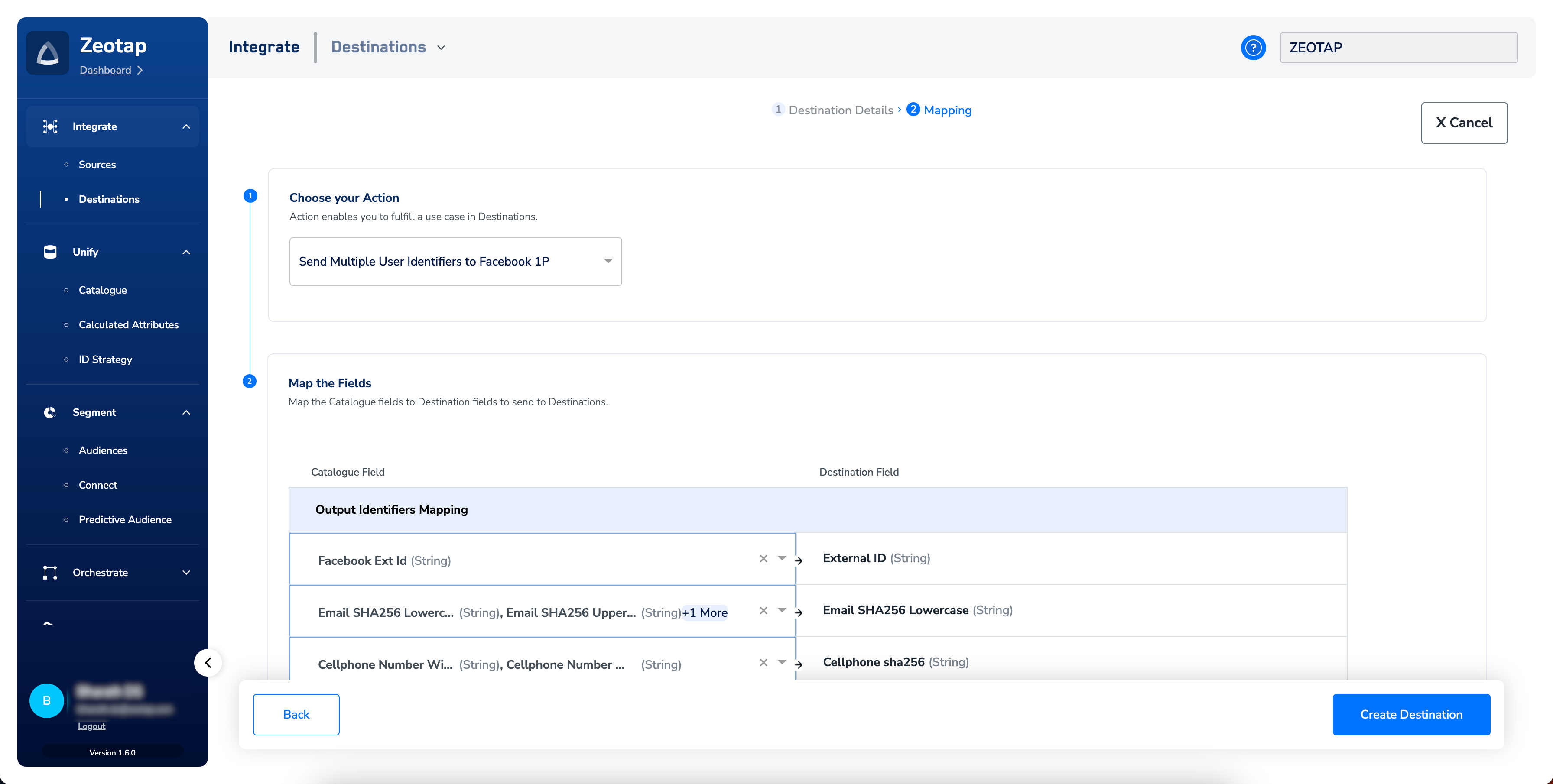
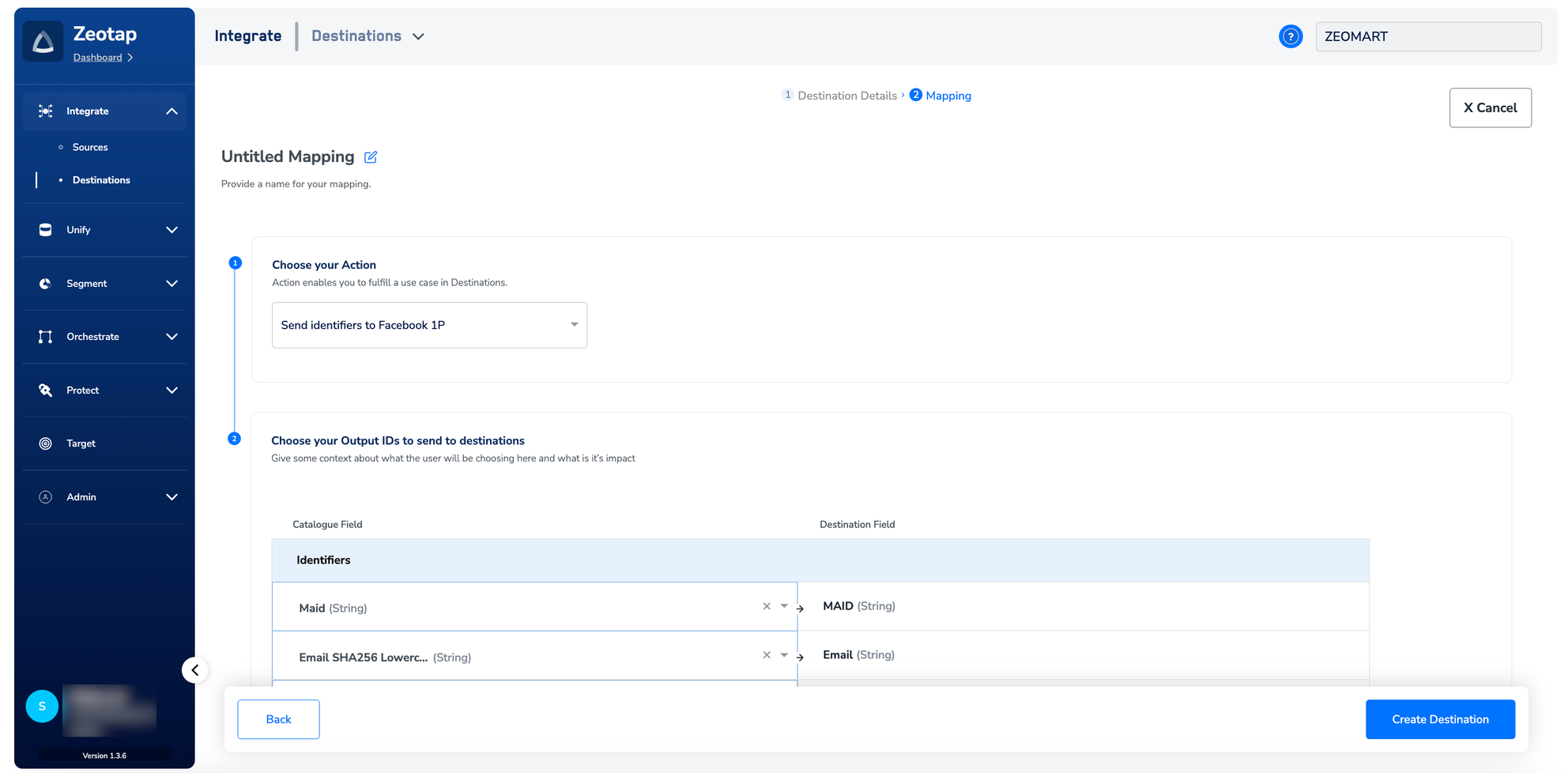
Under **Choose your Action**, pick one:
* **Send Identifiers to Facebook 1P** — populates MAIDs, email addresses, cellphone numbers, and Facebook External ID. Each identifier is sent as an individual user profile.
### Choose the action and map identifiers
Under **Choose your Action**, pick one:
* **Send Identifiers to Facebook 1P** — populates MAIDs, email addresses, cellphone numbers, and Facebook External ID. Each identifier is sent as an individual user profile.
 * **Send Multiple User Identifiers to Facebook 1P** — populates Facebook External ID, email addresses, MAIDs, cellphone numbers, gender, date of birth, first/last name, city, state, ZIP, and country. All identifiers selected in the mapping screen are sent as a single user profile, which raises the match rate.
 ### How Zeotap formats each attribute for Facebook
Facebook requires specific formatting and hashing for each attribute. Zeotap CDP performs the transformations listed below, so you only need to ingest the source attribute into your Zeotap Catalogue.
| Attribute | Facebook requirement | Zeotap CDP transformation |
| ---------------------------- | --------------------------------------------------------------------------------------------------------------------------------------------- | -------------------------------------------------------------------------------------------------------------------------------------------------- |
| External ID | Hashing **not** required | Sent as-is |
| Email address | Hashing required; trim leading/trailing whitespace; lowercase all characters | Map from `Email SHA256 Lowercase` in the Zeotap Catalogue. Consult your Zeotap representative on ingesting this identifier. |
| Phone number | Hashing required; remove symbols, letters, and leading zeroes | Map from `Cellphone Number Withcode Sha256` in the Zeotap Catalogue. Consult your Zeotap representative on ingesting this identifier. |
| Gender | Hashing required; `m` for male, `f` for female | Zeotap extracts the first letter of the Gender value, lowercases it, hashes it, and sends it |
| Date of birth | Hashing required; send `YYYY`, `MM`, `DD` separately | Ingest Date of Birth as a timestamp field; Zeotap performs the split and hash |
| First Name, Last Name | Hashing required; a–z only, lowercase, no punctuation; special characters in UTF-8 | Zeotap performs the transformation |
| State | Hashing required; 2-character ANSI code, lowercase; non-US states normalised lowercase with no punctuation, special characters, or whitespace | Zeotap hashes the ingested State value and sends it |
| City | Hashing required; a–z only, lowercase, no punctuation, special characters, or whitespace | Zeotap hashes the ingested City value and sends it |
| ZIP Code | Hashing required; lowercase, no whitespace; US — first 5 digits; UK — Area/District/Sector | Zeotap removes whitespace, hashes the result, and sends it. Example: UK ZIP `SW1A 2AA` is sent as the SHA256 of `SW1A2AA`. |
| Country Code | Hashing required; lowercase 2-letter [ISO 3166-1 alpha-2](https://en.wikipedia.org/wiki/ISO_3166-1_alpha-2) | Map from `Country` in the Zeotap Catalogue. If you map another attribute, ingest a 3-letter country code; Zeotap converts it to the 2-letter code. |
| Mobile Advertising ID (MAID) | Hashing **not** required; lowercase, keep hyphens | Sent as-is |
After reviewing the mapping, click **Create Destination**. The destination appears in the Audiences application, ready to be linked.
### How Zeotap formats each attribute for Facebook
Facebook requires specific formatting and hashing for each attribute. Zeotap CDP performs the transformations listed below, so you only need to ingest the source attribute into your Zeotap Catalogue.
| Attribute | Facebook requirement | Zeotap CDP transformation |
| ---------------------------- | --------------------------------------------------------------------------------------------------------------------------------------------- | -------------------------------------------------------------------------------------------------------------------------------------------------- |
| External ID | Hashing **not** required | Sent as-is |
| Email address | Hashing required; trim leading/trailing whitespace; lowercase all characters | Map from `Email SHA256 Lowercase` in the Zeotap Catalogue. Consult your Zeotap representative on ingesting this identifier. |
| Phone number | Hashing required; remove symbols, letters, and leading zeroes | Map from `Cellphone Number Withcode Sha256` in the Zeotap Catalogue. Consult your Zeotap representative on ingesting this identifier. |
| Gender | Hashing required; `m` for male, `f` for female | Zeotap extracts the first letter of the Gender value, lowercases it, hashes it, and sends it |
| Date of birth | Hashing required; send `YYYY`, `MM`, `DD` separately | Ingest Date of Birth as a timestamp field; Zeotap performs the split and hash |
| First Name, Last Name | Hashing required; a–z only, lowercase, no punctuation; special characters in UTF-8 | Zeotap performs the transformation |
| State | Hashing required; 2-character ANSI code, lowercase; non-US states normalised lowercase with no punctuation, special characters, or whitespace | Zeotap hashes the ingested State value and sends it |
| City | Hashing required; a–z only, lowercase, no punctuation, special characters, or whitespace | Zeotap hashes the ingested City value and sends it |
| ZIP Code | Hashing required; lowercase, no whitespace; US — first 5 digits; UK — Area/District/Sector | Zeotap removes whitespace, hashes the result, and sends it. Example: UK ZIP `SW1A 2AA` is sent as the SHA256 of `SW1A2AA`. |
| Country Code | Hashing required; lowercase 2-letter [ISO 3166-1 alpha-2](https://en.wikipedia.org/wiki/ISO_3166-1_alpha-2) | Map from `Country` in the Zeotap Catalogue. If you map another attribute, ingest a 3-letter country code; Zeotap converts it to the 2-letter code. |
| Mobile Advertising ID (MAID) | Hashing **not** required; lowercase, keep hyphens | Sent as-is |
After reviewing the mapping, click **Create Destination**. The destination appears in the Audiences application, ready to be linked.
 ## Link an audience to the destination
In the Audiences application, link the audience or segment to the Facebook 1P destination. The terms *audience* and *segment* are used interchangeably for a customer cohort — for example, customers over 18 who performed an `addToCart` event in the last 30 days. For the linking procedure, see [Link an Audience to the Destination](/articles/integrate-customer/link-an-audience-to-the-destination#h3_64671714).
* Create segments directly in the client's Facebook account so they do not appear under Zeotap's Ad accounts (unlike a third-party setup).
* The Facebook Custom Audience limit of 500 applies per Ad Account that the client uses — it does not apply to Zeotap's account.
* Facebook compares the data Zeotap uploads against the segment using their encrypted user data; matched IDs are added to the Custom Audience and ads are delivered to those users.
* The audience SLA on Meta's side is documented in [Meta's Custom Audiences guide](https://developers.facebook.com/docs/marketing-api/audiences/guides/custom-audiences#external_identifiers).
## Verify the audience reached Facebook
Allow up to 24 hours (one business day) after linking for a Zeotap CDP audience to sync to Facebook. To confirm:
1. Sign in to [Facebook Ads Manager](https://adsmanager.facebook.com/) and select the business portfolio that owns the ad account configured in the destination.
2. Open **Audiences** from the left navigation.
3. Confirm the Custom Audience appears in the Audience list with a non-zero size. The audience name matches the one configured in Zeotap CDP.
If the audience appears but the size is `0` or `Below minimum`, the sync completed but matching produced fewer records than Facebook's minimum threshold — review the identifiers being sent (see [How Zeotap formats each attribute for Facebook](#how-zeotap-formats-each-attribute-for-facebook)) and confirm the source identifiers are populated for the audience members.
This integration supports user disqualification. When a user no longer meets the audience criteria, the consent requirements, or other audience conditions, Zeotap CDP issues a user deletion request to Facebook on the next refresh cycle. Disqualified users are excluded from the audience on the configured refresh frequency. No manual action is required — the process runs automatically.
## Troubleshooting
### Common errors
| Error string | What it means | Where to look |
| ---------------------------------------------------------------------------------------------------------------- | -------------------------------------------------------------------------------------------------------------------------------------------------------------------------------------- | ---------------------------------------------------------------------------------------------------------------------------------------------------------------------- |
| `{"message":"Facebook Error: Permission error","code":"400 BAD_REQUEST"}` | Ad Account or app permissions are not yet active on Facebook's side. Seen with new accounts before the Audiences ToS has been accepted or before Facebook permissions have propagated. | Confirm the [Audiences ToS](#accept-the-facebook-audiences-terms-of-service) is accepted; if accepted, allow time for Facebook permissions to take effect, then retry. |
| `This business has reached the maximum number of system users. The maximum number of system users allowed is 1.` | The business has already created the allowed system users (one Admin and one Employee). | Reuse an existing system user and generate a fresh access token rather than creating a new user. |
| Segment activation fails with an authentication error | The configured access token is invalid or expired. | Validate the token in Meta's [Access Token Debugger](https://developers.facebook.com/tools/accesstoken). Generate a new token and update the destination credentials. |
### If the 400 BAD\_REQUEST error persists
If the 400 error continues after the Audiences ToS has been accepted, allow time for the Facebook permissions to propagate before retrying. If the error still appears after several days, regenerate the access token, confirm it has the four required permissions (`ads_read`, `ads_management`, `pages_manage_ads`, `pages_show_list`), and update the destination credentials in Zeotap CDP.
## How External IDs flow between a brand and Facebook
When you target Facebook users by a brand-side identifier (loyalty ID, internal user ID, cookie), the flow is:
1. The brand places the Facebook pixel on its website and configures the tag to pass the Facebook cookie (or any custom identifier) as `extern_id` to Facebook. See Meta's [Pixel implementation guide](https://developers.facebook.com/docs/meta-pixel/get-started). The pixel push pattern:
```js theme={null}
fbq('init', '', {
'extern_id': ''
});
```
2. Facebook builds an internal mapping between the `extern_id` and its own user ID.
3. The brand also passes the Facebook cookie to Zeotap as `id_mid_62`, using Google Tag Manager, JavaScript, or another tag implementation.
4. The brand builds an audience in the Audiences application using the Facebook cookies.
5. Zeotap uploads the Facebook cookie as an External ID to Facebook. Facebook uses its internal mapping to resolve the External ID to the corresponding user on its platform.
Accepting the [Custom Audiences Terms of Service](https://business.facebook.com/ads/manage/customaudiences/tos/?act=) (mandatory since September 2021) is required for this flow.
## FAQ
Pick **Send Multiple User Identifiers to Facebook 1P** when you have more than one identifier per profile. All identifiers map to a single user record on Facebook's side, which raises the match rate. Pick **Send Identifiers to Facebook 1P** only when each identifier needs to be sent as its own user profile.
For email, phone, name, gender, date of birth, address fields, and country code, Zeotap CDP performs the hashing and formatting Facebook requires — you ingest the source value into the matching Catalogue field. For Mobile Advertising IDs and External IDs, no hashing is required and Zeotap sends them as-is. See the [attribute table](#how-zeotap-formats-each-attribute-for-facebook) for the per-attribute Catalogue mapping.
Allow up to 24 hours (one business day) after linking for a Zeotap CDP audience to fully sync with Facebook. If it has not appeared after that window, validate the access token in Meta's [Access Token Debugger](https://developers.facebook.com/tools/accesstoken) and confirm the audience link is active in Zeotap CDP.
Generate a new access token whenever you change the access granted to the system user, then update the Access Token on the destination in Zeotap CDP. The previously issued token does not pick up the new permissions.
## Next steps
* [Explore Facebook Conversions API →](/articles/integrate-customer/facebook-conversions-api)
* [Explore Facebook Enhanced Conversions API for offline data →](/articles/integrate-customer/facebook-enhanced-conversions-api-capi)
* [Explore linking an audience to a destination →](/articles/integrate-customer/link-an-audience-to-the-destination)
* [Explore Audience Insights to measure match rate and reach →](/articles/segment-customer/audience-insights)
## Link an audience to the destination
In the Audiences application, link the audience or segment to the Facebook 1P destination. The terms *audience* and *segment* are used interchangeably for a customer cohort — for example, customers over 18 who performed an `addToCart` event in the last 30 days. For the linking procedure, see [Link an Audience to the Destination](/articles/integrate-customer/link-an-audience-to-the-destination#h3_64671714).
* Create segments directly in the client's Facebook account so they do not appear under Zeotap's Ad accounts (unlike a third-party setup).
* The Facebook Custom Audience limit of 500 applies per Ad Account that the client uses — it does not apply to Zeotap's account.
* Facebook compares the data Zeotap uploads against the segment using their encrypted user data; matched IDs are added to the Custom Audience and ads are delivered to those users.
* The audience SLA on Meta's side is documented in [Meta's Custom Audiences guide](https://developers.facebook.com/docs/marketing-api/audiences/guides/custom-audiences#external_identifiers).
## Verify the audience reached Facebook
Allow up to 24 hours (one business day) after linking for a Zeotap CDP audience to sync to Facebook. To confirm:
1. Sign in to [Facebook Ads Manager](https://adsmanager.facebook.com/) and select the business portfolio that owns the ad account configured in the destination.
2. Open **Audiences** from the left navigation.
3. Confirm the Custom Audience appears in the Audience list with a non-zero size. The audience name matches the one configured in Zeotap CDP.
If the audience appears but the size is `0` or `Below minimum`, the sync completed but matching produced fewer records than Facebook's minimum threshold — review the identifiers being sent (see [How Zeotap formats each attribute for Facebook](#how-zeotap-formats-each-attribute-for-facebook)) and confirm the source identifiers are populated for the audience members.
This integration supports user disqualification. When a user no longer meets the audience criteria, the consent requirements, or other audience conditions, Zeotap CDP issues a user deletion request to Facebook on the next refresh cycle. Disqualified users are excluded from the audience on the configured refresh frequency. No manual action is required — the process runs automatically.
## Troubleshooting
### Common errors
| Error string | What it means | Where to look |
| ---------------------------------------------------------------------------------------------------------------- | -------------------------------------------------------------------------------------------------------------------------------------------------------------------------------------- | ---------------------------------------------------------------------------------------------------------------------------------------------------------------------- |
| `{"message":"Facebook Error: Permission error","code":"400 BAD_REQUEST"}` | Ad Account or app permissions are not yet active on Facebook's side. Seen with new accounts before the Audiences ToS has been accepted or before Facebook permissions have propagated. | Confirm the [Audiences ToS](#accept-the-facebook-audiences-terms-of-service) is accepted; if accepted, allow time for Facebook permissions to take effect, then retry. |
| `This business has reached the maximum number of system users. The maximum number of system users allowed is 1.` | The business has already created the allowed system users (one Admin and one Employee). | Reuse an existing system user and generate a fresh access token rather than creating a new user. |
| Segment activation fails with an authentication error | The configured access token is invalid or expired. | Validate the token in Meta's [Access Token Debugger](https://developers.facebook.com/tools/accesstoken). Generate a new token and update the destination credentials. |
### If the 400 BAD\_REQUEST error persists
If the 400 error continues after the Audiences ToS has been accepted, allow time for the Facebook permissions to propagate before retrying. If the error still appears after several days, regenerate the access token, confirm it has the four required permissions (`ads_read`, `ads_management`, `pages_manage_ads`, `pages_show_list`), and update the destination credentials in Zeotap CDP.
## How External IDs flow between a brand and Facebook
When you target Facebook users by a brand-side identifier (loyalty ID, internal user ID, cookie), the flow is:
1. The brand places the Facebook pixel on its website and configures the tag to pass the Facebook cookie (or any custom identifier) as `extern_id` to Facebook. See Meta's [Pixel implementation guide](https://developers.facebook.com/docs/meta-pixel/get-started). The pixel push pattern:
```js theme={null}
fbq('init', '', {
'extern_id': ''
});
```
2. Facebook builds an internal mapping between the `extern_id` and its own user ID.
3. The brand also passes the Facebook cookie to Zeotap as `id_mid_62`, using Google Tag Manager, JavaScript, or another tag implementation.
4. The brand builds an audience in the Audiences application using the Facebook cookies.
5. Zeotap uploads the Facebook cookie as an External ID to Facebook. Facebook uses its internal mapping to resolve the External ID to the corresponding user on its platform.
Accepting the [Custom Audiences Terms of Service](https://business.facebook.com/ads/manage/customaudiences/tos/?act=) (mandatory since September 2021) is required for this flow.
## FAQ
Pick **Send Multiple User Identifiers to Facebook 1P** when you have more than one identifier per profile. All identifiers map to a single user record on Facebook's side, which raises the match rate. Pick **Send Identifiers to Facebook 1P** only when each identifier needs to be sent as its own user profile.
For email, phone, name, gender, date of birth, address fields, and country code, Zeotap CDP performs the hashing and formatting Facebook requires — you ingest the source value into the matching Catalogue field. For Mobile Advertising IDs and External IDs, no hashing is required and Zeotap sends them as-is. See the [attribute table](#how-zeotap-formats-each-attribute-for-facebook) for the per-attribute Catalogue mapping.
Allow up to 24 hours (one business day) after linking for a Zeotap CDP audience to fully sync with Facebook. If it has not appeared after that window, validate the access token in Meta's [Access Token Debugger](https://developers.facebook.com/tools/accesstoken) and confirm the audience link is active in Zeotap CDP.
Generate a new access token whenever you change the access granted to the system user, then update the Access Token on the destination in Zeotap CDP. The previously issued token does not pick up the new permissions.
## Next steps
* [Explore Facebook Conversions API →](/articles/integrate-customer/facebook-conversions-api)
* [Explore Facebook Enhanced Conversions API for offline data →](/articles/integrate-customer/facebook-enhanced-conversions-api-capi)
* [Explore linking an audience to a destination →](/articles/integrate-customer/link-an-audience-to-the-destination)
* [Explore Audience Insights to measure match rate and reach →](/articles/segment-customer/audience-insights)