> ## Documentation Index
> Fetch the complete documentation index at: https://docs.zeotap.com/llms.txt
> Use this file to discover all available pages before exploring further.
# Criteo
> Send Zeotap CDP audience identifiers to your Criteo Ad Account as contact lists for activation.
This page covers the Criteo destination, which sends audience identifiers from Zeotap CDP to your Criteo Ad Account. For uploading offline transaction data such as in-store purchases, see [Criteo Offline Sales Reporting](/articles/integrate-customer/criteo-offline-sales-reporting). For activating audiences on Criteo Retail Media (retailer and marketplace placements), see [Criteo Retail Media](/articles/integrate-customer/criteo-retail-media).
## What this is
Criteo is a digital advertising platform for self-service ad campaigns and audience targeting. The Zeotap CDP Criteo destination is a batch integration that sends audience identifiers to your Criteo Ad Account so the audience can be activated as a Criteo contact list. The integration is configured once per Criteo Ad Account and then reused by every audience you link to it; users who fall out of the audience are removed from the contact list automatically.
## Supported identifiers
The Criteo destination accepts the following identifier types:
* Mobile advertising IDs (MAIDs)
* Raw email addresses
* Hashed email addresses (SHA-256)
* Criteo Cookies (Gum IDs)
## Available actions
| Action | ID Extension | Delete | Delta Upload |
| -------------------------- | ------------ | ------ | ------------ |
| Send identifiers to Criteo | ✅ | ✅ | — |
The destination exposes a single action, **Send identifiers to Criteo**. It supports [ID Extension](/articles/segment-customer/extend-your-audience#id-extension) for expanding an audience against Criteo's graph and [Delete](/articles/segment-customer/delta-upload-and-delete-functions) for removing users from the Criteo contact list when they no longer qualify. Delta Upload is not supported — each refresh sends the full qualifying set rather than only the changes.
## Prerequisites
Before you configure the destination, gather:
* **Your Criteo Advertiser ID** (also called the Criteo Ad Account ID). This is the only Criteo identifier the integration requires.
* **A single-use authorization URL** issued by your Zeotap representative. The URL expires the first time it is opened, so request it only when you are ready to sign in and approve the connection in one sitting.
* **Criteo login credentials** for an account with permission to approve the Zeotap CDP app on the Criteo consent dashboard.
## Grant Zeotap access to your Criteo account
Opening the single-use URL takes you to the Criteo login page. After you sign in with your Criteo credentials, Criteo presents a consent dashboard listing every permission the Zeotap CDP app is requesting. Approve those permissions to authorize the connection. Once Criteo records your consent, you can proceed to create the destination in Zeotap CDP.
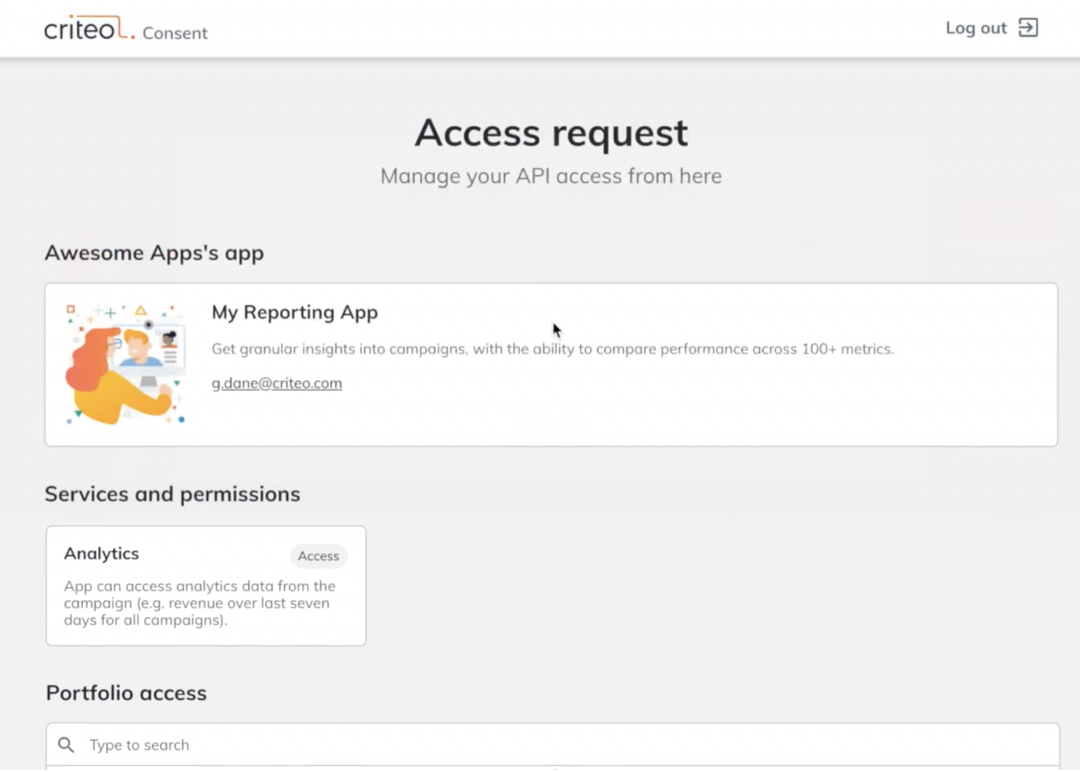 The authorization URL is single-use. If you open it before you are ready to complete the sign-in and consent steps, it expires and your Zeotap representative will need to issue a new one.
## Create the Criteo destination
In your Zeotap CDP workspace, add a new destination of type **Criteo**. The configuration form needs three inputs:
The authorization URL is single-use. If you open it before you are ready to complete the sign-in and consent steps, it expires and your Zeotap representative will need to issue a new one.
## Create the Criteo destination
In your Zeotap CDP workspace, add a new destination of type **Criteo**. The configuration form needs three inputs:
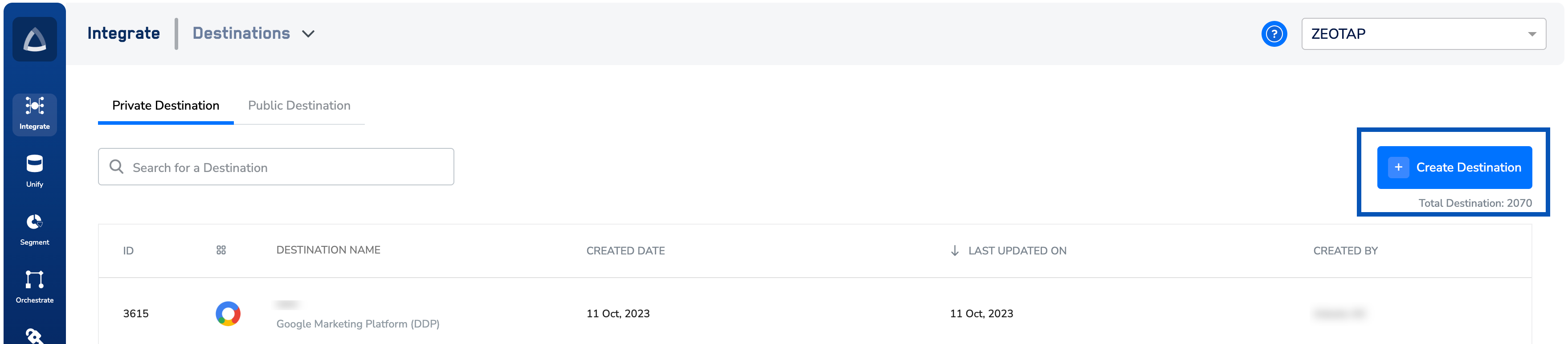
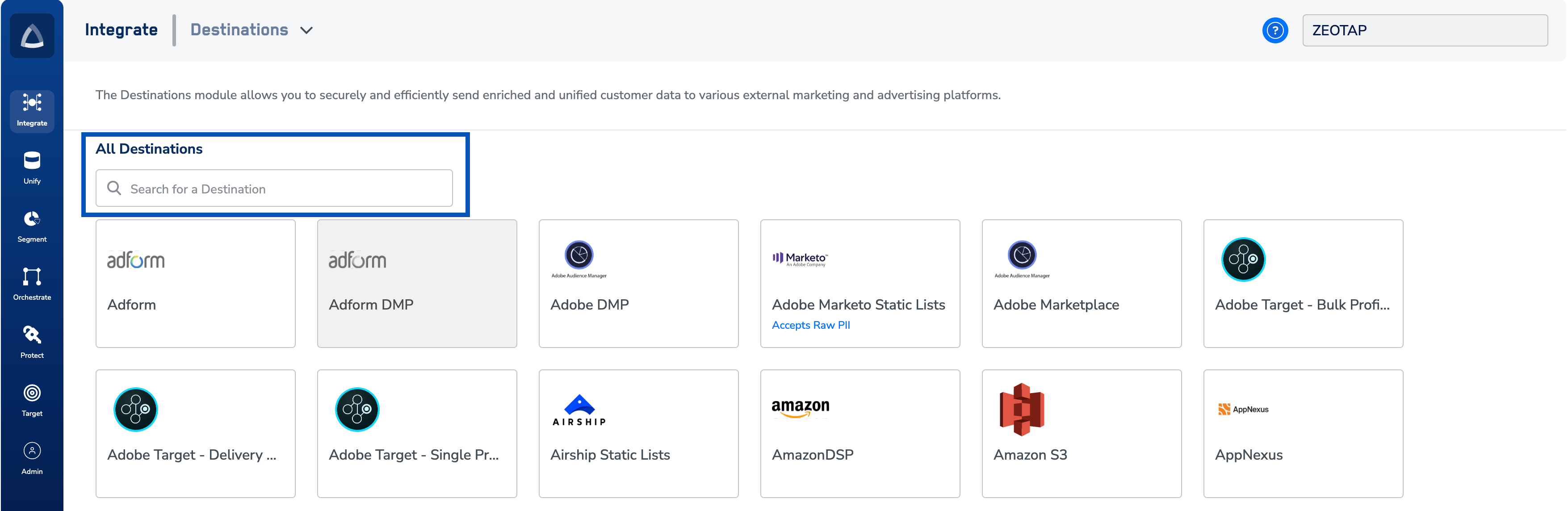 1. **A name for the destination.** Choose a name that identifies the Criteo Ad Account it connects to (for example, the brand or market the account serves) so the destination is easy to find when you link an audience.
2. **The Advertiser ID.** Paste the Criteo Ad Account ID you gathered in the prerequisites.
1. **A name for the destination.** Choose a name that identifies the Criteo Ad Account it connects to (for example, the brand or market the account serves) so the destination is easy to find when you link an audience.
2. **The Advertiser ID.** Paste the Criteo Ad Account ID you gathered in the prerequisites.
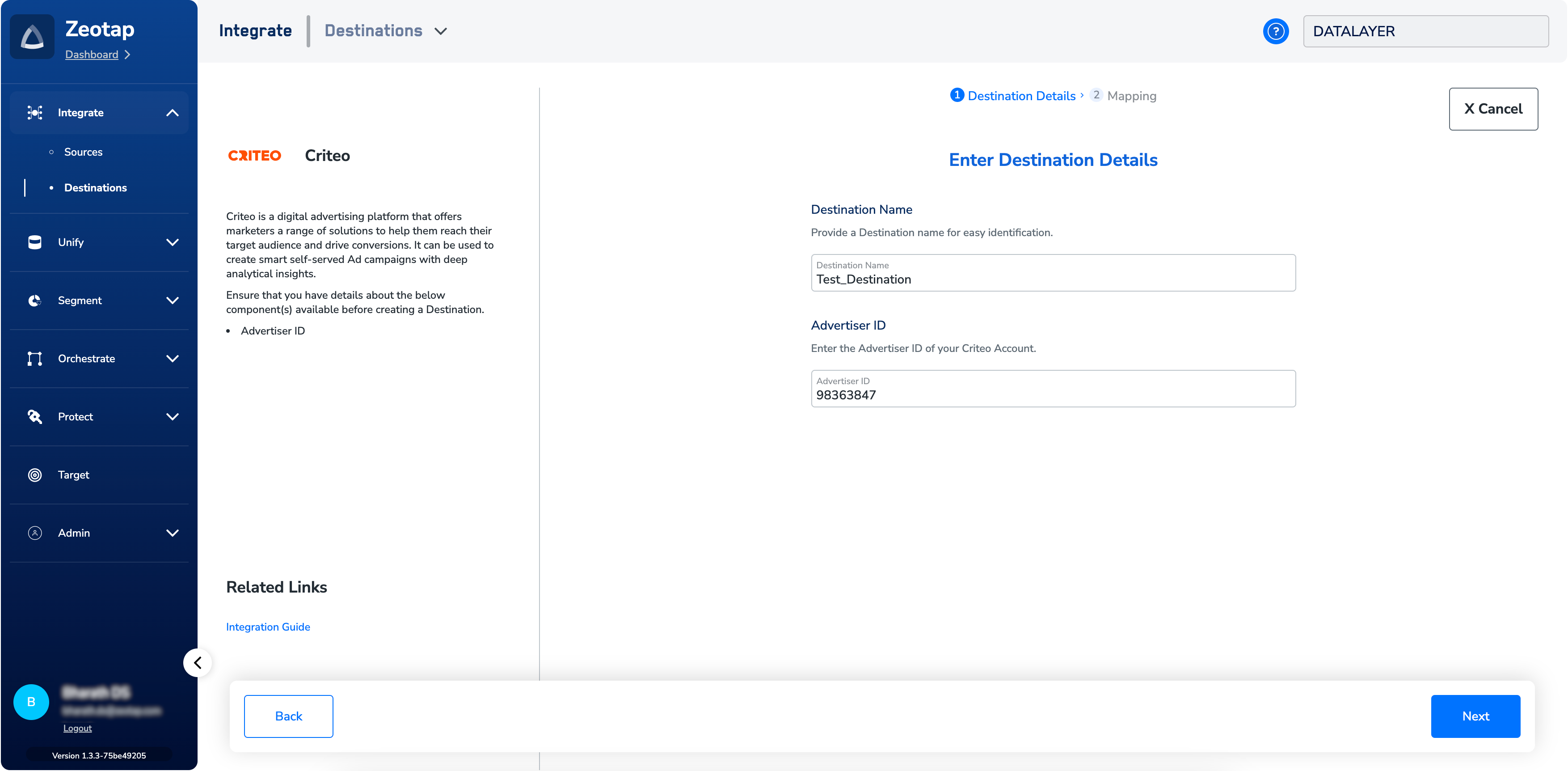 3. **Action and identifier mapping.** Select the **Send identifiers to Criteo** action, then map the Zeotap output identifiers you want to send. You can map any combination of MAIDs, raw email addresses, hashed email addresses (SHA-256), and Criteo Cookies (Gum IDs); add or remove rows so only the identifiers you intend to send remain in the mapping.
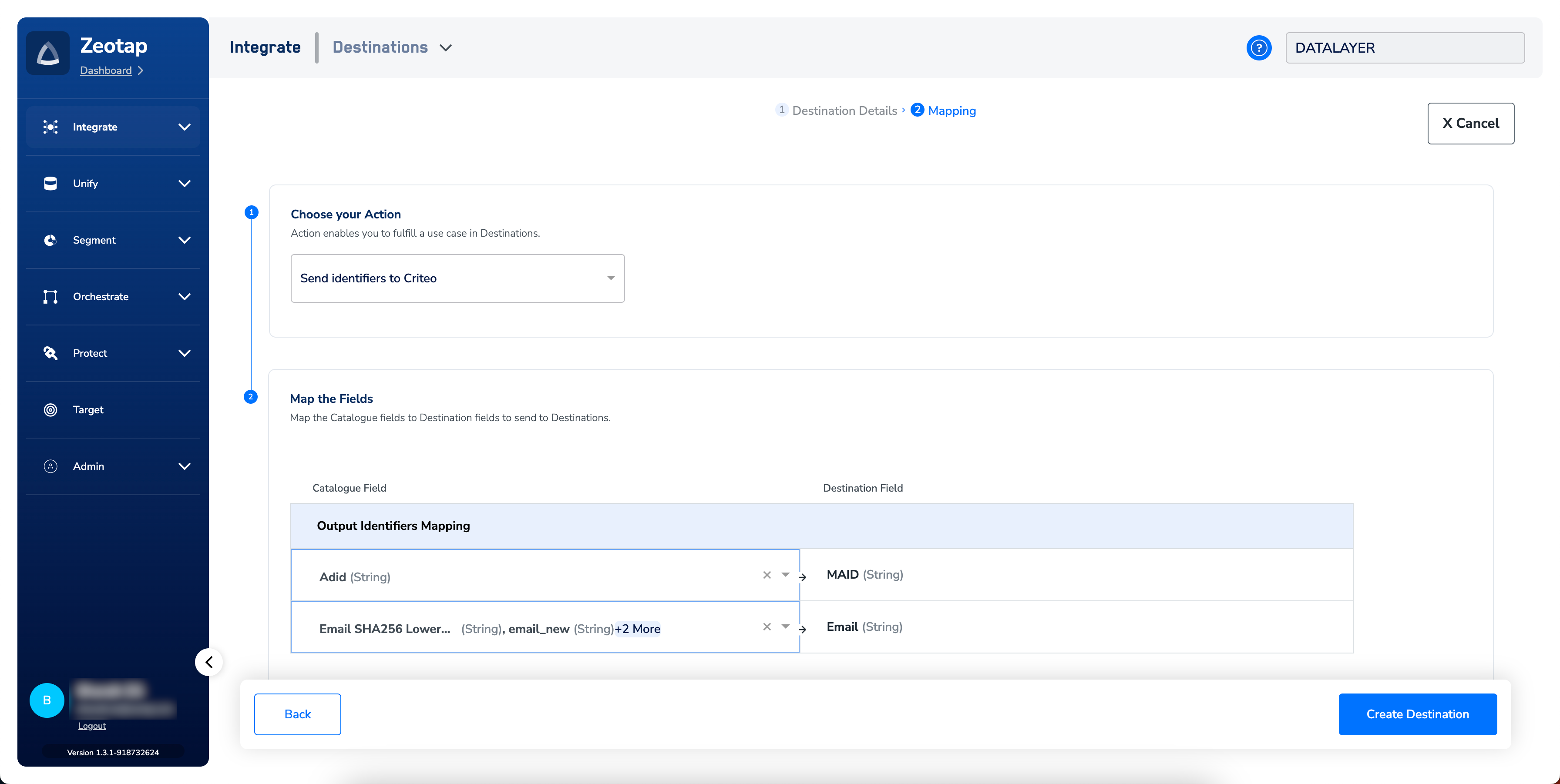 Save the destination once these inputs are complete. A saved configuration is equivalent to the following shape:
```json theme={null}
{
"destination_type": "criteo",
"name": "criteo-eu-prospecting",
"advertiser_id": "",
"action": "send_identifiers_to_criteo",
"identifier_mapping": [
"maid",
"email_raw",
"email_sha256",
"criteo_cookie_gum_id"
]
}
```
## Verify the destination is ready
After you save the destination, confirm:
* The destination is listed among your saved destinations and is selectable when you link an audience.
* The Advertiser ID shown on the destination matches the Criteo Ad Account ID you entered.
* The Criteo connection reflects the consent you granted — a destination whose consent step did not complete will not be available for activation.
If any of these checks fail, repeat the authorization step with a fresh single-use URL from your Zeotap representative and re-save the destination.
## Link an audience to the destination
Once the destination is verified, link it to the audience you want to activate. For the end-to-end linking workflow, see [Link an audience to the destination](/articles/integrate-customer/link-an-audience-to-the-destination). For the timing of when Criteo accepts the uploaded contact list into a campaign-ready audience, confirm the current expectation with your Criteo representative — it depends on Criteo-side processing that Zeotap does not control.
The terms "audience" and "segment" refer to the same thing in Zeotap CDP — a group of users defined by a set of criteria (for example, users over 18 who triggered an `addToCart` event in the last 30 days).
## How user disqualification works
The Criteo destination supports automatic user disqualification. When a user no longer satisfies the linked audience's criteria — because attribute values changed, consent was revoked, or another condition stopped being met — Zeotap CDP issues a delete for that user to Criteo on the next refresh of the audience. This is a programmatic behaviour: you do not configure or trigger it manually. The refresh frequency you set on each linked audience controls when removals are propagated. For the underlying mechanism, see [Delta Upload and Delete Functions](/articles/segment-customer/delta-upload-and-delete-functions).
## Troubleshooting
| Symptom | What it means | Where to look |
| ----------------------------------------------------------------------------- | --------------------------------------------------------------------------------------------------- | ------------------------------------------------------------------------------------------------------------------------------------------------------------------------------ |
| The authorization URL shows an expired or already-used message | The single-use URL was opened before, so the token is no longer valid | Request a new single-use URL from your Zeotap representative and complete the sign-in and consent steps in the same session |
| The Criteo destination is missing when you try to link an audience | The destination was not saved, or the Criteo consent step did not complete | Re-open the destination configuration, confirm the Advertiser ID is present, re-run the authorization if needed, and save again |
| An activation to Criteo completes but no users are matched on the Criteo side | The identifier types mapped on the destination are not the identifiers Criteo holds for those users | Review the identifier mapping on the destination and confirm the mapped identifiers (MAIDs, raw or SHA-256 emails, Criteo Cookies) are actually present on the source audience |
If the destination is configured correctly and the issue persists, contact your Zeotap representative. Include in your request:
* The destination name and the Advertiser ID it is configured with
* The audience ID and the timestamp of the last refresh
* The identifier types you mapped to Criteo
* A description of what you observed on the Criteo side (no users in the contact list, fewer users than expected, etc.)
## FAQ
The destination accepts MAIDs, raw email addresses, hashed email addresses (SHA-256), and Criteo Cookies (Gum IDs). You map any combination of these on the destination's identifier mapping.
No. The Advertiser ID (your Criteo Ad Account ID) is the only Criteo detail required to configure the destination. Authorization itself is handled through the single-use URL your Zeotap representative provides.
No. The Send identifiers to Criteo action supports ID Extension and Delete; it does not support Delta Upload. Each refresh sends the full qualifying set rather than only the changes since the previous refresh.
Yes. When a user no longer qualifies for the linked audience, Zeotap CDP issues a delete to Criteo on that audience's next refresh. No manual action is required on your side; the cadence is governed by the refresh frequency configured on the audience.
## Next steps
* [Explore Criteo Retail Media →](/articles/integrate-customer/criteo-retail-media)
* [Explore Criteo Offline Sales Reporting →](/articles/integrate-customer/criteo-offline-sales-reporting)
* [Explore how to link an audience to a destination →](/articles/integrate-customer/link-an-audience-to-the-destination)
* [Explore Delta Upload and Delete Functions →](/articles/segment-customer/delta-upload-and-delete-functions)
Save the destination once these inputs are complete. A saved configuration is equivalent to the following shape:
```json theme={null}
{
"destination_type": "criteo",
"name": "criteo-eu-prospecting",
"advertiser_id": "",
"action": "send_identifiers_to_criteo",
"identifier_mapping": [
"maid",
"email_raw",
"email_sha256",
"criteo_cookie_gum_id"
]
}
```
## Verify the destination is ready
After you save the destination, confirm:
* The destination is listed among your saved destinations and is selectable when you link an audience.
* The Advertiser ID shown on the destination matches the Criteo Ad Account ID you entered.
* The Criteo connection reflects the consent you granted — a destination whose consent step did not complete will not be available for activation.
If any of these checks fail, repeat the authorization step with a fresh single-use URL from your Zeotap representative and re-save the destination.
## Link an audience to the destination
Once the destination is verified, link it to the audience you want to activate. For the end-to-end linking workflow, see [Link an audience to the destination](/articles/integrate-customer/link-an-audience-to-the-destination). For the timing of when Criteo accepts the uploaded contact list into a campaign-ready audience, confirm the current expectation with your Criteo representative — it depends on Criteo-side processing that Zeotap does not control.
The terms "audience" and "segment" refer to the same thing in Zeotap CDP — a group of users defined by a set of criteria (for example, users over 18 who triggered an `addToCart` event in the last 30 days).
## How user disqualification works
The Criteo destination supports automatic user disqualification. When a user no longer satisfies the linked audience's criteria — because attribute values changed, consent was revoked, or another condition stopped being met — Zeotap CDP issues a delete for that user to Criteo on the next refresh of the audience. This is a programmatic behaviour: you do not configure or trigger it manually. The refresh frequency you set on each linked audience controls when removals are propagated. For the underlying mechanism, see [Delta Upload and Delete Functions](/articles/segment-customer/delta-upload-and-delete-functions).
## Troubleshooting
| Symptom | What it means | Where to look |
| ----------------------------------------------------------------------------- | --------------------------------------------------------------------------------------------------- | ------------------------------------------------------------------------------------------------------------------------------------------------------------------------------ |
| The authorization URL shows an expired or already-used message | The single-use URL was opened before, so the token is no longer valid | Request a new single-use URL from your Zeotap representative and complete the sign-in and consent steps in the same session |
| The Criteo destination is missing when you try to link an audience | The destination was not saved, or the Criteo consent step did not complete | Re-open the destination configuration, confirm the Advertiser ID is present, re-run the authorization if needed, and save again |
| An activation to Criteo completes but no users are matched on the Criteo side | The identifier types mapped on the destination are not the identifiers Criteo holds for those users | Review the identifier mapping on the destination and confirm the mapped identifiers (MAIDs, raw or SHA-256 emails, Criteo Cookies) are actually present on the source audience |
If the destination is configured correctly and the issue persists, contact your Zeotap representative. Include in your request:
* The destination name and the Advertiser ID it is configured with
* The audience ID and the timestamp of the last refresh
* The identifier types you mapped to Criteo
* A description of what you observed on the Criteo side (no users in the contact list, fewer users than expected, etc.)
## FAQ
The destination accepts MAIDs, raw email addresses, hashed email addresses (SHA-256), and Criteo Cookies (Gum IDs). You map any combination of these on the destination's identifier mapping.
No. The Advertiser ID (your Criteo Ad Account ID) is the only Criteo detail required to configure the destination. Authorization itself is handled through the single-use URL your Zeotap representative provides.
No. The Send identifiers to Criteo action supports ID Extension and Delete; it does not support Delta Upload. Each refresh sends the full qualifying set rather than only the changes since the previous refresh.
Yes. When a user no longer qualifies for the linked audience, Zeotap CDP issues a delete to Criteo on that audience's next refresh. No manual action is required on your side; the cadence is governed by the refresh frequency configured on the audience.
## Next steps
* [Explore Criteo Retail Media →](/articles/integrate-customer/criteo-retail-media)
* [Explore Criteo Offline Sales Reporting →](/articles/integrate-customer/criteo-offline-sales-reporting)
* [Explore how to link an audience to a destination →](/articles/integrate-customer/link-an-audience-to-the-destination)
* [Explore Delta Upload and Delete Functions →](/articles/segment-customer/delta-upload-and-delete-functions)