> ## Documentation Index
> Fetch the complete documentation index at: https://docs.zeotap.com/llms.txt
> Use this file to discover all available pages before exploring further.
# Logging In & Two-Factor Authentication
> How to make your first login to the Zeotap CDP platform, and how to set up and use Two-Factor Authentication (2FA) to secure your account.
## Logging In for the First Time
To make your first login to the Zeotap CDP account using the welcome link you received after subscription, perform the following steps:
To begin with, ensure that you have received the welcome email with the **FINISH SIGNUP** link from Zeotap CDP. If you cannot find the email, check your spam folder or contact the Zeotap support team at [support@zeotap.com](mailto:support@zeotap.com).
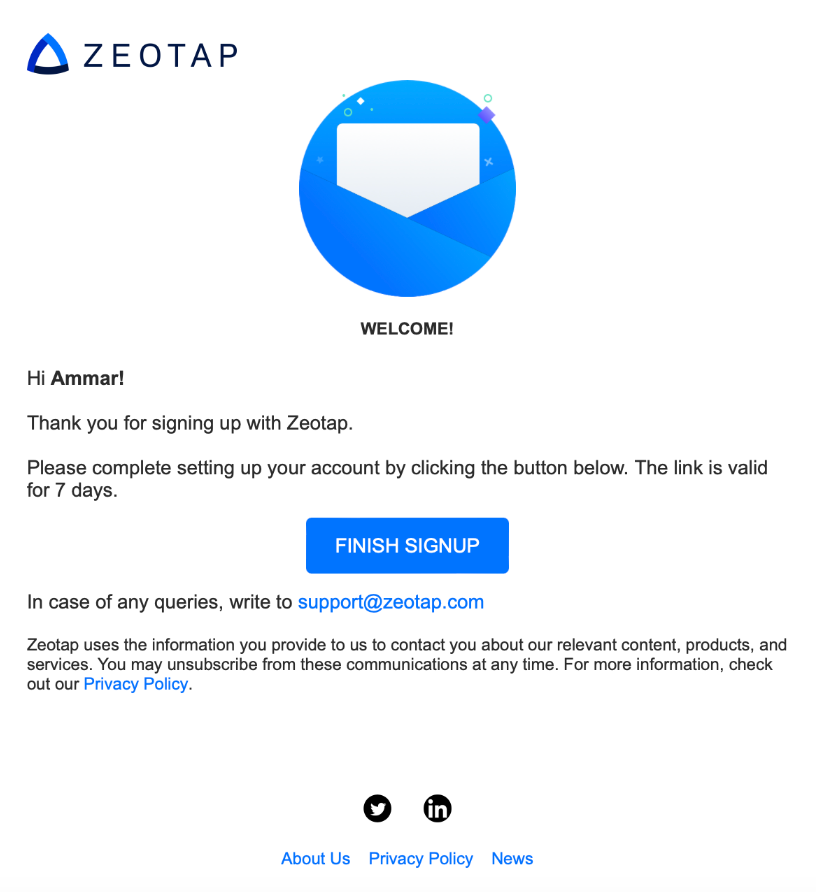 Click **FINISH SIGNUP** in the email.
Set a new password for your Zeotap CDP account. Ensure your password meets safety standards as mentioned in the image below.
Click **FINISH SIGNUP** in the email.
Set a new password for your Zeotap CDP account. Ensure your password meets safety standards as mentioned in the image below.
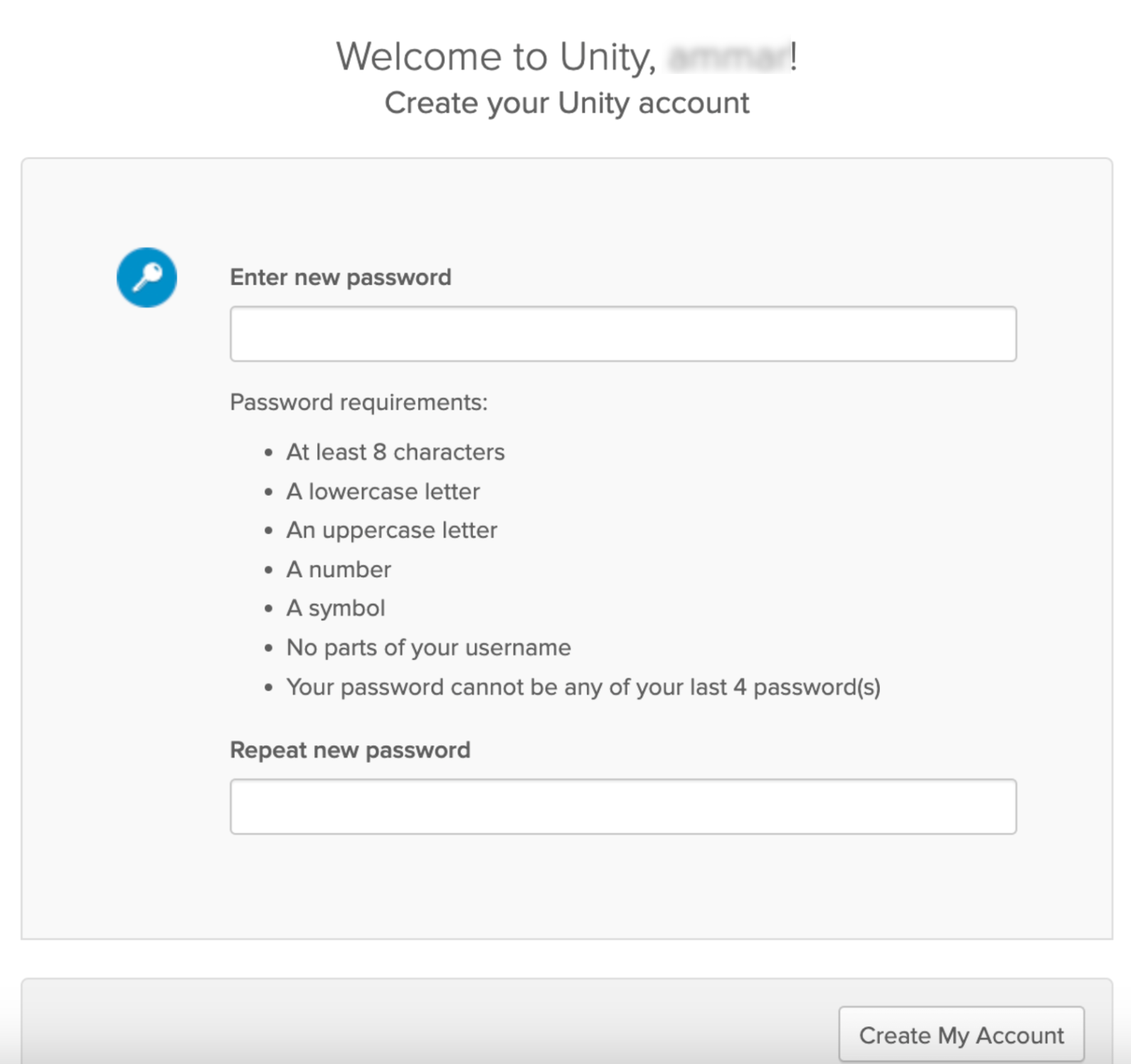 Click **Create My Account** to complete the account setup. After successfully creating your account, you will be automatically redirected to [app.zeotap.com](https://app.zeotap.com). If redirection does not occur, manually navigate to [app.zeotap.com](https://app.zeotap.com).
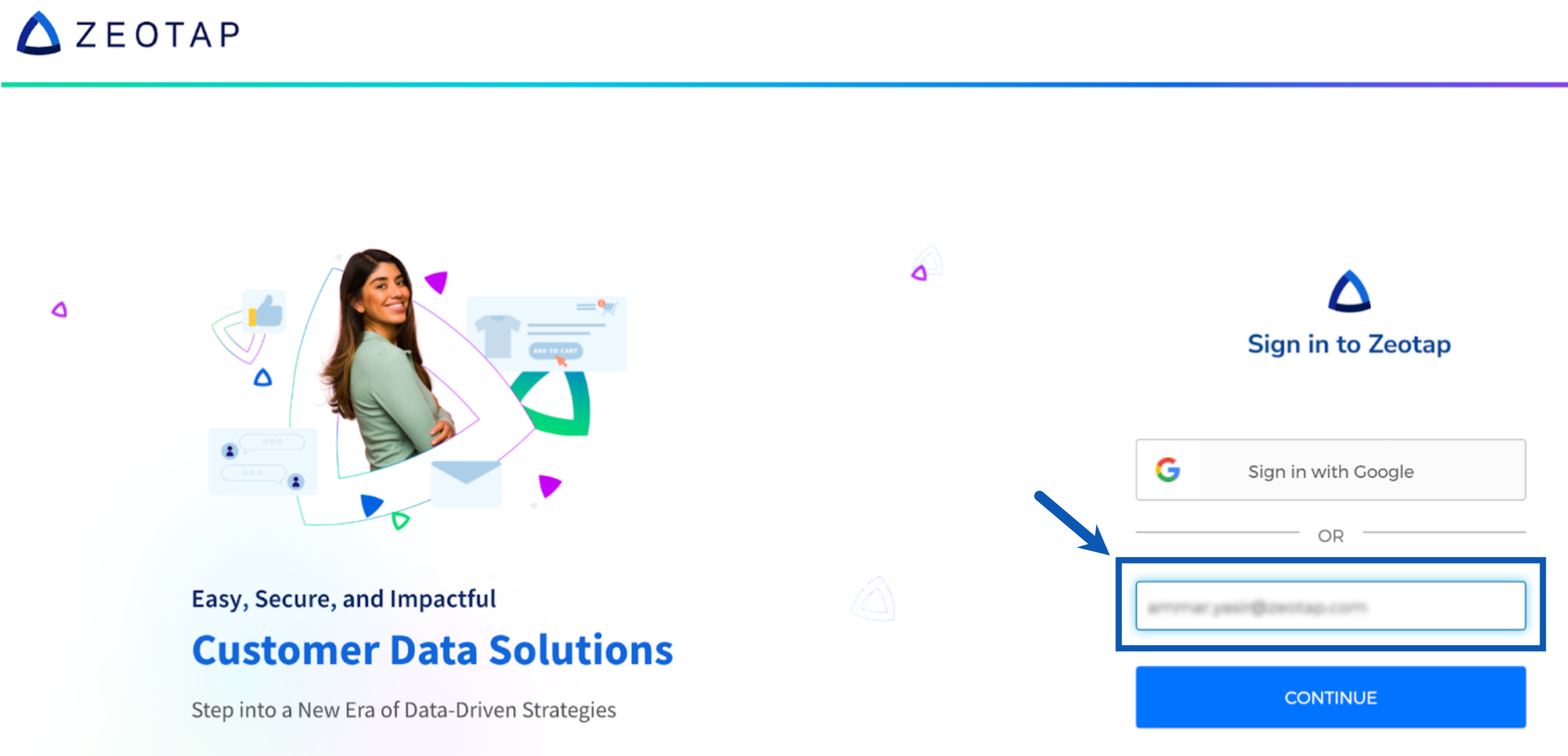 Upon successful login, you will be able to access the Zeotap CDP platform. Use the drop-down menu in the top right corner to switch between your preferred instance or Organization.
 ## Two-Factor Authentication (2FA)
Two-Factor Authentication (2FA) adds a second verification step to your Zeotap login, on top of your email and password. Once 2FA is set up, logging in requires a time-based one-time code from an authenticator app on your phone, in addition to your usual credentials.
If your organisation requires 2FA, it applies to every user logging in with a username and password. This can't be turned off at the individual user level — an organisation admin needs to raise a request with Zeotap support to remove the 2FA requirement, and this applies to the whole organisation, not select users. You'll be prompted to set it up automatically the first time you log in after it's enabled for your organisation.
**Note**
Zeotap currently supports one 2FA method: a third-party authenticator app (TOTP-based). This includes apps such as Google Authenticator, Microsoft Authenticator, and Authy.
### Why Two-Factor Authentication Matters
Your password alone protects your account only as far as the password itself stays secret. 2FA means that even if your password is ever guessed, phished, or leaked, an intruder still cannot log in without the current code generated on your personal device. This significantly lowers the risk of unauthorised access to your account and to the customer data available within it.
### Setting Up 2FA
You'll see the setup screen the first time you log in after your organisation enables 2FA. You'll need a phone with an authenticator app installed.
**Log in as usual.** Enter your email and password on the Zeotap login screen.
**Open the setup screen.** Since this is your first login with 2FA enabled, the **Two Factor Authentication Setup** screen appears automatically.
**Open your authenticator app.** On your phone, open Google Authenticator, Microsoft Authenticator, Authy, or any other TOTP-compatible authenticator app. If you don't already have one installed, install one from your phone's app store first.
**Scan the QR code.** Use your authenticator app to scan the QR code shown on screen. Can't scan it? Click **Can't scan the QR code?** and enter the setup key shown underneath into your authenticator app manually instead.
**Enter the 6-digit code.** Your authenticator app will now display a 6-digit code for your Zeotap account, refreshing every 30 seconds. Enter the current code into the **Enter 6 digit Code** field.
**Complete setup.** Click **Complete setup**. This button activates once a valid 6-digit code has been entered.
## Two-Factor Authentication (2FA)
Two-Factor Authentication (2FA) adds a second verification step to your Zeotap login, on top of your email and password. Once 2FA is set up, logging in requires a time-based one-time code from an authenticator app on your phone, in addition to your usual credentials.
If your organisation requires 2FA, it applies to every user logging in with a username and password. This can't be turned off at the individual user level — an organisation admin needs to raise a request with Zeotap support to remove the 2FA requirement, and this applies to the whole organisation, not select users. You'll be prompted to set it up automatically the first time you log in after it's enabled for your organisation.
**Note**
Zeotap currently supports one 2FA method: a third-party authenticator app (TOTP-based). This includes apps such as Google Authenticator, Microsoft Authenticator, and Authy.
### Why Two-Factor Authentication Matters
Your password alone protects your account only as far as the password itself stays secret. 2FA means that even if your password is ever guessed, phished, or leaked, an intruder still cannot log in without the current code generated on your personal device. This significantly lowers the risk of unauthorised access to your account and to the customer data available within it.
### Setting Up 2FA
You'll see the setup screen the first time you log in after your organisation enables 2FA. You'll need a phone with an authenticator app installed.
**Log in as usual.** Enter your email and password on the Zeotap login screen.
**Open the setup screen.** Since this is your first login with 2FA enabled, the **Two Factor Authentication Setup** screen appears automatically.
**Open your authenticator app.** On your phone, open Google Authenticator, Microsoft Authenticator, Authy, or any other TOTP-compatible authenticator app. If you don't already have one installed, install one from your phone's app store first.
**Scan the QR code.** Use your authenticator app to scan the QR code shown on screen. Can't scan it? Click **Can't scan the QR code?** and enter the setup key shown underneath into your authenticator app manually instead.
**Enter the 6-digit code.** Your authenticator app will now display a 6-digit code for your Zeotap account, refreshing every 30 seconds. Enter the current code into the **Enter 6 digit Code** field.
**Complete setup.** Click **Complete setup**. This button activates once a valid 6-digit code has been entered.
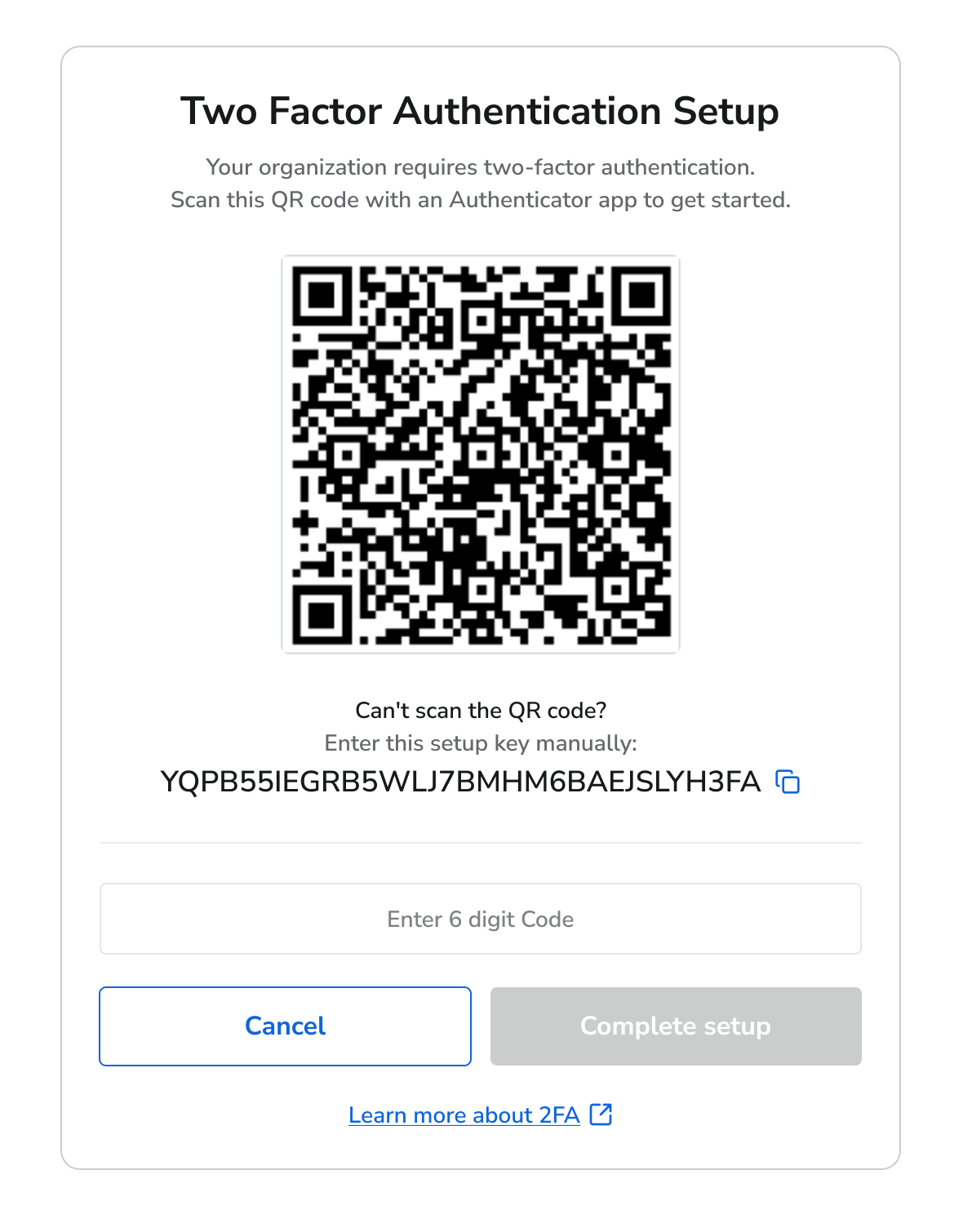 Your setup key is unique to your account. Treat it like a password — don't share it, screenshot it, or send it to anyone, including colleagues or support.
### Logging In with 2FA
Once setup is complete, you'll be asked for a code every time you log in.
**Log in as usual.** Enter your email and password on the Zeotap login screen.
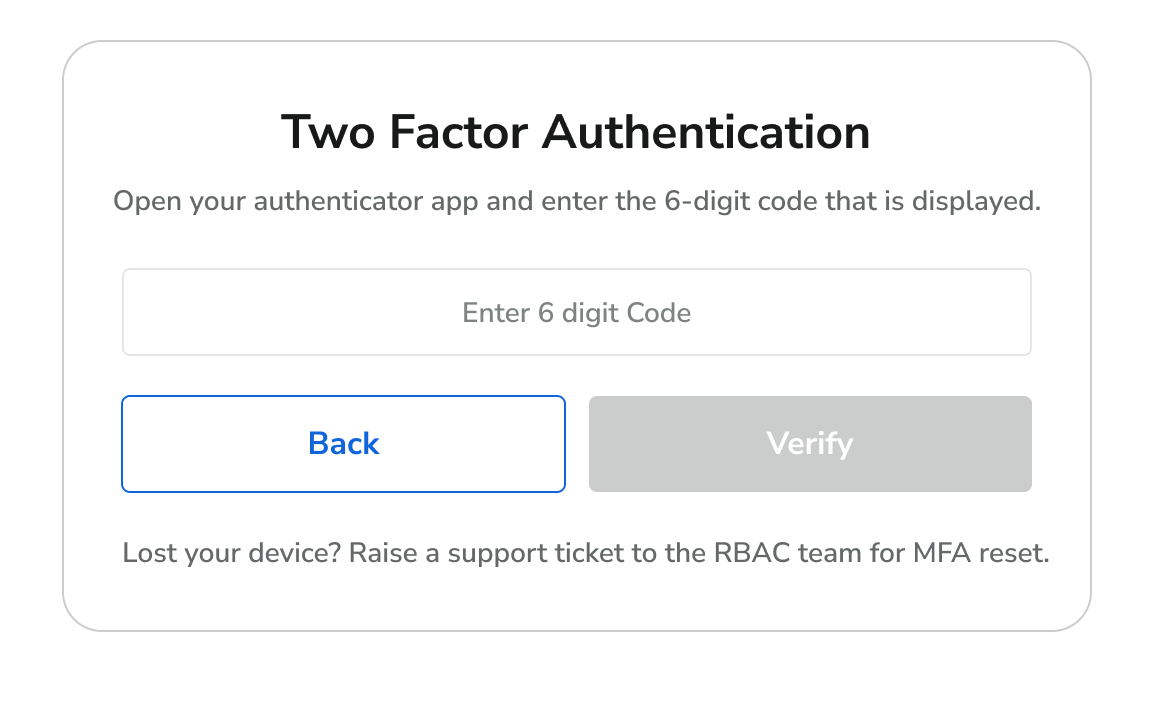
**Open the verification screen.** The **Two Factor Authentication** screen appears, asking for your 6-digit code.
**Get your current code.** Open your authenticator app and note the current 6-digit code for your Zeotap account.
**Verify.** Enter the code into the **Enter 6 digit Code** field and click **Verify**. Click **Back** if you need to return to the login screen.
Your setup key is unique to your account. Treat it like a password — don't share it, screenshot it, or send it to anyone, including colleagues or support.
### Logging In with 2FA
Once setup is complete, you'll be asked for a code every time you log in.
**Log in as usual.** Enter your email and password on the Zeotap login screen.
**Open the verification screen.** The **Two Factor Authentication** screen appears, asking for your 6-digit code.
**Get your current code.** Open your authenticator app and note the current 6-digit code for your Zeotap account.
**Verify.** Enter the code into the **Enter 6 digit Code** field and click **Verify**. Click **Back** if you need to return to the login screen.
 ### Lost Access to Your Authenticator Device?
If you've lost, replaced, or reset the phone with your authenticator app on it, you won't be able to generate a valid code to log in. Since Zeotap doesn't currently support backup codes or a secondary 2FA method, you'll need help to regain access.
**Raise a support ticket.** Raise a support ticket with the Support team, requesting an MFA reset. Include your registered email address and organisation name.
**Verification.** The Zeotap team will verify your identity before resetting your 2FA.
**Set up again.** Once your 2FA is reset, log in with your email and password. You'll see the setup screen again and can link a new device by scanning the QR code.
## Frequently Asked Questions
Any TOTP-compatible authenticator app works, including Google Authenticator, Microsoft Authenticator, and Authy.
Not on your own — 2FA can't be disabled at the individual user level. If your organisation requires 2FA, an organisation admin can raise a request with Zeotap support to remove the requirement. This is an org-wide setting, so it applies to all users in the organisation, not select individuals.
Yes. A current 6-digit code from your authenticator app is required at every login, not just the first one.
Codes refresh every 30 seconds, so make sure you're entering the current one. Also check that the time on your phone is set automatically — authenticator codes rely on your device's clock being accurate.
Scanning the QR code or entering the setup key on additional devices will also generate valid codes for your account. Keep in mind that anyone with the setup key can generate a code, so only add devices you control.
Raise a support ticket with the Support team requesting an MFA reset (see **Lost Access to Your Authenticator Device?** above).
## Related Topics
As your next step, you may need guidance on creating an organisation and adding users. Use the following links to navigate:
### Lost Access to Your Authenticator Device?
If you've lost, replaced, or reset the phone with your authenticator app on it, you won't be able to generate a valid code to log in. Since Zeotap doesn't currently support backup codes or a secondary 2FA method, you'll need help to regain access.
**Raise a support ticket.** Raise a support ticket with the Support team, requesting an MFA reset. Include your registered email address and organisation name.
**Verification.** The Zeotap team will verify your identity before resetting your 2FA.
**Set up again.** Once your 2FA is reset, log in with your email and password. You'll see the setup screen again and can link a new device by scanning the QR code.
## Frequently Asked Questions
Any TOTP-compatible authenticator app works, including Google Authenticator, Microsoft Authenticator, and Authy.
Not on your own — 2FA can't be disabled at the individual user level. If your organisation requires 2FA, an organisation admin can raise a request with Zeotap support to remove the requirement. This is an org-wide setting, so it applies to all users in the organisation, not select individuals.
Yes. A current 6-digit code from your authenticator app is required at every login, not just the first one.
Codes refresh every 30 seconds, so make sure you're entering the current one. Also check that the time on your phone is set automatically — authenticator codes rely on your device's clock being accurate.
Scanning the QR code or entering the setup key on additional devices will also generate valid codes for your account. Keep in mind that anyone with the setup key can generate a code, so only add devices you control.
Raise a support ticket with the Support team requesting an MFA reset (see **Lost Access to Your Authenticator Device?** above).
## Related Topics
As your next step, you may need guidance on creating an organisation and adding users. Use the following links to navigate: